Views and columns
Each folder can have its own view, and CannonCommander remembers it.
Pick a view
- Open the folder.
- Choose View > Layout and one of the nine views, or press Ctrl+Shift+V to step through them.
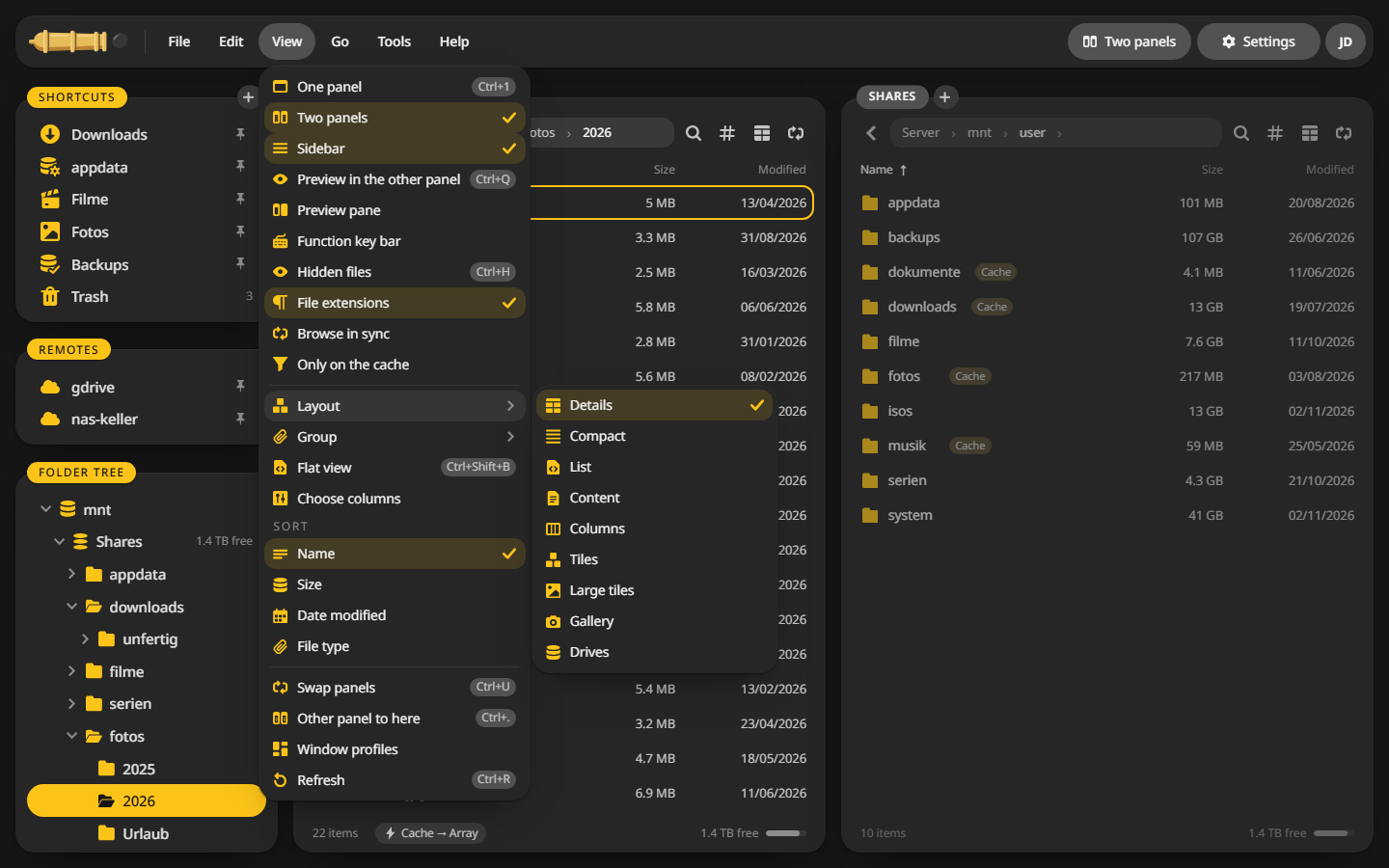
| View | Good for |
|---|---|
| Details | Everything at a glance, with the columns you choose |
| Compact and List | Many files in little room |
| Content | Files with a line of what is inside |
| Columns | Deep folder trees, one column per level |
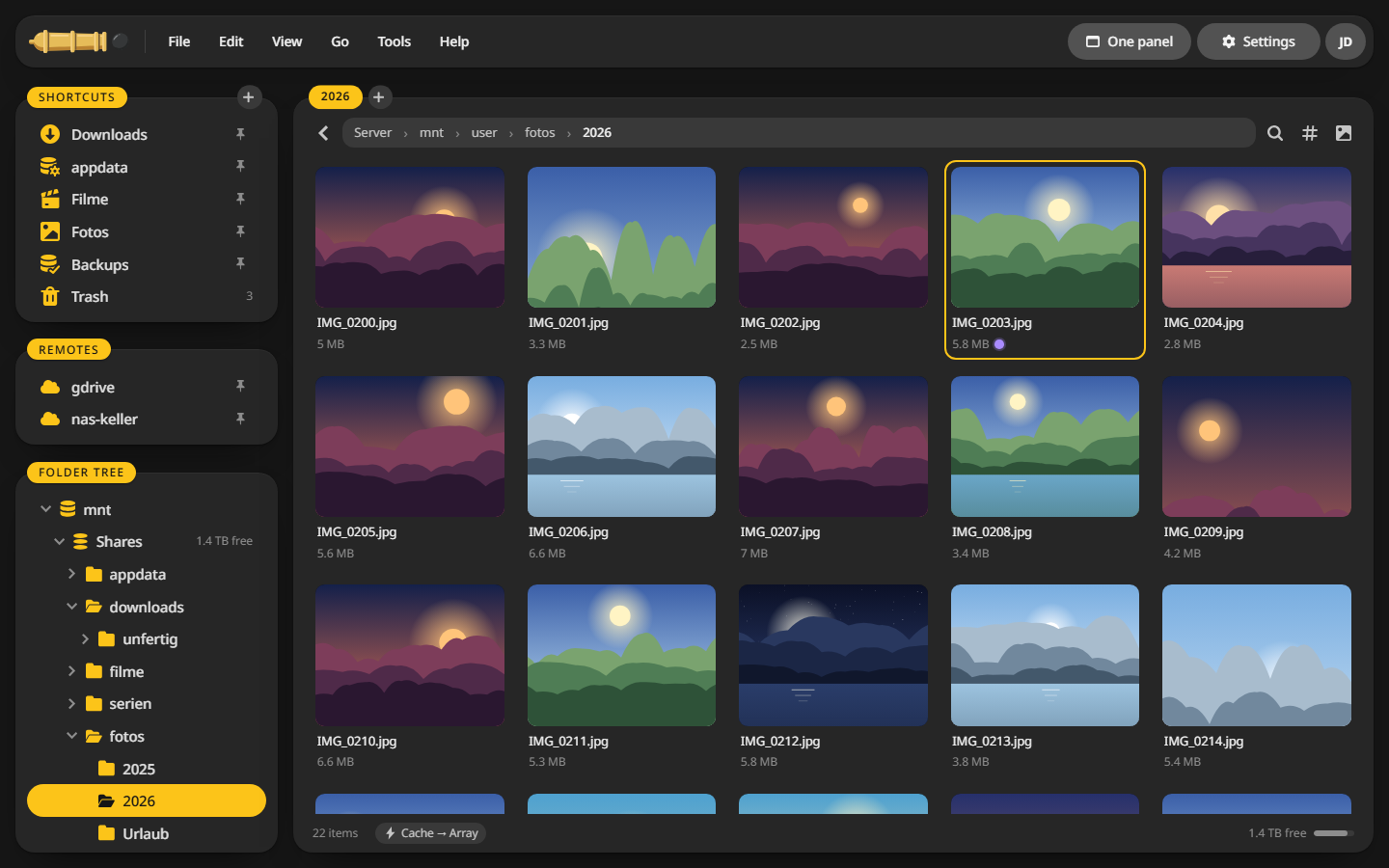
| Tiles and Large tiles | Photos and videos with thumbnails |
| Gallery | One big picture and a strip of the rest |
| Drives | Disks and pools with their fill level |
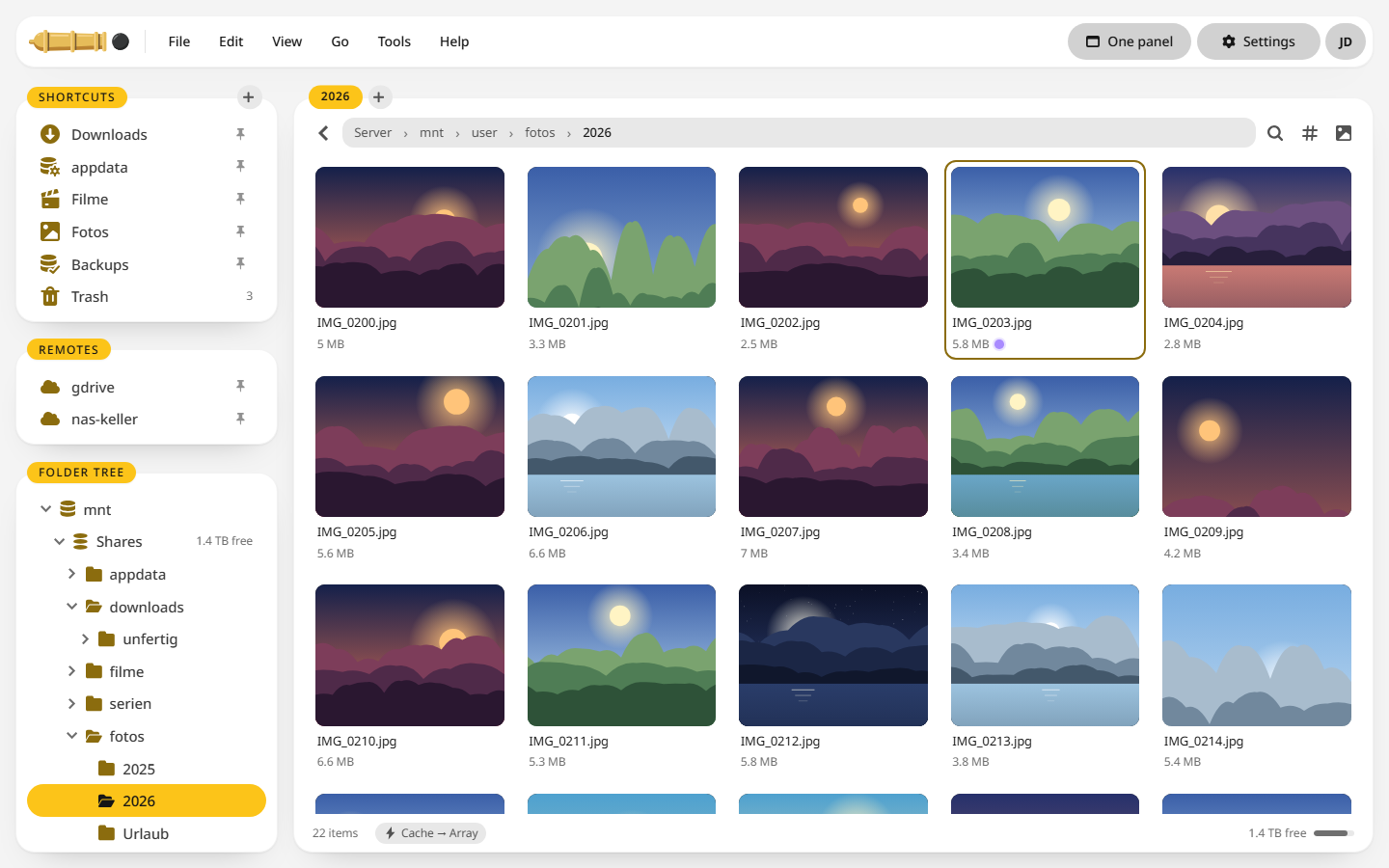
A folder of photos in large tiles, in one wide panel (Ctrl+1):
Choose columns
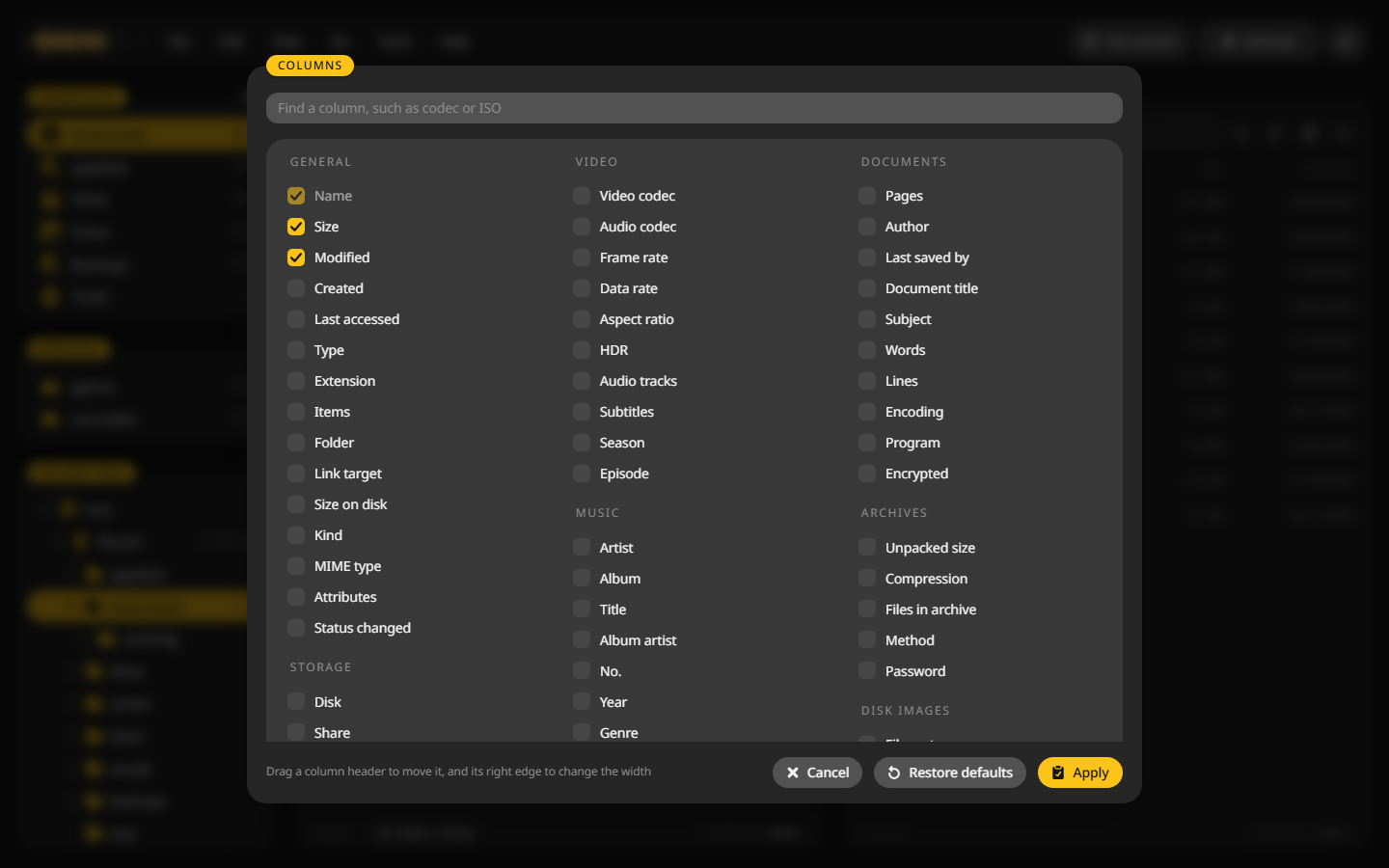
The details view has 89 columns to choose from: the usual name, size and dates, and also Unraid's disk and share, permissions, video codec and length, artist and album, camera and lens, page count, checksums and more.
- Choose View > Choose columns.
- Tick the columns you want and click Apply.
- Drag a column header in the list to move it, and its right edge to change its width.
Group, sort and flat view
- View > Group puts the files in groups by kind, date or size.
- View > Sort sorts by name, size, date or type. A click on a column header does the same.
- View > Flat view (Ctrl+Shift+B) shows the files of all subfolders in one list.
- View > Only on the cache shows only what still waits on Unraid's cache.
Thumbnails
Photos and videos get thumbnails from ffmpeg, made in the background. Switch them off under Settings > Integrations > Videos and pictures if the server is short on power.