Sign-in services
A sign-in service signs people in over OpenID Connect: Pocket ID, authentik, Authelia, Keycloak, Kanidm, Zitadel or any other. The sign-in page then shows its button below the password:
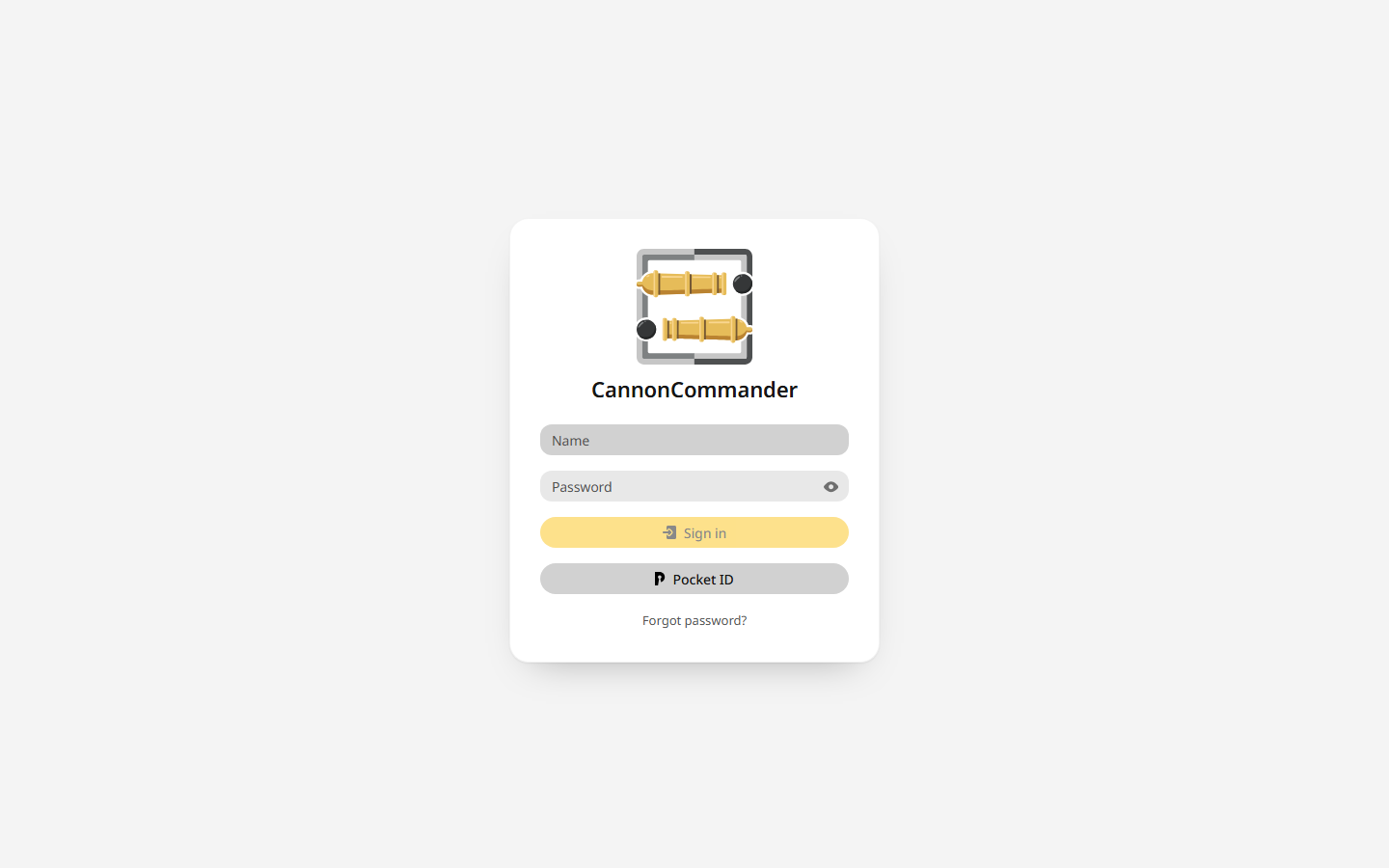
You set one up in the app or in config.yaml. Either way, CannonCommander needs its address in http.externalUrl, so the service can send people back, see Reverse proxy. For a service in config.yaml that address must be https, or CannonCommander does not start.
In the app
You can add one before CannonCommander has a password. Then the first test sign-in that works makes your account at the service the owner and turns the service on, and from then on everyone signs in. Turning the last service off opens CannonCommander again. Set a password as well, so you still get in when the service is down.
- Open Settings > Account & security and click Add a sign-in service at the bottom.
- Pick your service from the list, or Other sign-in service for any other.
- Create an application for CannonCommander at the service and give it the Redirect address the form shows. The button next to it copies it.
- Fill in the service's Address, the Client ID and the Client secret. Pasting both into Client ID at once fills both fields, as two lines, as
id:secretor as the JSON many services hand out. - Pick the Role for newcomers. Whoever the service lets in for the first time gets it, and it stays User unless you change it.
- Save, then click Test sign-in. The button shows up on the sign-in page once a test sign-in has worked.
More settings holds the name on the button, the scopes and the claims for the name and the groups. For the services in the list CannonCommander knows them already.
In config.yaml
The short form is enough for the services in the list. CannonCommander recognises them by their address:
http:
  externalUrl: "https://files.example.com"
auth:
  methods:
    oidc:
      enabled: true
      issuerUrl: "https://id.example.com"
      clientId: "cannoncommander"
      clientSecret: "the secret from your service"
Give the service this redirect address, then restart the container:
The service shows up in Sign-in services marked from config.yaml, and you change it in the file.
Closed without a password
With a service in config.yaml, CannonCommander stays closed even before anyone has a password. Only the service lets people in.
All keys
| Key | What it does |
|---|---|
enabled |
Switches the service on. |
issuerUrl, clientId, clientSecret |
The application at your service. |
name |
The name on the button, such as Family login. Empty takes the service's own name. |
provider |
The kind of service when it is not recognised: pocket-id, authentik, authelia, keycloak, kanidm, zitadel or custom. |
scopes |
What CannonCommander asks for. Empty takes the service's usual scopes. |
userIdentifier |
The claim that becomes the account name. Empty takes the service's, usually preferred_username. |
groupsClaim |
The claim with the groups. Empty takes the service's, usually groups. |
adminGroup, userGroups |
Who becomes an admin and who gets in, see below. |
caFile |
A PEM file with the certificate authority of a service that runs on your own certificate. |
A service on your own certificate needs caFile. CannonCommander does not start with disableVerifyTLS.
A service CannonCommander does not recognise, with a name of its own and your own certificate:
oidc:
  enabled: true
  name: "Family login"
  provider: "custom"
  issuerUrl: "https://login.example.com"
  clientId: "cannoncommander"
  clientSecret: "the secret from your service"
  caFile: "/config/my-ca.pem"
Who gets in
- Someone who signs in for the first time gets an account on the spot, with the role User.
- Members of
adminGroupbecome admins. Whoever leaves the group is a user again at the next sign-in. userGroupslets in only the groups you list.
Keep the secret out of the file
The client ID and secret can come from the variables CC_OIDC_CLIENT_ID and CC_OIDC_CLIENT_SECRET instead.
After a password reset
A reset through the container log pauses every sign-in service. Click Turn on again on the service, or Test sign-in for one added in the app.