Users and groups
Give each person an account of their own, with a role and a folder they stay inside.
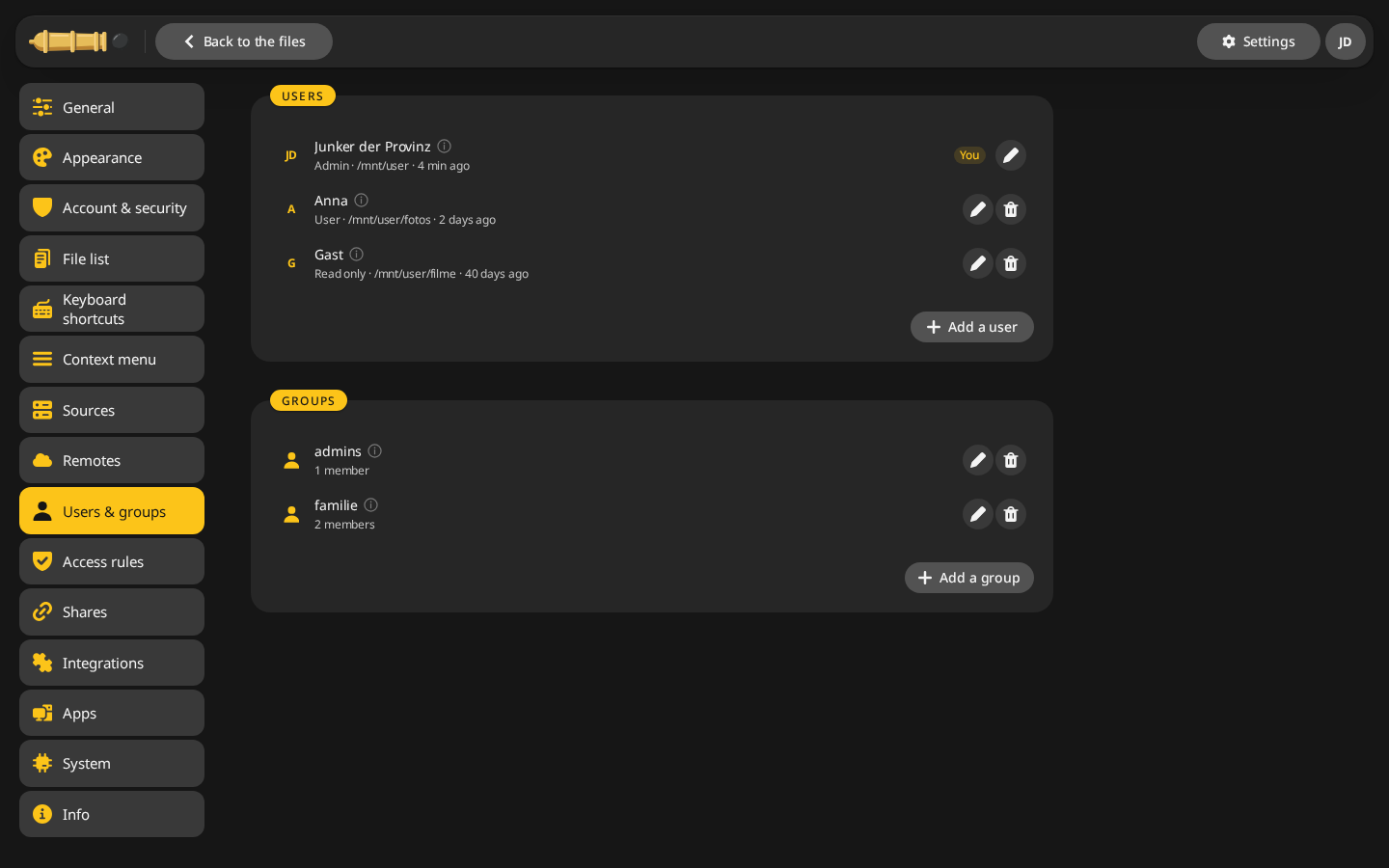
Add a user
- Open Settings > Users & groups and click Add a user.
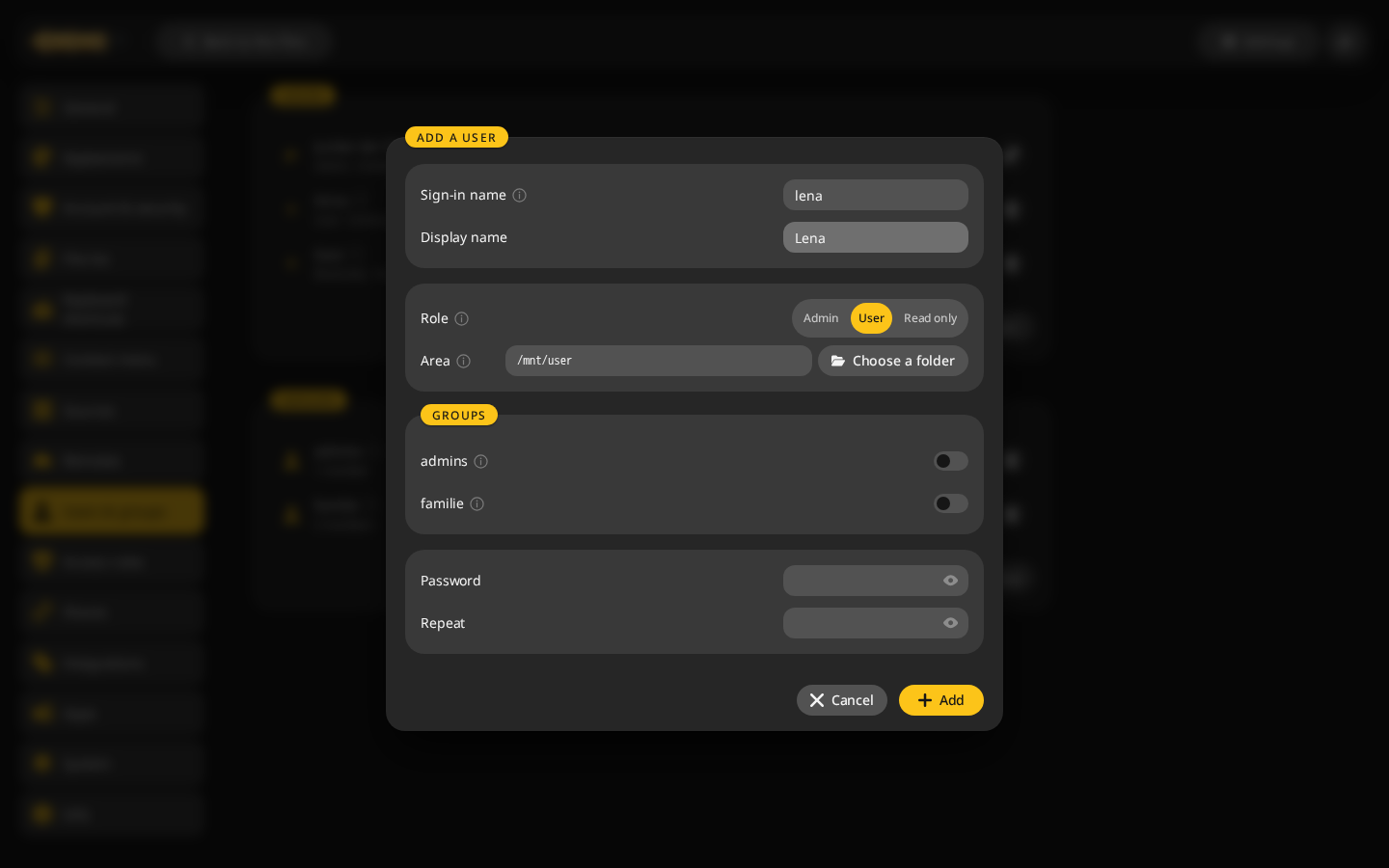
- Fill in:
- Sign-in name: lower case letters, such as
lena. - Display name: how the name shows in the interface.
- Role: Admin, User or Read only.
- Area: the folder this person sees, with everything below it.
- Groups: switch on the groups the person belongs to.
- Password: typed twice. Any length works, and under 12 characters the window tells you it is short.
- Sign-in name: lower case letters, such as
- Click Add.
Roles
| Role | May |
|---|---|
| Admin | Everything, the settings included. Sees disks and pools below /mnt |
| User | Work with the files in their area: copy, move, rename, delete, share |
| Read only | Look and download |
The owner, the account that set the first password, always stays an admin. Nobody can block or remove it.
Groups
A group bundles people so an access rule can apply to all of them at once. Add a group, give it a name, then add members from the user's window.
Block a user
Open the user and switch on Blocked. The account signs in nowhere until you switch it off again, and its sessions and API tokens end.
Remove a user
Open the user and choose Remove user. Their files stay where they are, and their share links stop working.
In the desktop app there are no users. It runs for you alone, see Desktop app.