MCP server
The built-in MCP server lets the AI assistants you already use browse, search and read your files, and with your say-so tidy them up. Each assistant gets a key of its own and exactly its owner's rights.
Connect an assistant
-
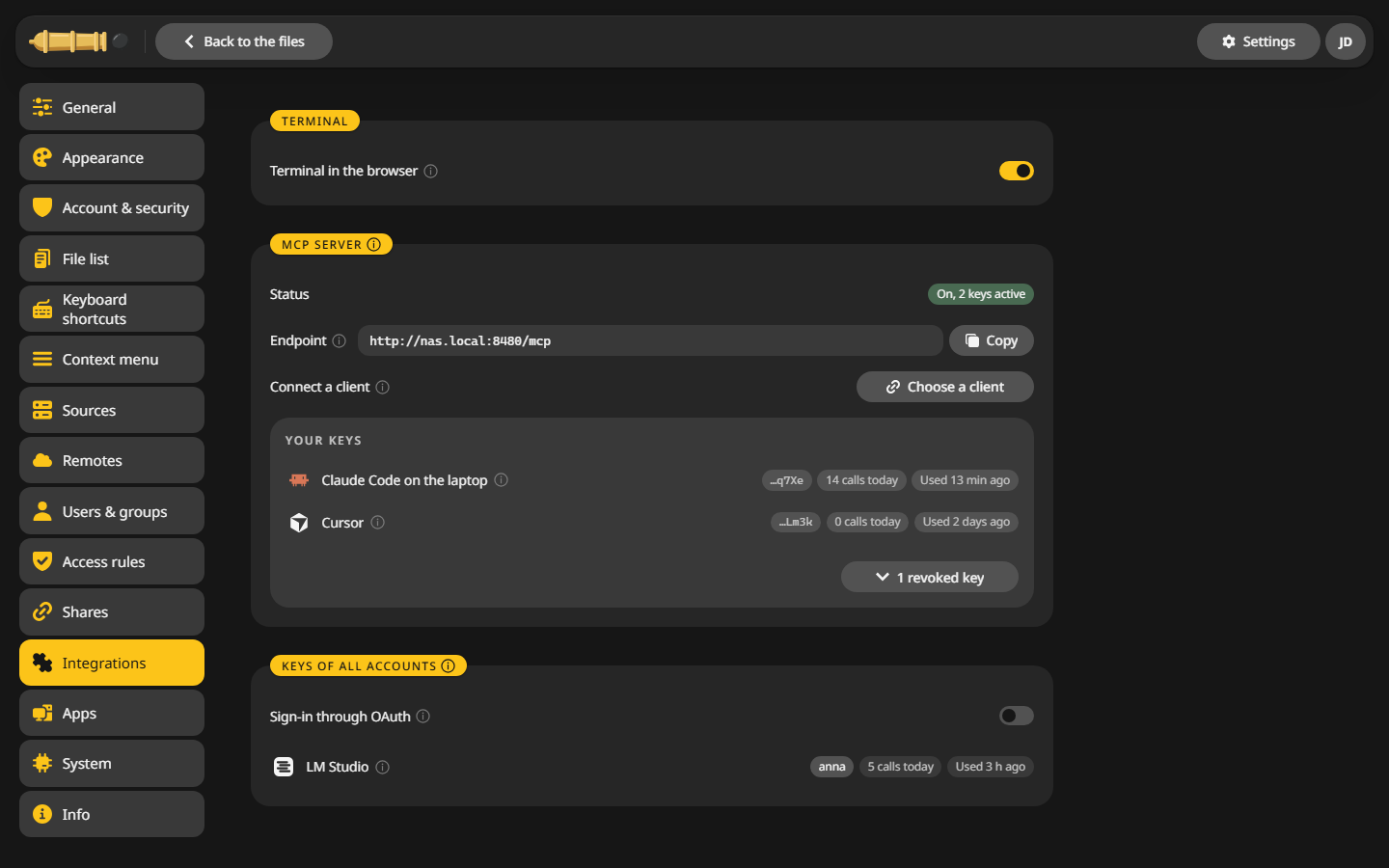
Open Settings > Integrations and find the MCP server card.
-
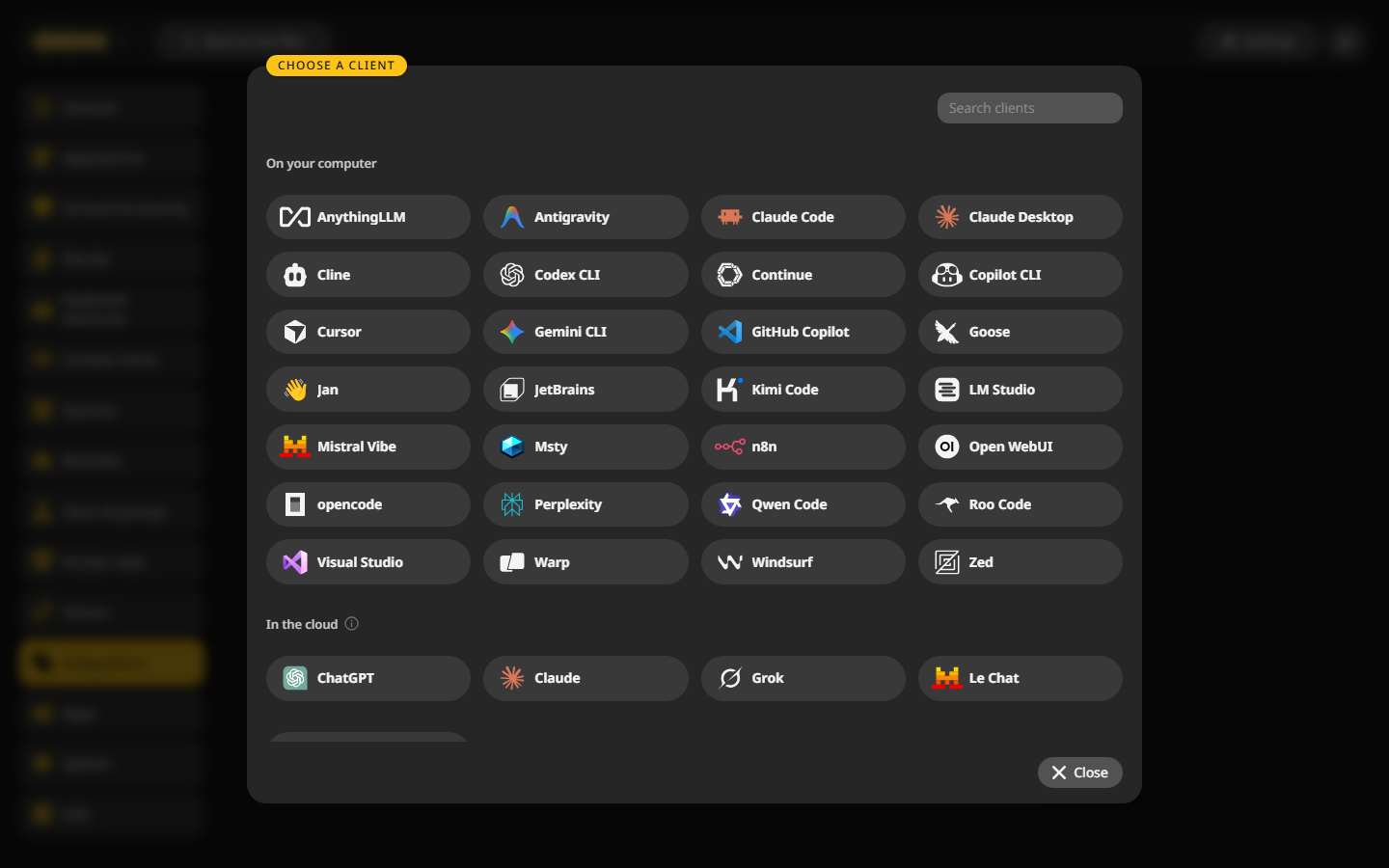
Click Choose a client and pick yours. Other client covers any that is not listed.
-
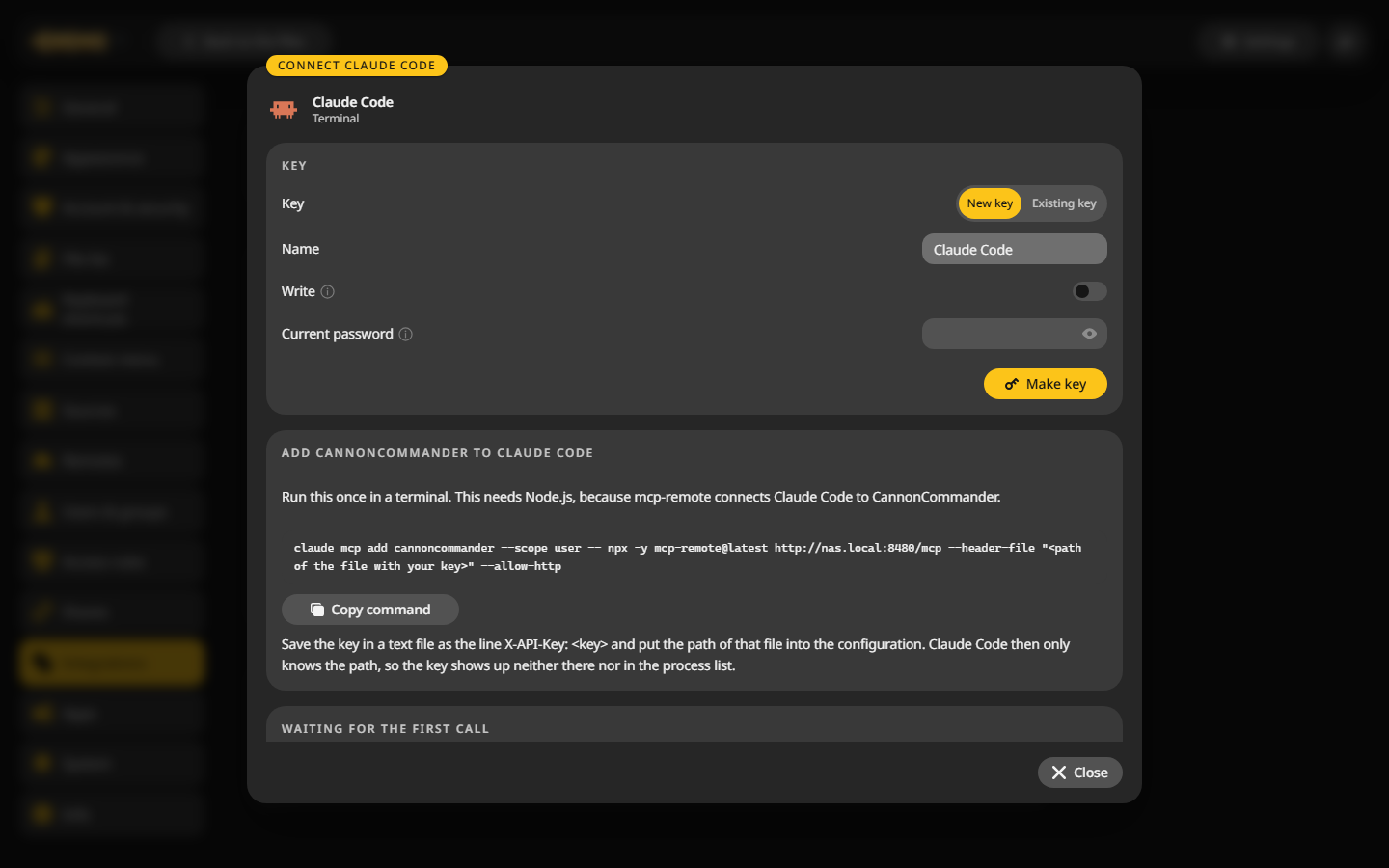
Follow the three steps in the window: make a key, copy the configuration into your client, and wait for the first call. The card turns green once the client has called.
The endpoint is /mcp below the address you open CannonCommander at, such as http://nas.local:8480/mcp. It speaks Streamable HTTP and takes the key in the Authorization or X-API-Key header.
Reading and writing
- A new key only reads: it lists folders, searches and reads text files.
- Write is a switch per key and asks for your password first when CannonCommander has one. With it on, the assistant can create folders, copy, move, rename, move things to the trash and restore them.
- Every change is a job you can follow and undo. Nothing is ever deleted for good.
- Writing is held to 25 entries per call and 200 per hour.
What the assistant reads, such as folder names or the text of a file, goes to the AI provider behind it.
Keep an eye on a key
Each key shows its calls today and when it was last used. Its log lists what it did, and the activity log names the key next to each change. Replace gives a key a new secret, Revoke ends it.
An admin sees the keys of every account, can take writing away and revoke them. The server keeps only a fingerprint of each key.
Assistants in the cloud
Web chats in the cloud cannot take a key. For them:
- Make CannonCommander reachable from the internet over https, for example behind a reverse proxy. A login on the proxy may guard the interface, but
/mcphas to get through without it. - As admin, switch on Sign-in through OAuth under Keys of all accounts in the same card, with the public address.
- Add CannonCommander in the assistant. It sends you to a CannonCommander page where you allow it, after signing in if CannonCommander has a password.
In the desktop app
The endpoint is http://127.0.0.1:<port>/mcp on your own computer. The port can change when another program has taken it, so check the card if a client stops connecting.