Keyboard shortcuts
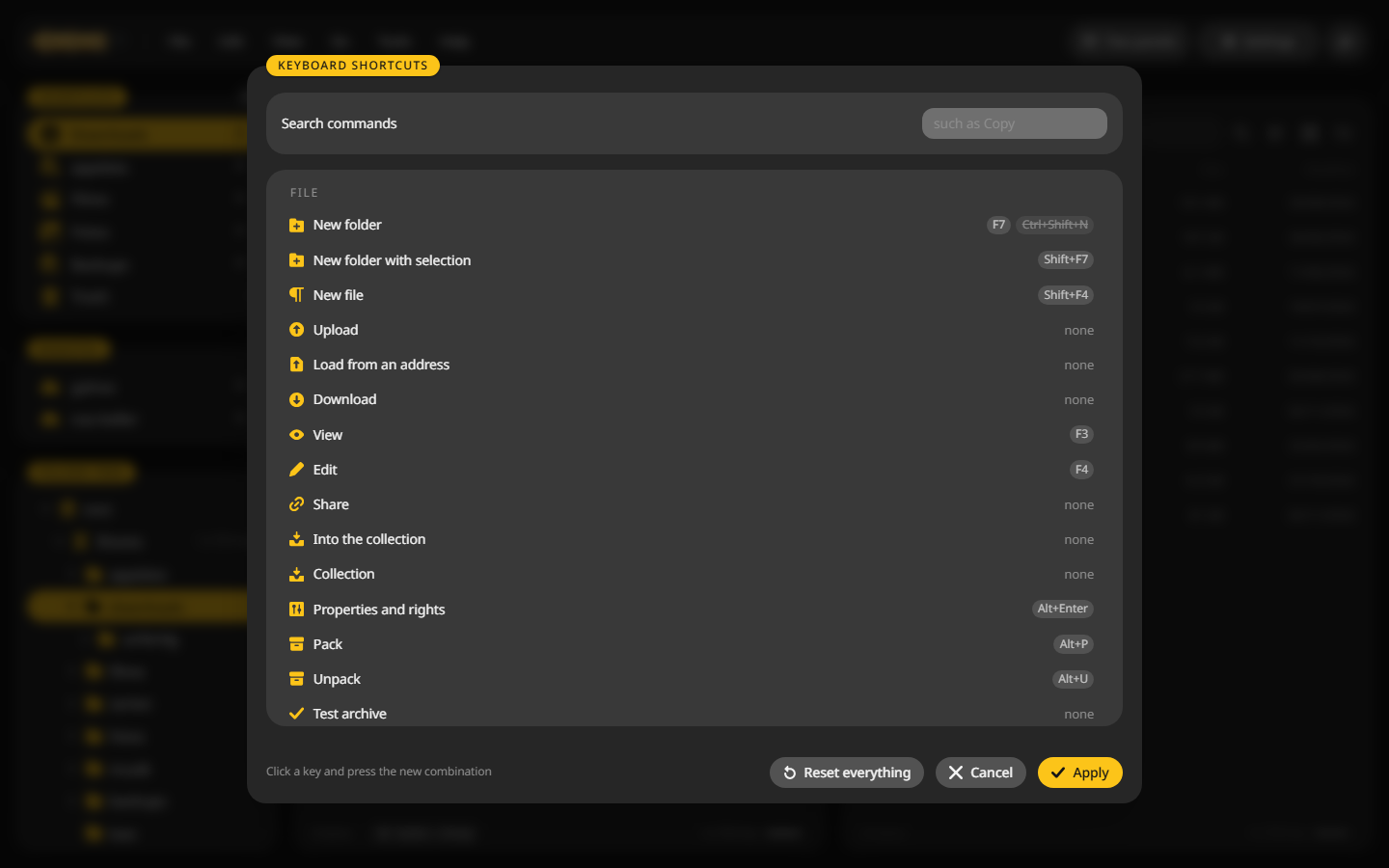
CannonCommander follows the keys of the classic commanders. F1 lists all of them, and every one can be changed.
The function keys
| Key | Does |
|---|---|
| F1 | Keyboard shortcuts |
| F2 | Rename |
| F3 | View |
| F4 | Edit, Shift+F4 makes a new file |
| F5 | Copy to the other panel |
| F6 | Move to the other panel |
| F7 | New folder, Shift+F7 with the marked files inside |
| F8 | Delete, also Del |
| F9 | Search, also Alt+F7 |
| F10 | Menu bar |
View > Function key bar shows these keys as buttons at the bottom.
More keys worth knowing
| Key | Does |
|---|---|
| Ctrl+K | Find a command |
| Space | Quick look |
| / or Ctrl+F | Filter this folder |
| Ctrl+M | Rename many |
| Ctrl+Shift+C | Compare folders |
| Alt+P and Alt+U | Pack and unpack |
| Alt+D | Disk usage |
| Alt+Enter | Properties and rights |
| Ctrl+Z | Undo |
| Ctrl+Q | Preview in the other panel |
| Ctrl+H | Hidden files |
| Alt+1 to Alt+4 | Jump to the sidebar, the left panel, the right panel, the jobs |
The shortcut window
F1 lists every command with its keys, grouped by menu. The field at the top finds one by name.
Change a key
- Open Settings > Keyboard shortcuts.
- Click the key next to a command and press the new one.
- Reset brings back the defaults.
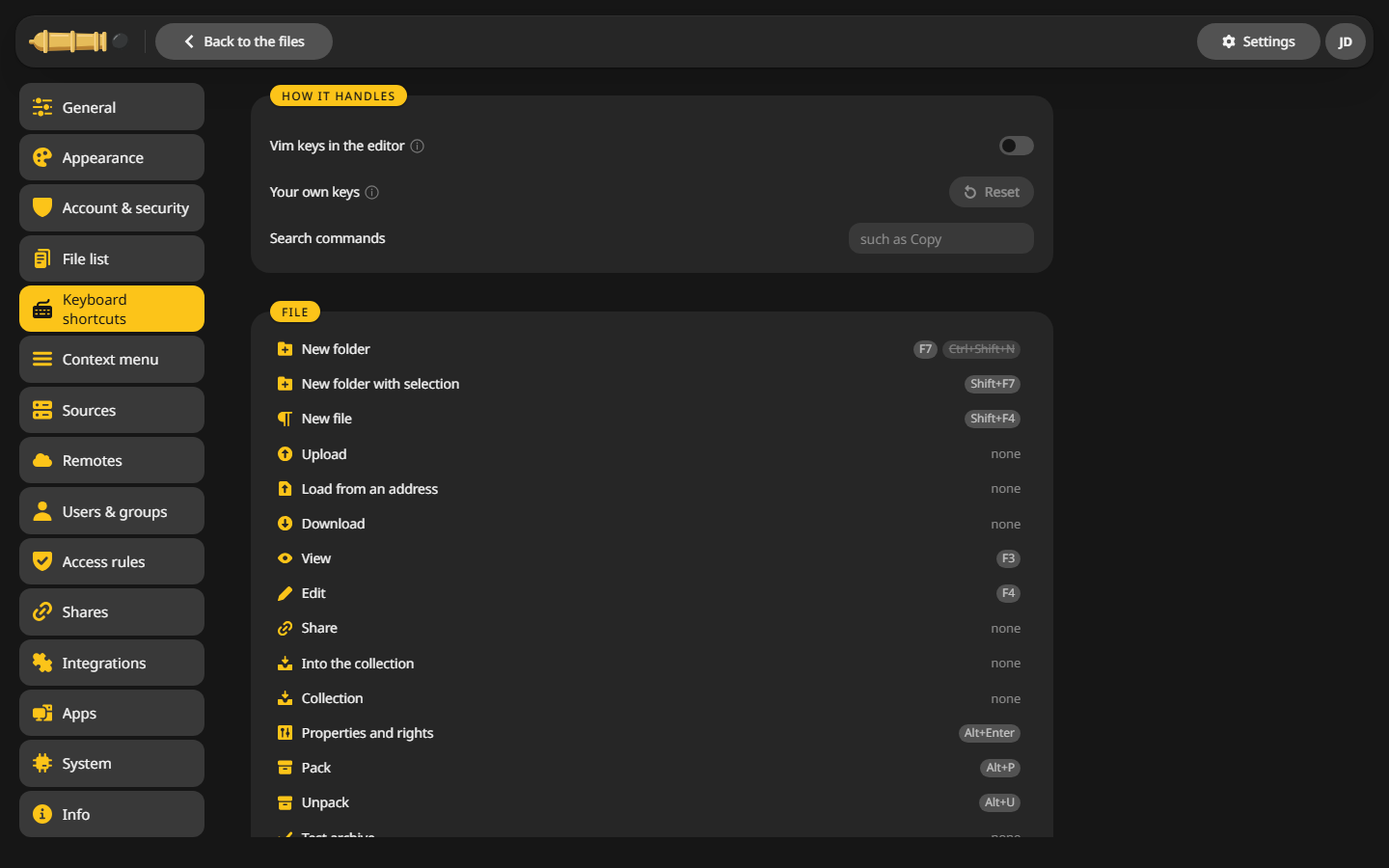
The same page switches the editor to vim keys. In the desktop app it also picks the keys for one window or two windows.