Share links
Send someone a link to a file or a folder. They open it in their browser without an account.
Share a file or folder
- Put the cursor on the file or folder.
- Choose File > Share, or Share in the context menu.
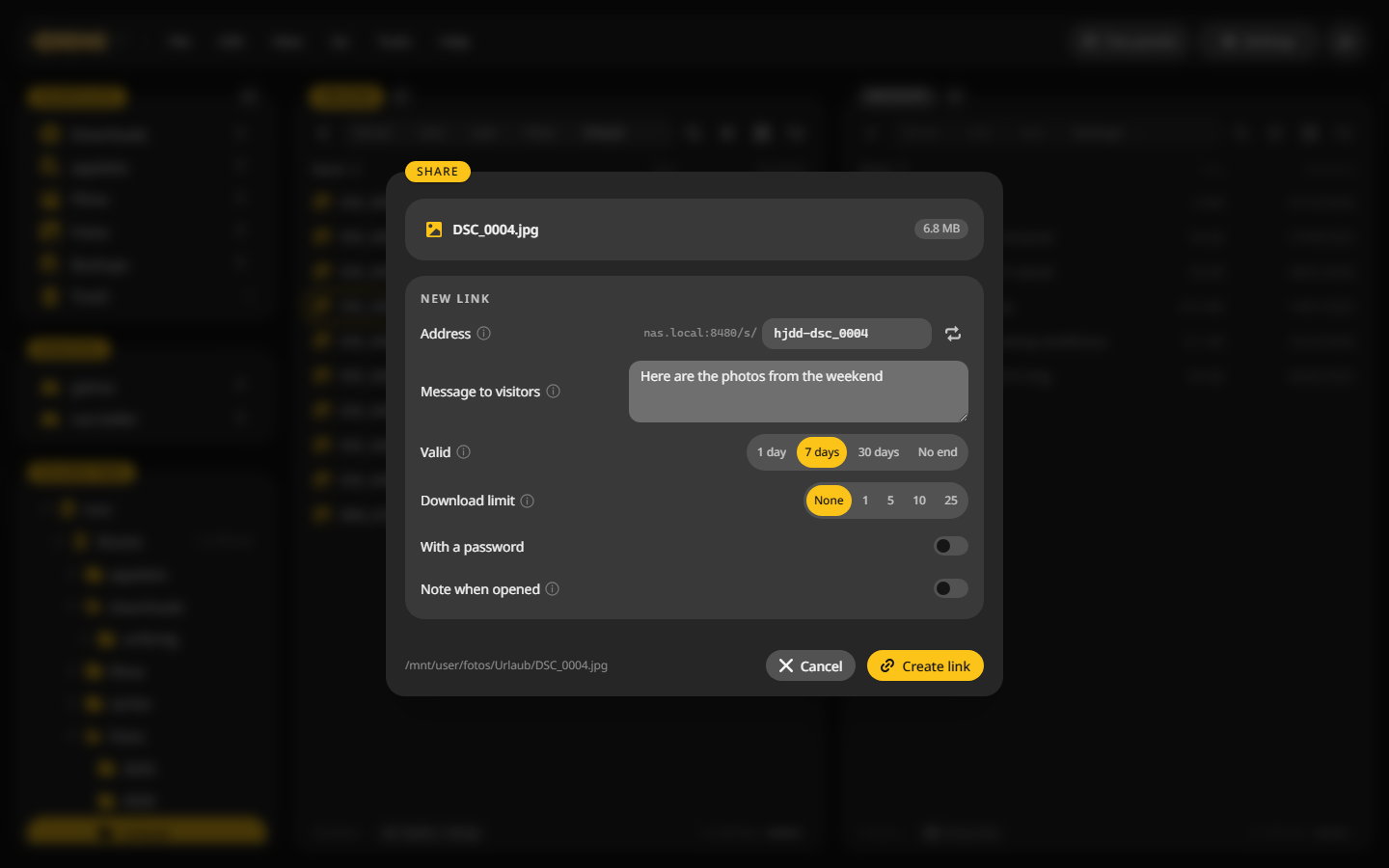
- Set what you need:
- Address: write the end yourself, such as
holiday-2026, or roll a new one with the dice. - Message to visitors: a greeting shown above the files.
- Valid: 1 day, 7 days, 30 days or no end.
- Download limit: after this many downloads the link stops working.
- With a password: asked before the files show. Any length works, and under 12 characters the field tells you it is short.
- Note when opened: you get a note here and in Unraid when someone opens it.
- Allow uploads (folders only): visitors can put files in, but not see or delete what is there.
- Address: write the end yourself, such as
- Click Create link and copy it, or show its QR code.
Share files from several folders
- Mark files, in as many folders or search results as you like, and pick Into the collection in the context menu.
- Choose File > Collection to see what is in it.
- Share together makes one link. The visitor sees one folder with all the files side by side. The files stay where they are.
Manage your links
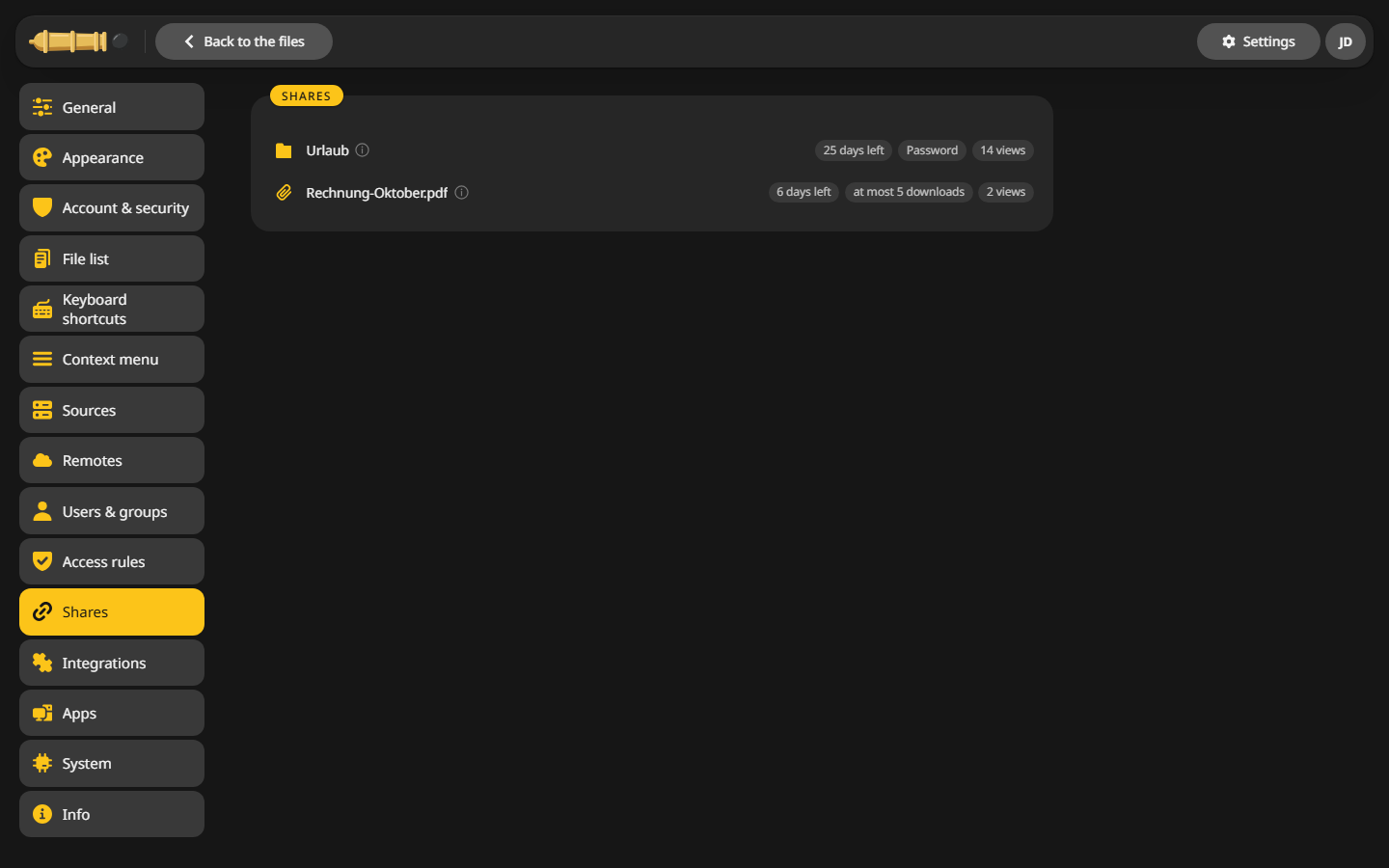
Go > Shares or Settings > Shares lists every link with its views, expiry and limits. Copy, extend or revoke a link there.
Share links point to the address CannonCommander is reached at. Behind a reverse proxy, set externalUrl, see Reverse proxy.
The desktop app has no share links, since they would point at your own computer.