Two-factor and passkeys
Both live under Settings > Account & security, and both wait until your account has a password.
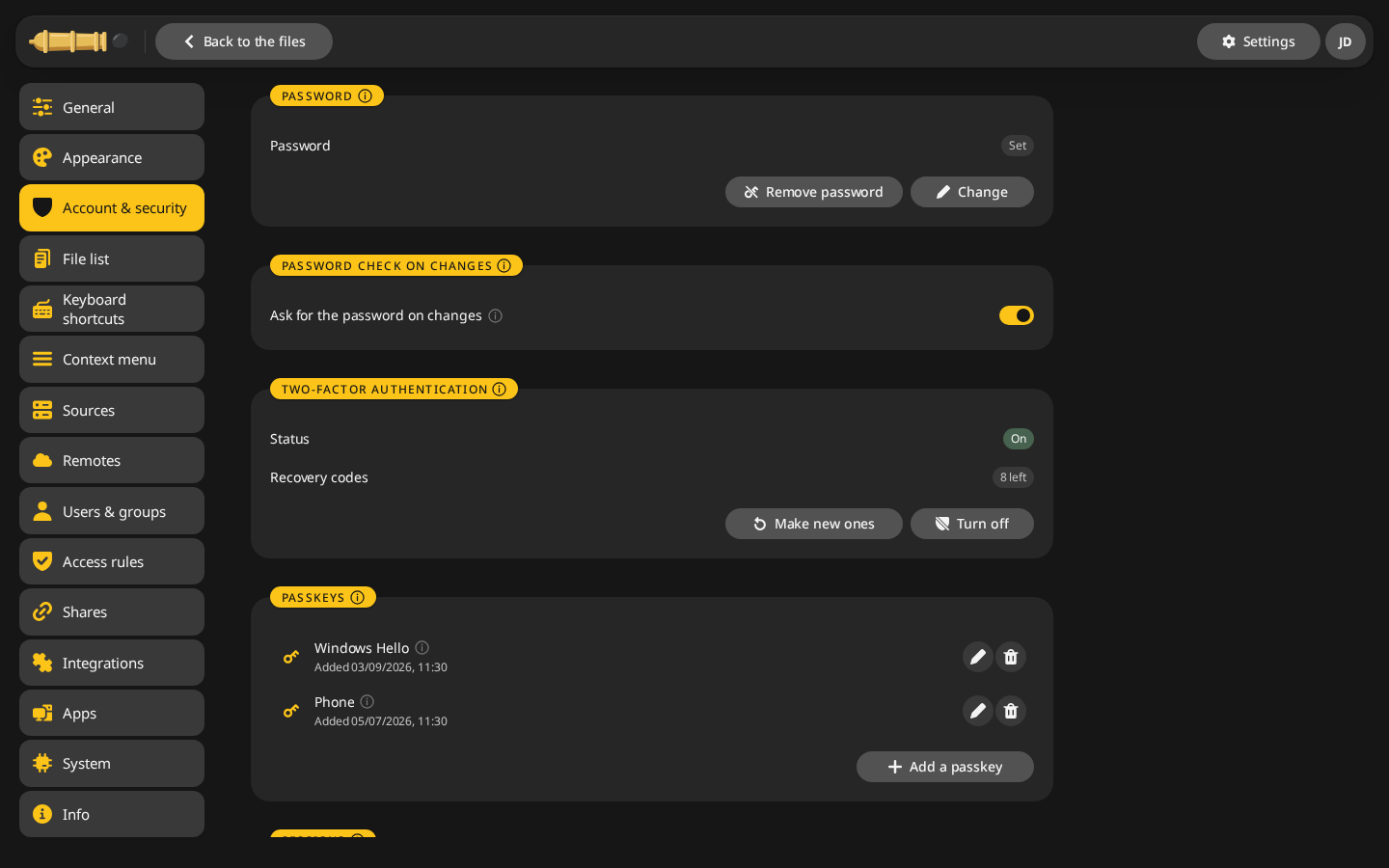
Turn on two-factor authentication
- Under Two-factor authentication, click Set up.
- Scan the QR code with an authenticator app, such as Aegis, 2FAS or your password manager. Or type the key in by hand.
- Enter the six digits the app shows and click Turn on.
- Save the ten recovery codes somewhere safe and click I've saved them. Each one signs you in once if your phone is missing.
From now on CannonCommander asks for a code after the password.
- Make new ones replaces the recovery codes, and the old ones stop working.
- Turn off asks for a code from the app or a recovery code.
Add a passkey
A passkey signs you in with your fingerprint, your face or your device's PIN. Your password keeps working.
- Under Passkeys, click Add a passkey.
- Give it a name, such as Laptop, and click Continue.
- Confirm in your browser's window.
Next time, the browser offers the passkey as soon as you click into the password field.
Browsers tie a passkey to a domain name with a trusted certificate, such as https://files.example.com. On a plain http:// address in your network the card says so instead. A passkey you added under another address shows which one it works at.
Accounts from a sign-in service
Someone who signs in through a sign-in service has no password here. They set up two-factor authentication and passkeys at the service.
If you are locked out
- Lost the phone: sign in with a recovery code.
- No codes left: reset the password through the container log, see Forgot the password. The reset also turns off two-factor authentication.