Access rules
Rules hide a folder inside someone's area or make it read only, for one user, a group or everybody.
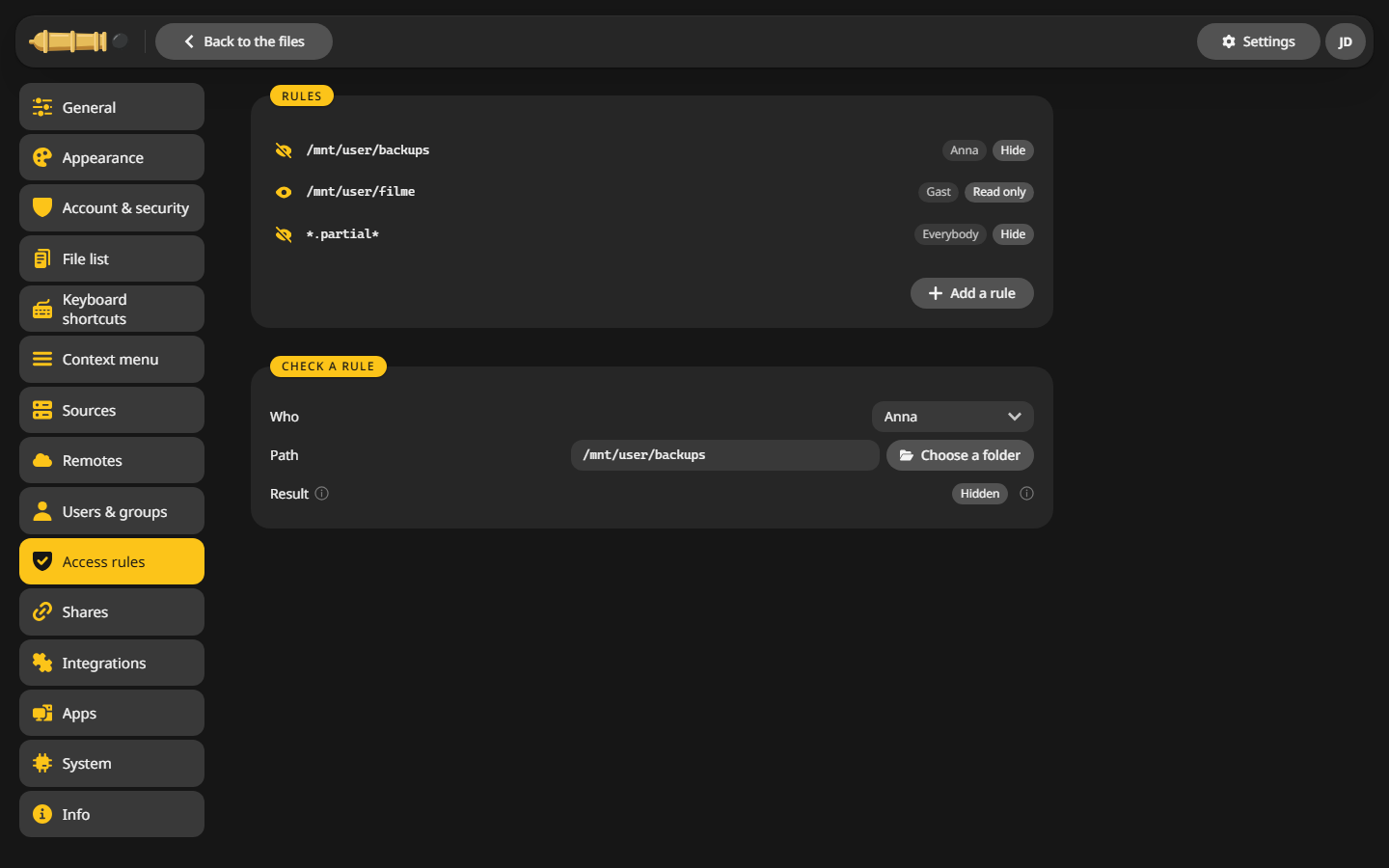
Add a rule
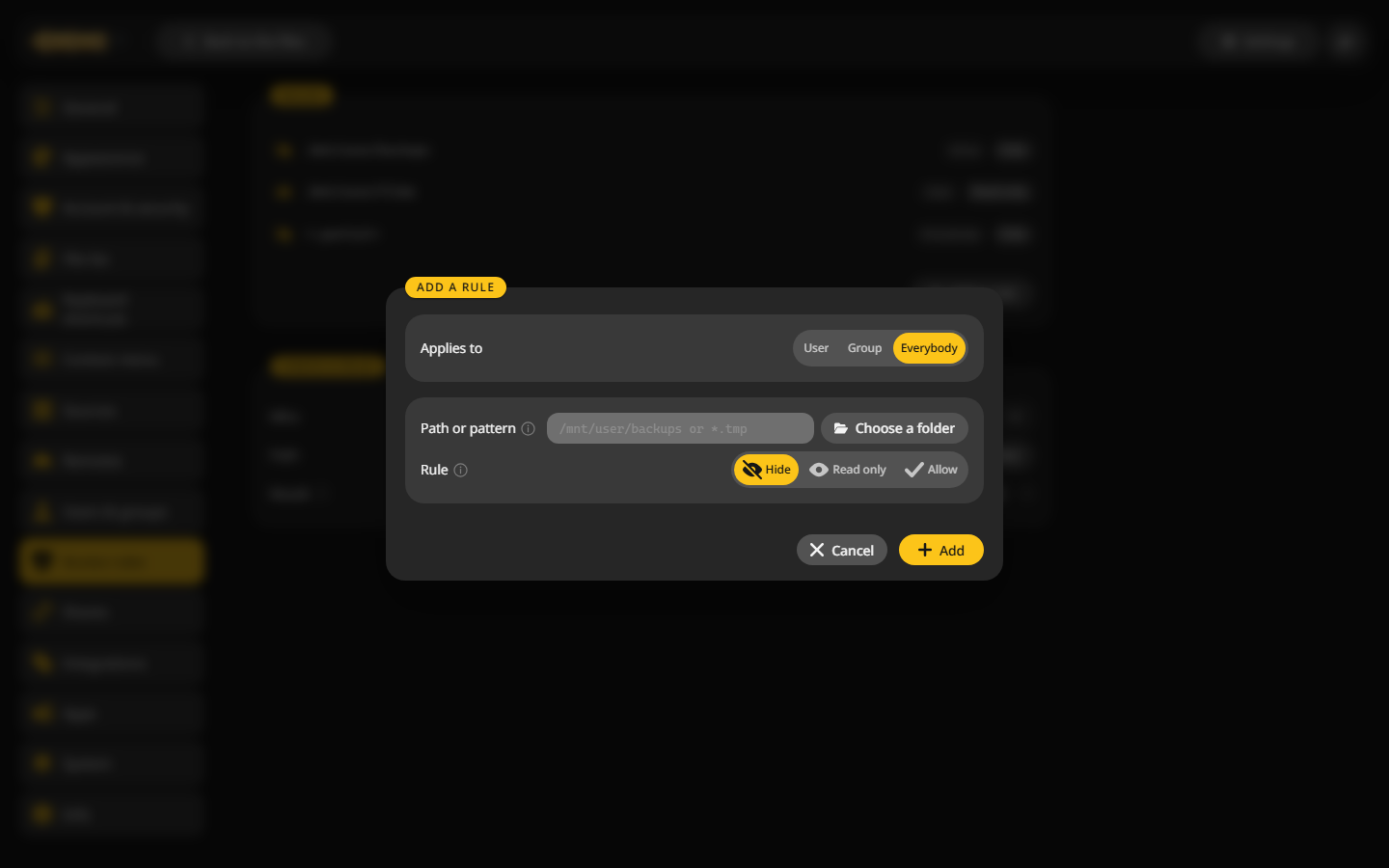
- Open Settings > Access rules and click Add a rule.
- Applies to: a user, a group or everybody.
- Path or pattern:
- a path such as
/mnt/user/backupscovers the folder and everything in it, - a pattern with a star such as
*.partial*fits names anywhere, - a pattern with a slash such as
appdata/*/cacheworks like a path.
- a path such as
- Rule: Hide, Read only or Allow.
- Click Add.
The order matters
The first rule that fits wins. Allow lifts a rule further down, for example to open one subfolder of a hidden folder:
| # | Applies to | Path | Rule |
|---|---|---|---|
| 1 | Anna | /mnt/user/backups/anna |
Allow |
| 2 | Anna | /mnt/user/backups |
Hide |
Move a rule up or down with its arrows.
Check a rule
The Check a rule card answers what one person sees at one path. Pick the person and the folder, and Result shows Visible, Read only or Hidden, with the rule that decided it.
Where the rules apply
Everywhere: the interface, WebDAV, share links, API tokens and the MCP server. Disk shares such as /mnt/disk1 are for admins only.
Files hidden by a pattern go along when their folder is deleted or moved, and copying leaves them out.