Archives and checksums
Pack files
- Mark the files and folders.
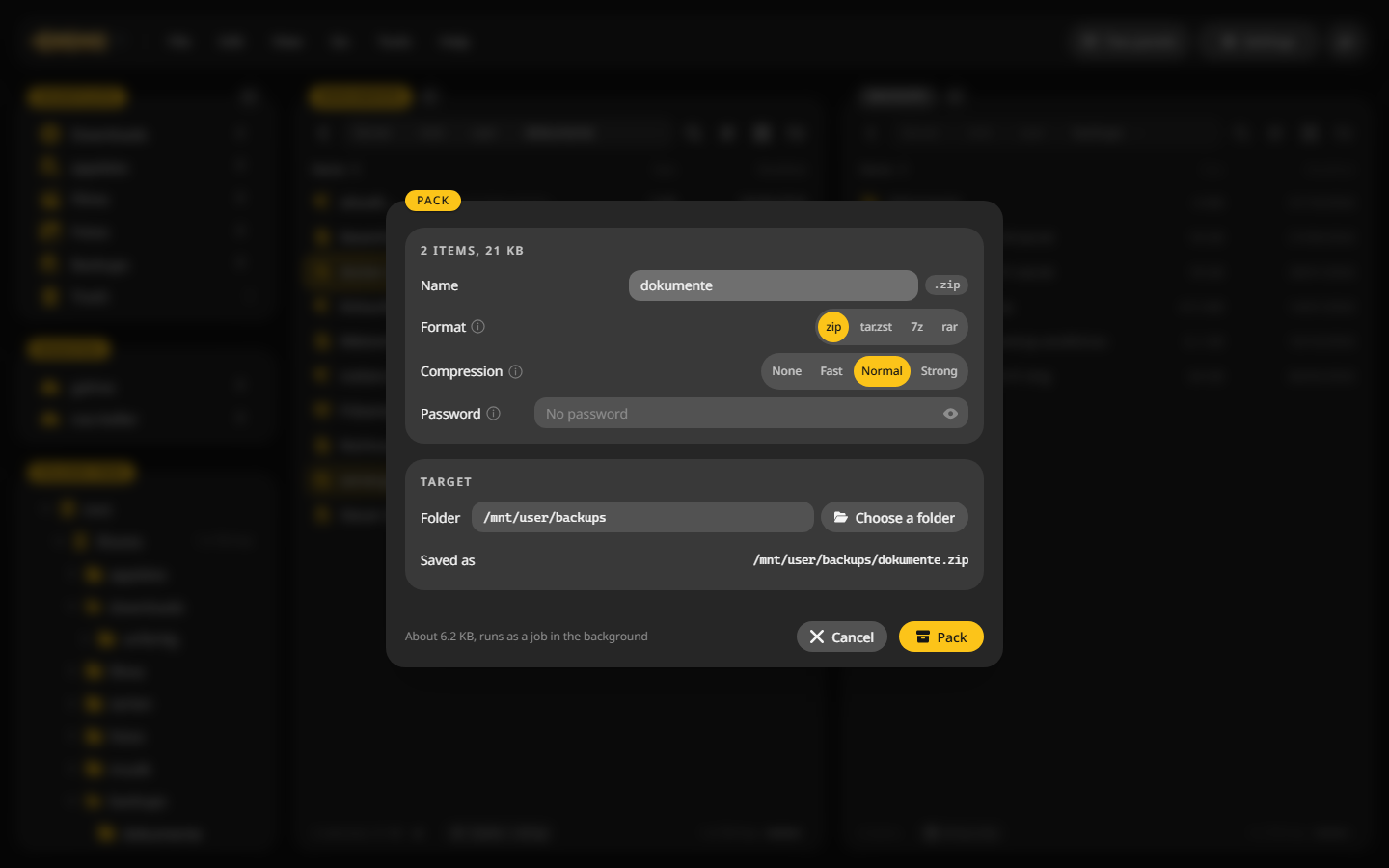
- Press Alt+P or choose File > Pack.
- Give the archive a name and pick a Format:
- zip opens on every system without an extra program.
- tar.zst is the fastest and keeps rights and owners.
- 7z packs the smallest.
- rar needs the rar program on the server.
- Pick a Compression. Photos, videos and music hardly get smaller, so None saves time for them.
- Add a Password if you like. zip, 7z and rar encrypt with AES-256.
- Click Pack. It runs as a job and the archive lands in the other panel's folder.
Look inside an archive
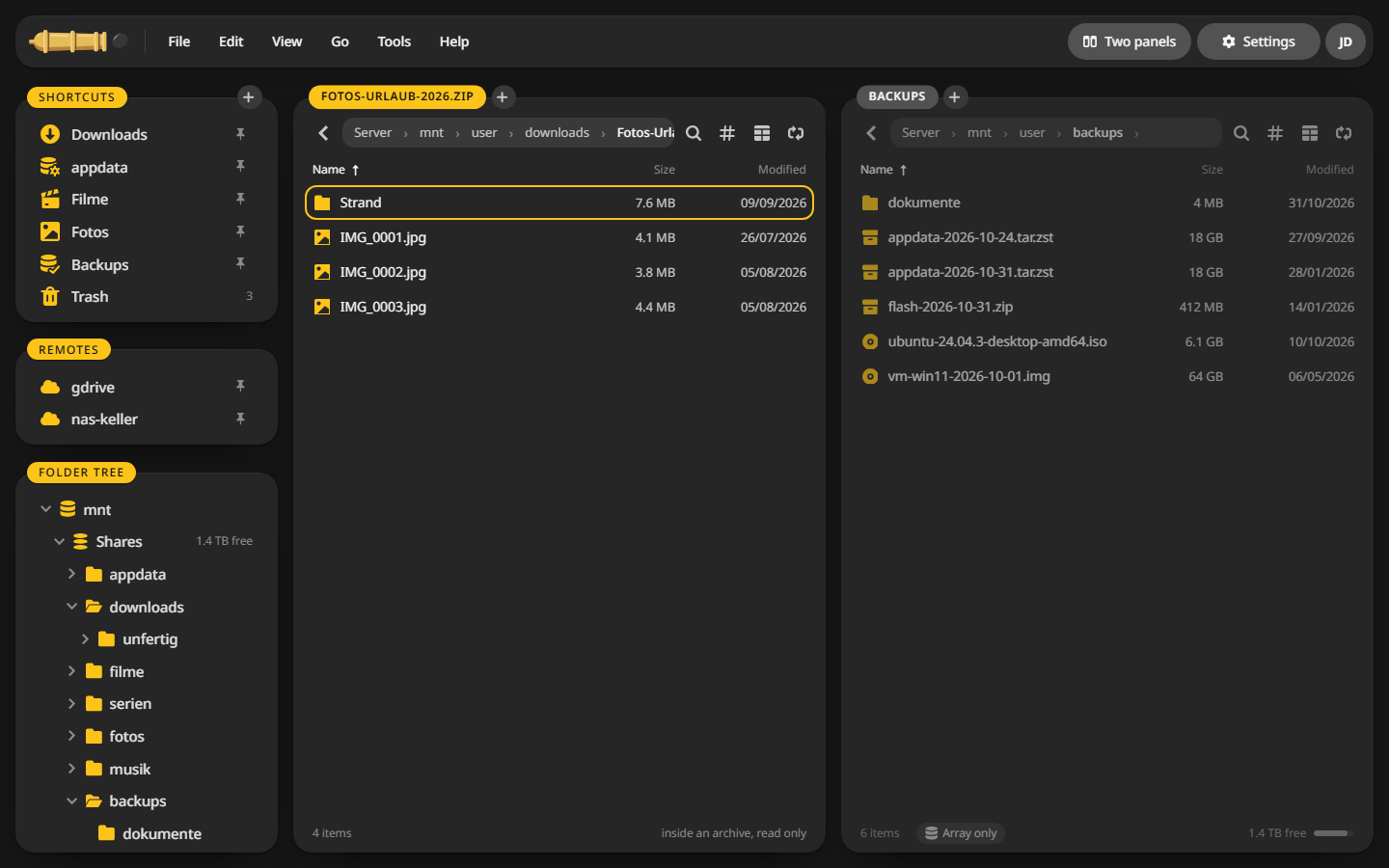
Double click an archive, or press Enter on it. It opens like a folder, read only. Copy single files out of it with F5.
Unpack
- Mark one or more archives.
- Press Alt+U or choose File > Unpack.
- Into a folder of its own keeps each archive's files apart.
- Choose what happens when a file exists already, and click Unpack.
ZIP, 7z, RAR, TAR and its compressed kinds all unpack.
Test an archive
File > Test archive reads every file in the archive without unpacking it. Damaged archives stay marked red in the list.
Checksums
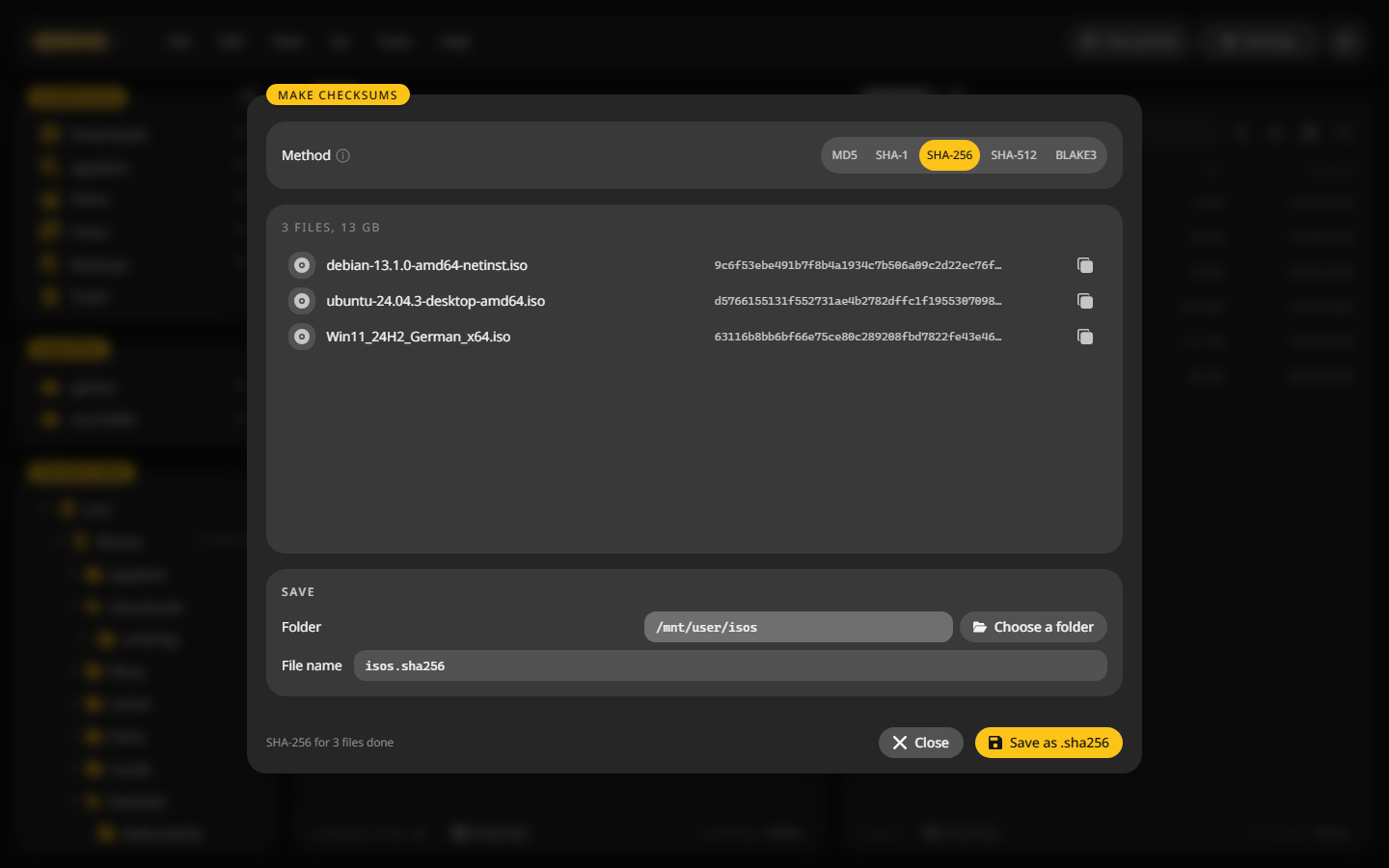
- Mark the files and choose File > Make checksums.
- Pick the Method. SHA-256 is what most downloads list, BLAKE3 is the fastest.
- Copy a single checksum, or save them all as a
.sha256file next to the files.
File > Check checksums compares files against such a list, from a file or pasted in.
Split and combine
File > Split file cuts a large file into parts of a size you choose. File > Combine puts the parts back together.