Tags and colours
Mark files with a colour or tags, see them at a glance in the list and find them again with the search.
Give a file a colour
- Right click the file, or mark several first.
- Point at Colour and pick one.
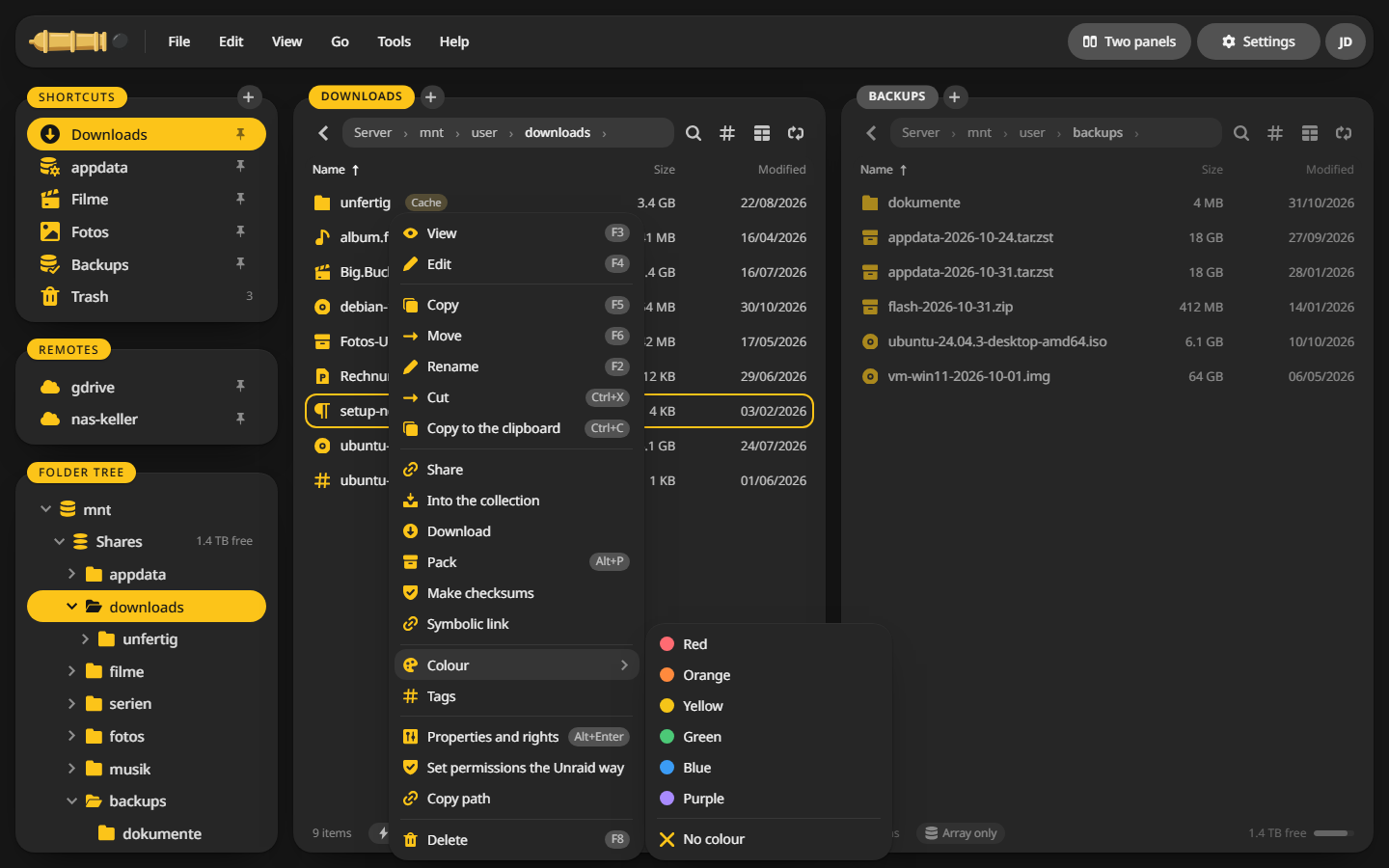
The colour shows as a dot next to the name. No colour takes it away.
Add tags
- Right click the file and choose Tags.
- Click a grey tag to set it, or type a new one and press Enter.
- The x on a tag takes it away. Click Apply.
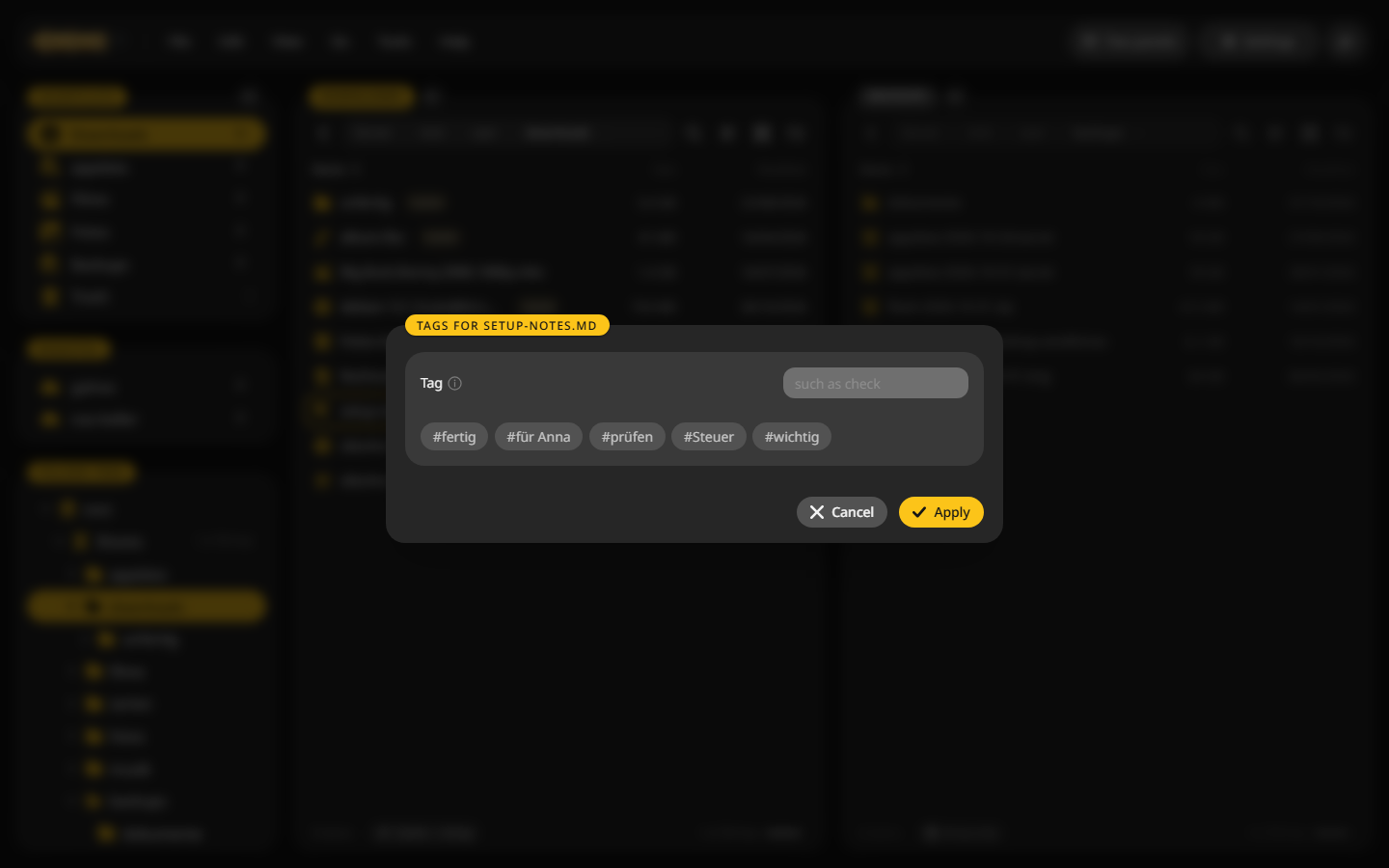
Tags show as #name badges in the list.
Find tagged files
The # button in a panel's toolbar lists every colour and tag with how many files carry it. Pick one and the panel shows all of them across the shares.
You can also type # and the tag into the search field of a panel, such as #Steuer. See Search.
Your own colours and tags
In the same list, the pencil next to Colours renames the six colours and adds new shades, and the pencil next to Tags manages the list of tags.