Rename many
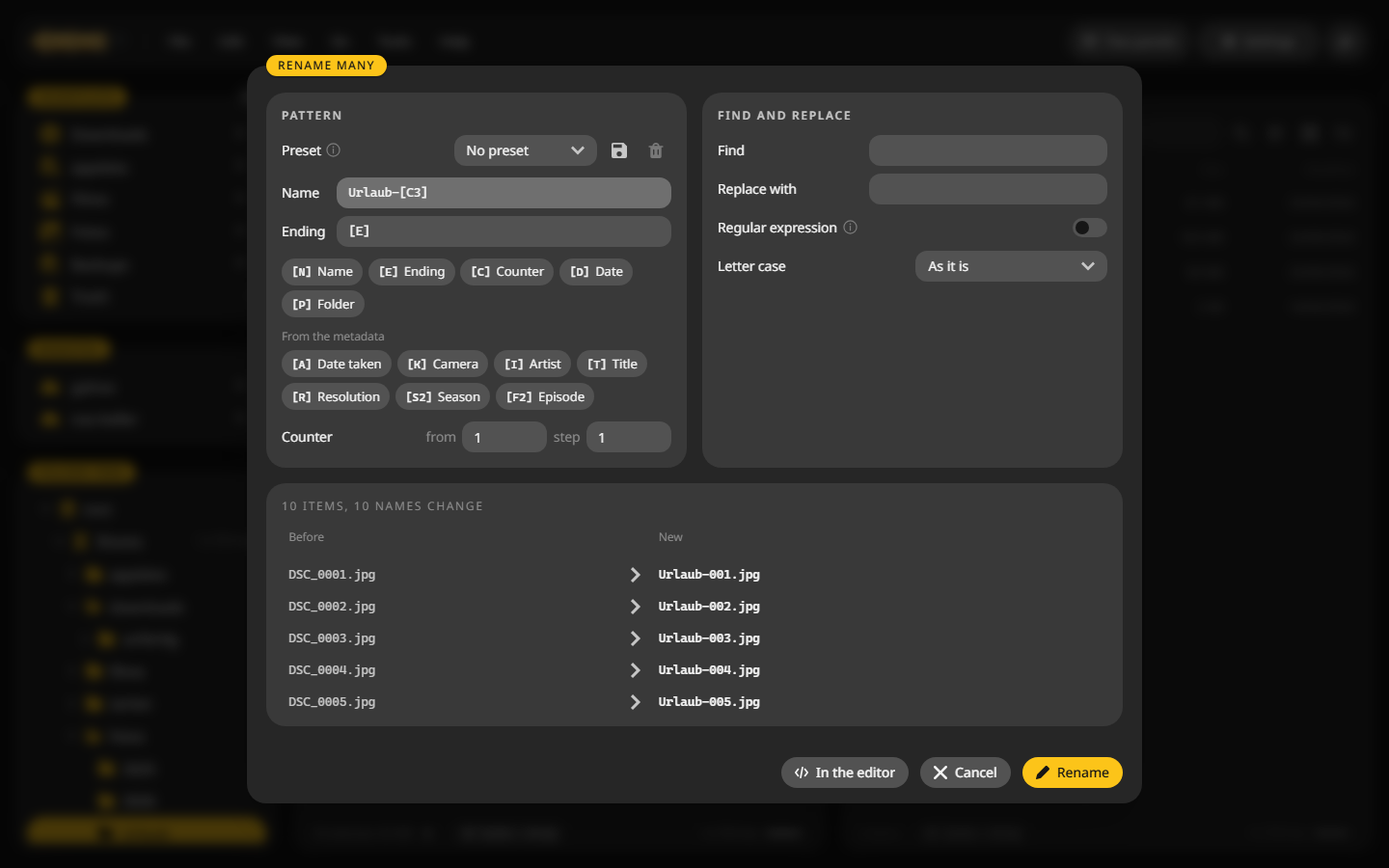
Rename a whole set of files with a pattern, and see every new name before anything changes.
A single file
F2 renames the file under the cursor right in the list. Enter keeps the new name, Esc the old one.
Many files with a pattern
- Mark the files.
- Press Ctrl+M or choose Edit > Rename many.
- Type a pattern into Name, such as
Urlaub-[C]. The right side shows the new names as you type. - Click Rename. Ctrl+Z takes it back.
Building blocks
| Block | Becomes |
|---|---|
[N] |
The old name without its ending |
[E] |
The old ending without the dot |
[C] |
A counter. [C3] pads to three digits: 001, 002 |
[D] |
Date of the last change, as 2026-11-02 |
[P] |
Name of the folder the file lies in |
[A] |
Date the photo was taken |
[K] |
Camera model |
[I] and [T] |
Artist and title of a music file |
[R] |
Resolution, such as 1920x1080 |
[S2] and [F2] |
Season and episode from a name such as S01E02 |
Click a block in the window and it goes into the pattern.
Examples
| Pattern | Before | After |
|---|---|---|
Urlaub-[C3] |
DSC_0001.jpg |
Urlaub-001.jpg |
[A] [K] |
IMG_0203.jpg |
2026-06-06 Pixel 9.jpg |
[I] - [T] |
track01.flac |
Kevin MacLeod - Monkeys Spinning Monkeys.flac |
Pioneer One S[S2]E[F2] |
pioneer.one.s01e03.mkv |
Pioneer One S01E03.mkv |
Find and replace
Below the pattern, Find and Replace with change a part of every name. With Regular expression on, $1 and $2 in the replacement stand for the groups. Letter case makes names all lower case, all upper case or capitalises every word.
Presets
The Preset list has ready patterns for photos by date, artist and title, series and resolution. Save the pattern as a preset keeps your own, and it follows your account to every device.
In the editor
In the editor opens the names as lines of text. Change them with find and replace or by hand, save, and the files are renamed.