Compare and sync
Tools for keeping two folders the same, finding doubles and seeing where the space went.
Compare two folders
- Open one folder in each panel.
- Press Ctrl+Shift+C or choose Tools > Compare folders.
- The window counts what is the same, what is newer on either side and what exists only on one side.
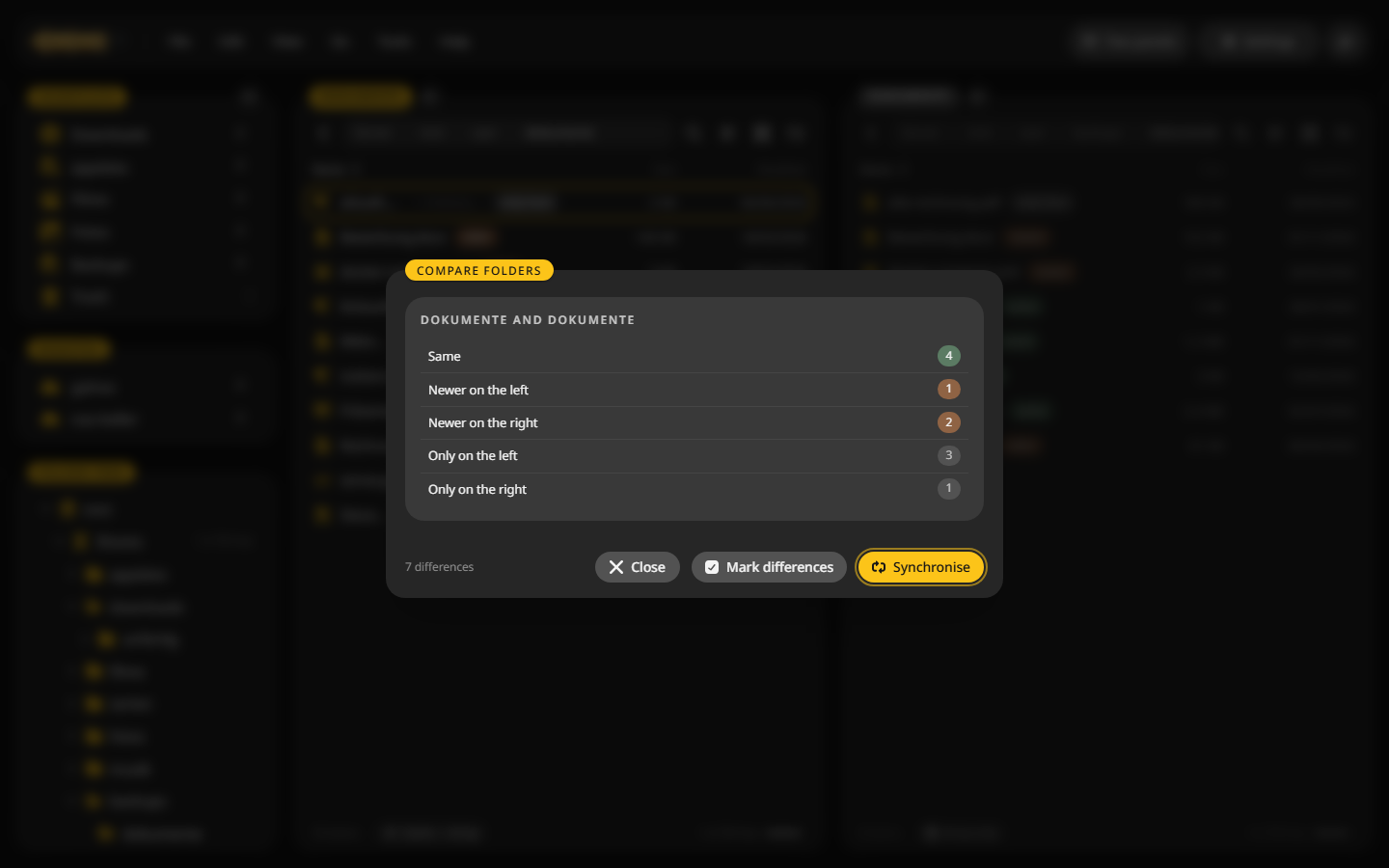
- Mark differences marks every file that differs, in both panels, with a badge that says why.
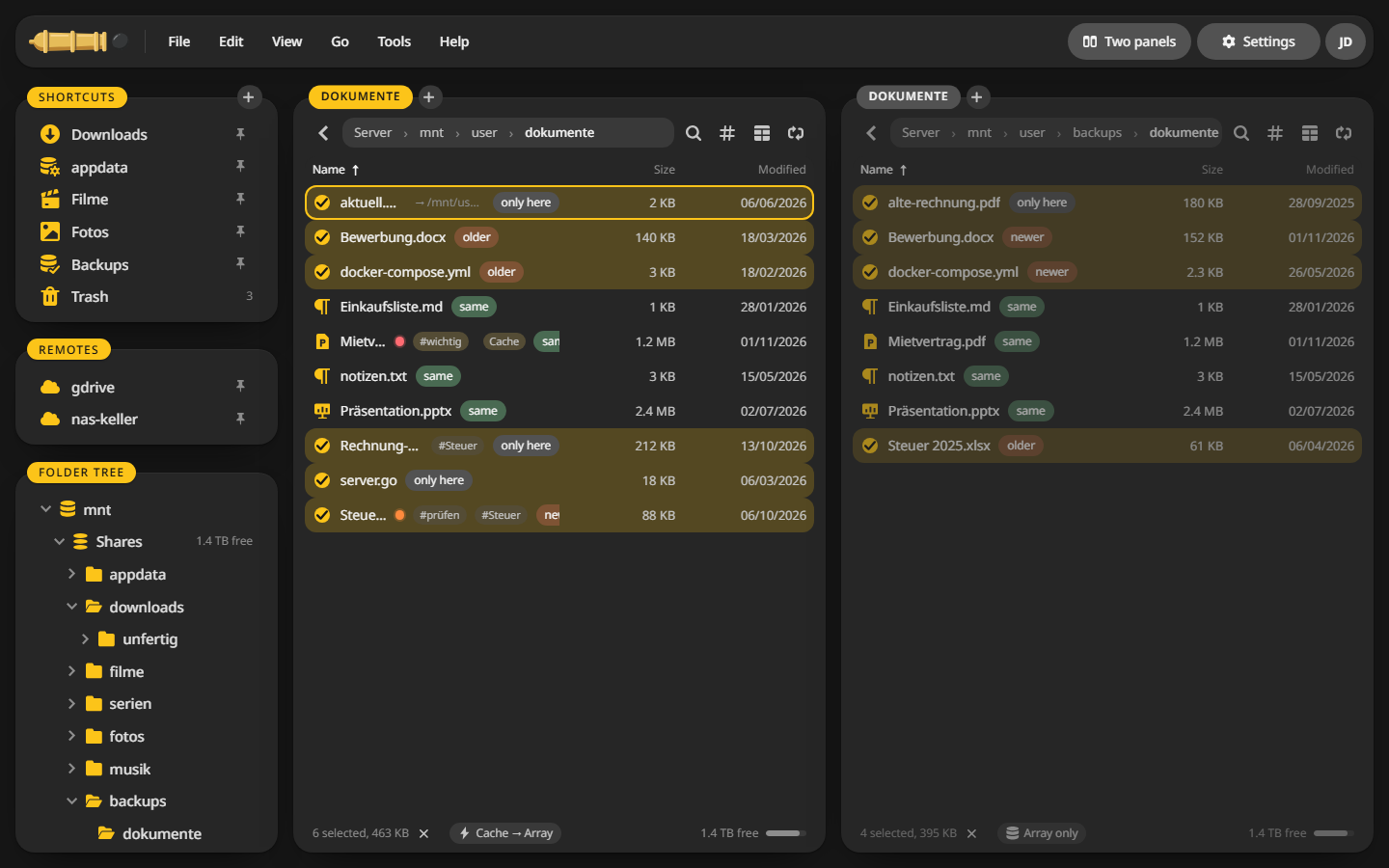
With the differences marked, F5 copies them across.
View > Browse in sync keeps both panels in step: open a subfolder on one side and the other side follows.
Synchronise
- In the compare window, click Synchronise, or choose Tools > Synchronise.
- Pick the Direction: to the left, both, or to the right.
- Pick Compare by: size and date is quick, content reads every file and finds what size and date do not show.
- Switch on Include subfolders if you want them.
- Mirror also deletes on the target what the source does not have. Deleted items go to the trash.
- Look at the steps in the preview. Each one can be switched off.
- Click Synchronise. It runs as a job.
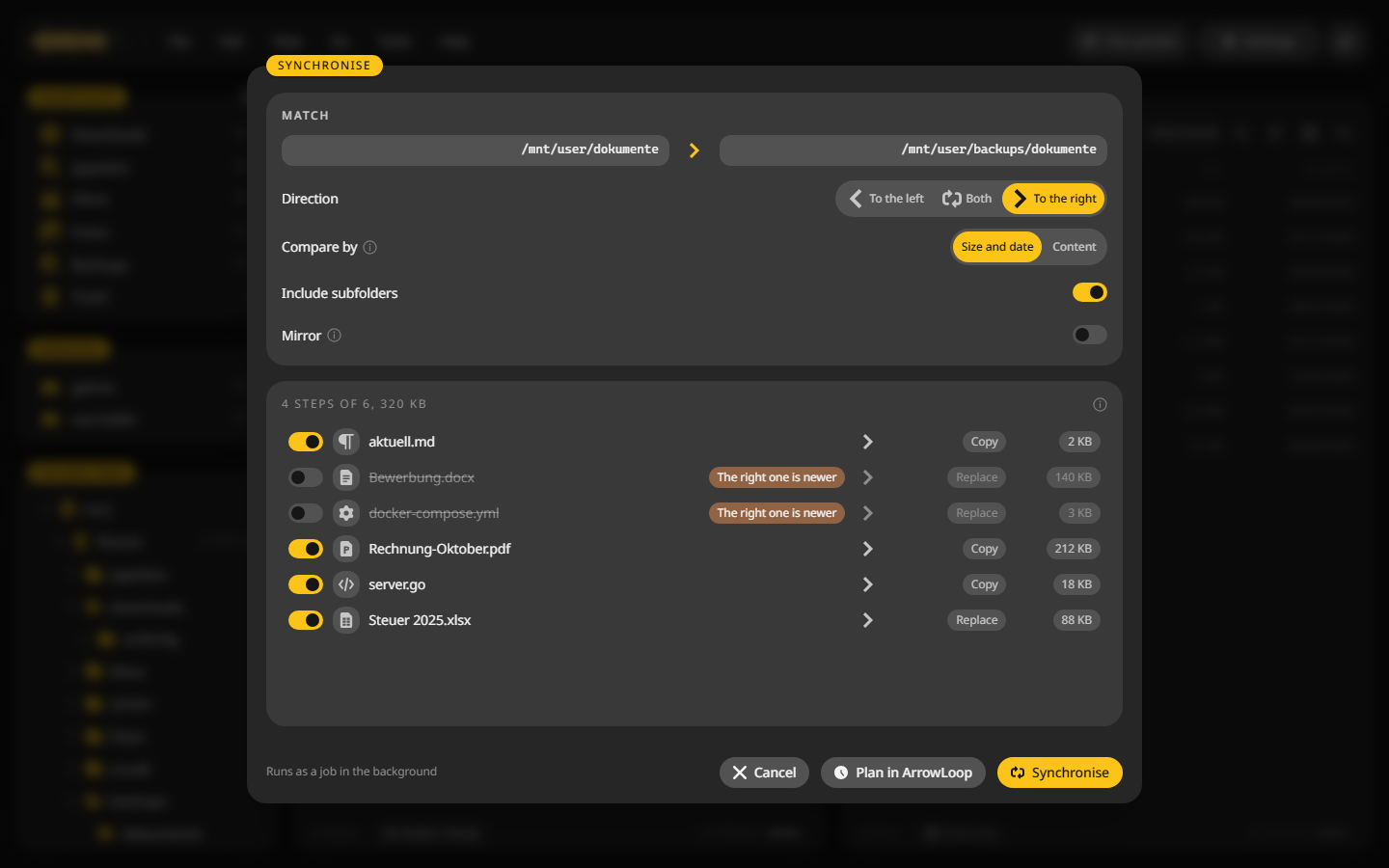
Plan in ArrowLoop hands the folder pair to ArrowLoop as a recurring sync job. Set its address and token under Settings > Integrations > ArrowLoop first.
Compare two files
Mark one file in each panel and choose Tools > Compare files. Text files show side by side with the changes coloured.
Duplicate files
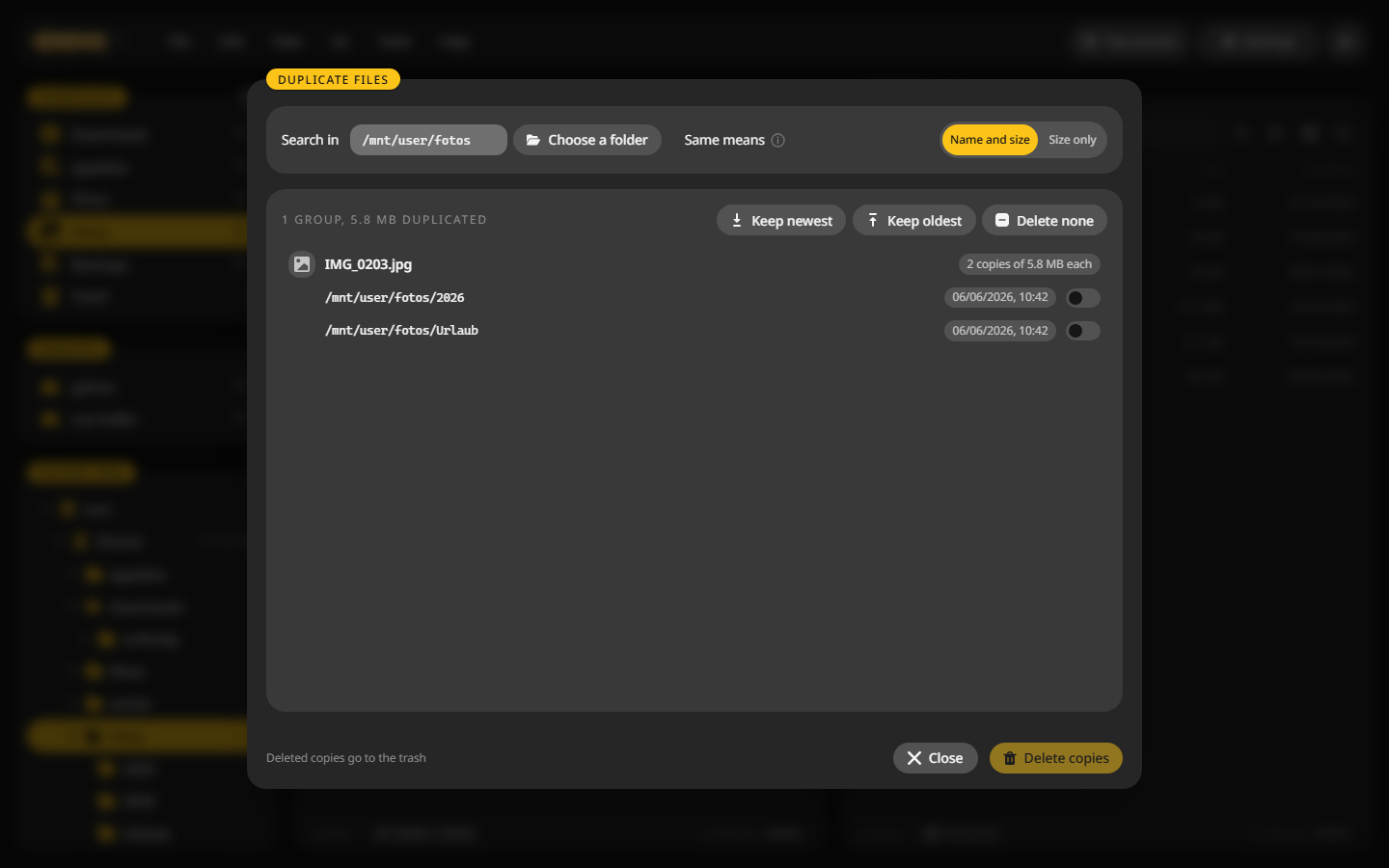
- Open the folder and choose Tools > Duplicate files.
- Pick what Same means: name and size, or size only, which also finds renamed copies.
- Choose Keep newest, Keep oldest or tick the copies yourself.
- Delete copies moves them to the trash. One copy always stays.
Disk usage
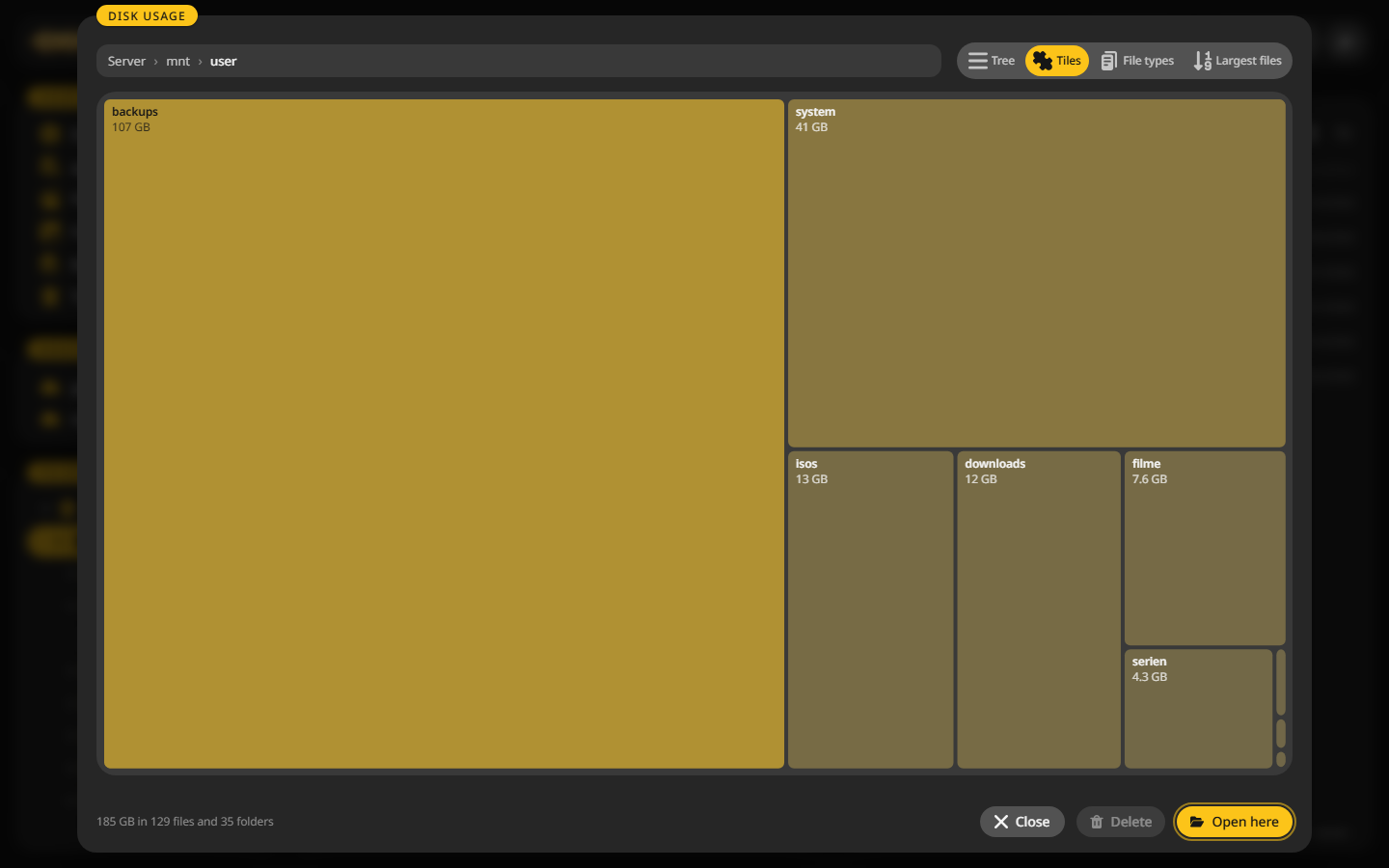
Alt+D shows what takes the space below the current folder, as a tree, as tiles, by file type or as a list of the largest files. Open here shows the folder in the panel, Delete removes what you picked.
Clean up
Tools > Clean up finds empty folders and messy names below a folder and tidies them in one go. What it deletes goes to the trash.