Settings
Settings are fourteen tiles. Each tile is a page of cards, and every change is written as you make it, with a short flash on the control, or a shake when the server refuses it. A few windows keep a Save button because saving them half-done would be unsafe, such as a sign-in or the login password. Explanations sit in the (i) bubbles beside each control.
Press / or Ctrl+K anywhere in the settings to search all of them, also by the names pages had in earlier versions. The order of the tiles can be changed under Look. Where a column of tiles beside the page would squeeze it, as in a window about 1200 pixels wide or on a phone, the tiles become a strip above the page that scrolls sideways.
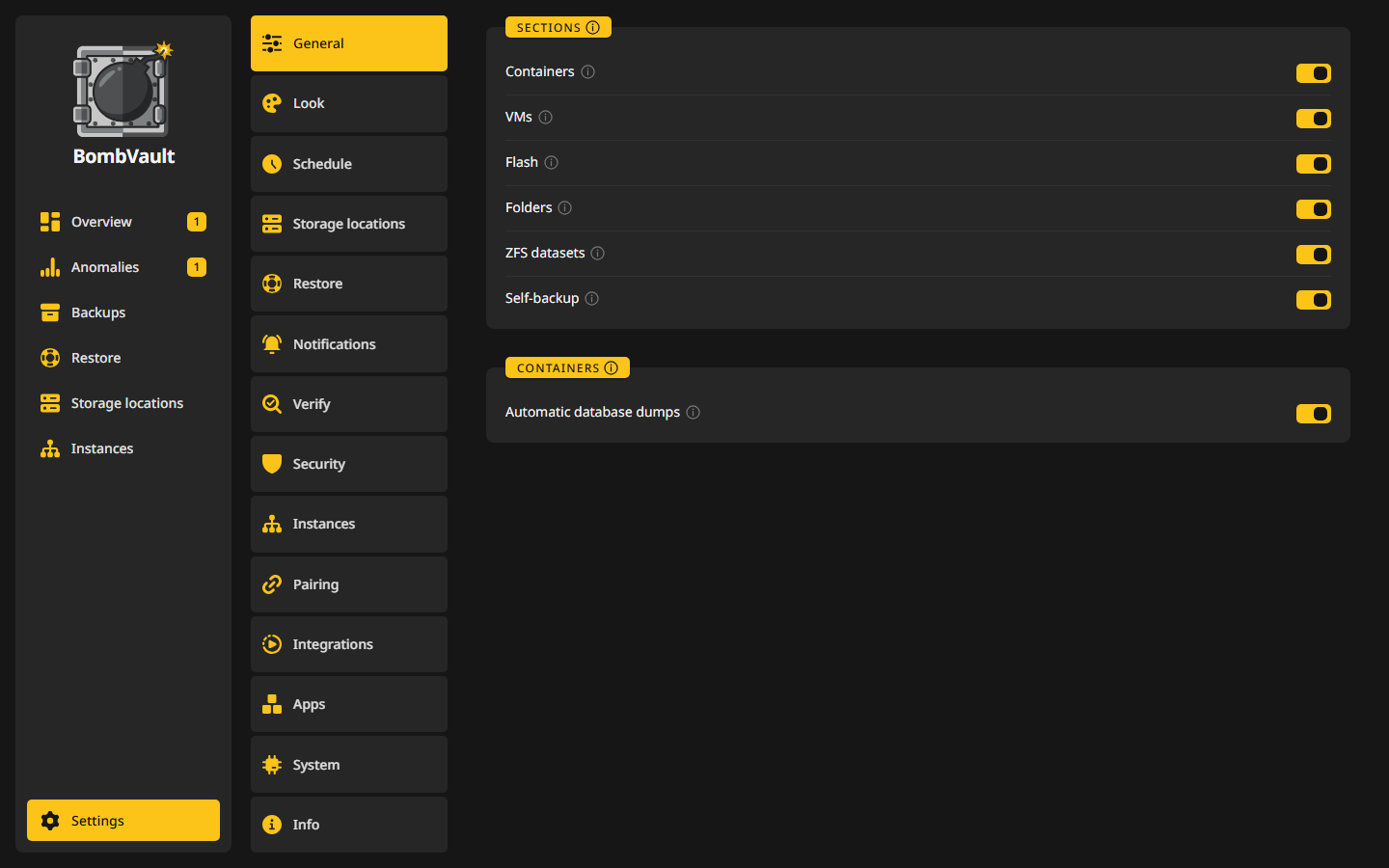
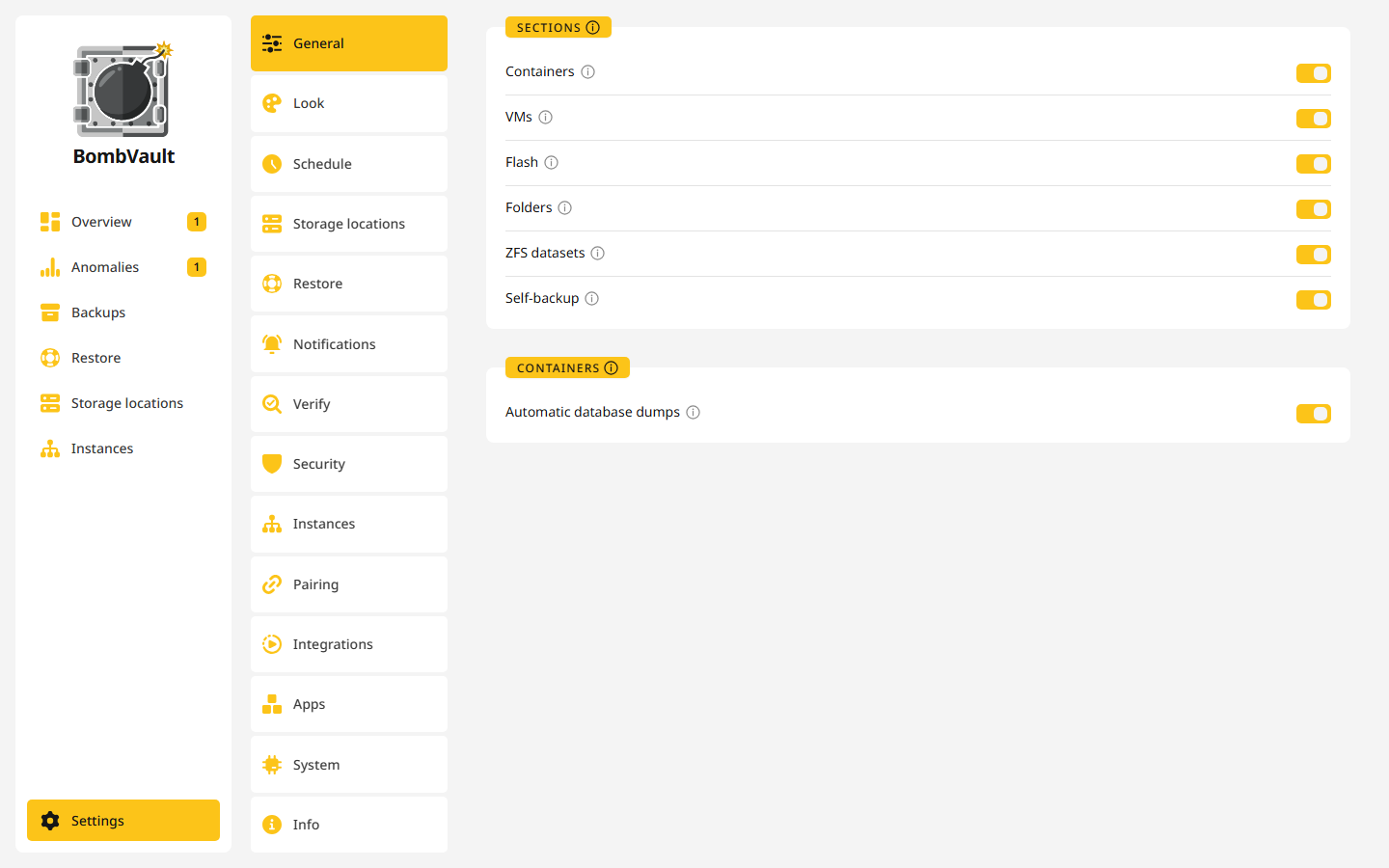
This page lists every tile and its cards, and links to the page that explains each one in depth.
General
- Sections switches each section on or off: Containers, VMs, Flash, Folders, ZFS datasets and Self-backup. A section that is off is not backed up on any schedule, an entry's own plan included, and its entries do not count. Back up now still works. Flash shows on Unraid only.
- Containers holds what applies to every container, such as Automatic database dumps. Anything that affects one container is on its page. See Database dumps.
Look
- Appearance: Language (42 languages), Theme (Dark, Light or System) with OLED below it, which gives OLED and AMOLED screens true black while the dark theme shows, Corners, Animation (Off, Subtle, Wild or Storm), Quiet notifications, which hides success notices such as save confirmations, and Order of the settings pages, where you hold a tile and drag it into place, or use Alt and the arrow keys.
- Labels: how much of a control is shown, separately for Buttons, Sidebar, Tabs and Bottom bar: Text, Text and symbol, Symbol, or Reactive, which shows the symbol alone and slides the words in when you point at it. Sidebar affects the desktop layout only and Bottom bar the phone layout only.
- Colors: one Accent color, or Rainbow Mode, where each row of a list gets its own colour from a palette of eight. Rainbow Mode adds Disco Mode, where the colours glide slowly to the next one, Reactive Mode, where a row's colour shows only while you point at it, runs or is selected, Colour Rotation and the Colour palette itself. The wand at the start of the accent colors, System color, takes your device's own color: Material You in the Android app from Android 12 on, and the system color in Firefox and Safari. It shows only where the device has such a color.
BombVault keeps the look on the server. A browser that comes for the first time takes it over. OLED and System color are the exception: each device keeps them for itself, since they depend on its screen. When your system asks for less motion, that always wins over Animation.
Schedule
Week, Full backup with When backups run, Catch up missed backups after start and Commands before and after, Plans per section with Off-site copies per section, Scheduled entries, Order with Restart after backup, Snapshot instead of stop, Updates after the backup and Idle before backup. See Schedules.
Storage locations
- Also show in the sidebar pins the Storage locations page to the sidebar.
- The list of your storage locations, with Add storage location. A click opens a location's page, see The page of a storage location.
- Sign-ins: the saved sign-ins with the default star, see Sign-ins.
- Storage locations per section: the 3-2-1 flow, where every line is a switch, see Defaults per section.
- Repositories: repositories made for single entries, see Placement per entry.
- How long to keep points to the storage locations, where retention is set, and Preview shows What the next run would remove, per repository and per entry, before it happens. It changes nothing and locks nothing, so it answers even while a backup runs.
- Off-site copies: one row per section with Test connection, Replicate now and Set up or Edit, see Off-site copies.
- Off-site bandwidth: Upload limit (KiB/s) and Download limit (KiB/s) for every copy. 0 means unlimited.
The Streaming card, which lowers the upload limit while Plex, Jellyfin or Emby stream, sits on the Storage locations page itself.
Restore
- A link to the Restore page.
- Restore folders: the Default restore folder for a restore into a folder, with Subfolder per section and an Exception per section. See Where a restore into a folder goes.
- Container registries: sign-ins for private registries, such as a sponsor-gated
ghcr.ioimage. A restore uses them to pull a missing image, and an update after the backup to check for a newer one. Public images are pulled without one. Add registry offers public registries, self-hosted ones, those at a cloud provider and Other registry for any address. - For emergencies: Download recovery kit, which needs a login password. See Recovery kit.
Notifications
Notifications with Notify, the summaries, Report overdue backups, Unraid notifications and the Weekly digest, Channels with Webhook, Apprise, Matrix, Gotify and Email (SMTP), and Healthchecks. See Notifications.
Verify
- Check backups: the result of the last
restic checkper section, with Unlock and Prune under More in each row. Unlock clears a stale lock, and Prune applies the keep rules on demand. - Automatic checks: the scheduled restore check with its Data sample (%) and test targets, Start test, which also restores one container into an isolated copy and starts it, the Scheduled off-site DR drill and Check delete protection, the scheduled tamper test. See DR drills and Tamper test.
- Anomalies: detection, sensitivity and which findings send a message. See Anomalies.
Security
- Password: the login password, at least 12 characters. Changing or clearing it asks for the current one and, with two-factor authentication on, the code.
- Two-factor authentication: a code from an authenticator app on top of the password, with eight recovery codes shown once.
- Passkeys: sign in with a key on your phone, laptop or security stick. They need a real domain name and a certificate the browser trusts.
- Android app: Phones can pair with the group's twelve words, which lets a paired phone sign in without the password.
- Encryption: Encrypt backups, on by default.
Several things need a login password, such as the recovery kit and key deposits. See Security model.
Instances
- Also show in the sidebar pins the Instances page to the sidebar.
- Multiple servers switches on the parts of a group: Instances, the page with a card for every member, Receiver and Pull. See Instances and roles.
- A link to the Instances page, with the parts that are on.
Pairing
Pairing with Generate phrase or Enter phrase, the step cards, this instance's name and Known addresses, the Relay card with its four forms and What the relay sees, the members of the group, and ZFS server without BombVault for a replica target over SSH. See Pairing instances and Push to a ZFS server.
Integrations
- MCP server: keys for AI assistants, Choose a client and each key's log. See MCP server.
- API tokens: named tokens for scripts and dashboards. See Tokens.
- Services: Home Assistant over MQTT, Find on the network (mDNS as
bombvault.local) and Expose /metrics for Prometheus, with a Scrape token (optional). See Home Assistant and Find BombVault on the network. - Dashboard widget: a read-only token and an address for any dashboard that shows an iframe, such as Homepage or Heimdall, with just the live activity log. See Dashboard widget.
- Host SSH: BombVault's public key and Test connection, for VM and ZFS dataset backups and Unraid notifications. See the VM backup guide.
Apps
- Android app: the APK for the release your server runs with a QR code, and the F-Droid listing. See Android app.
- ParleyPort: the relay container with its Unraid template and the Docker command that starts it.
- BombVault Widget: a tile on the Unraid Dashboard with BombVault's activity log and the next run. With a host SSH connection the card installs and removes the plugin itself. Without one it hands you the
.plgaddress to install under Plugins, Install Plugin.
System
- Export / import settings: your whole configuration as a portable JSON file, with or without the credentials. Import shows This file contains first and leaves out links to storage locations that are gone. Encrypt exports with age seals the plain exports, the flash ZIP and the recovery kit for the age recipients you list. See Portable settings.
- Performance: CPU threads (0 = all), Cache size limit (MB, 0 = unlimited) for restic's cache under
/config, and Memory limit per backup (MiB, 0 = none), a soft limit that makes a large backup slow down instead of being killed for running out of memory.
Info
- Version: BombVault, GlimStone, restic and rclone, with Check for updates and New, which counts the changes you have not seen yet and opens a window that lists them.
- Help: Manual opens this documentation, and Bug report downloads a redacted ZIP for a GitHub issue. It needs a login password.
- About BombVault: the project, its licence and how to reach the author.