Backups and entries
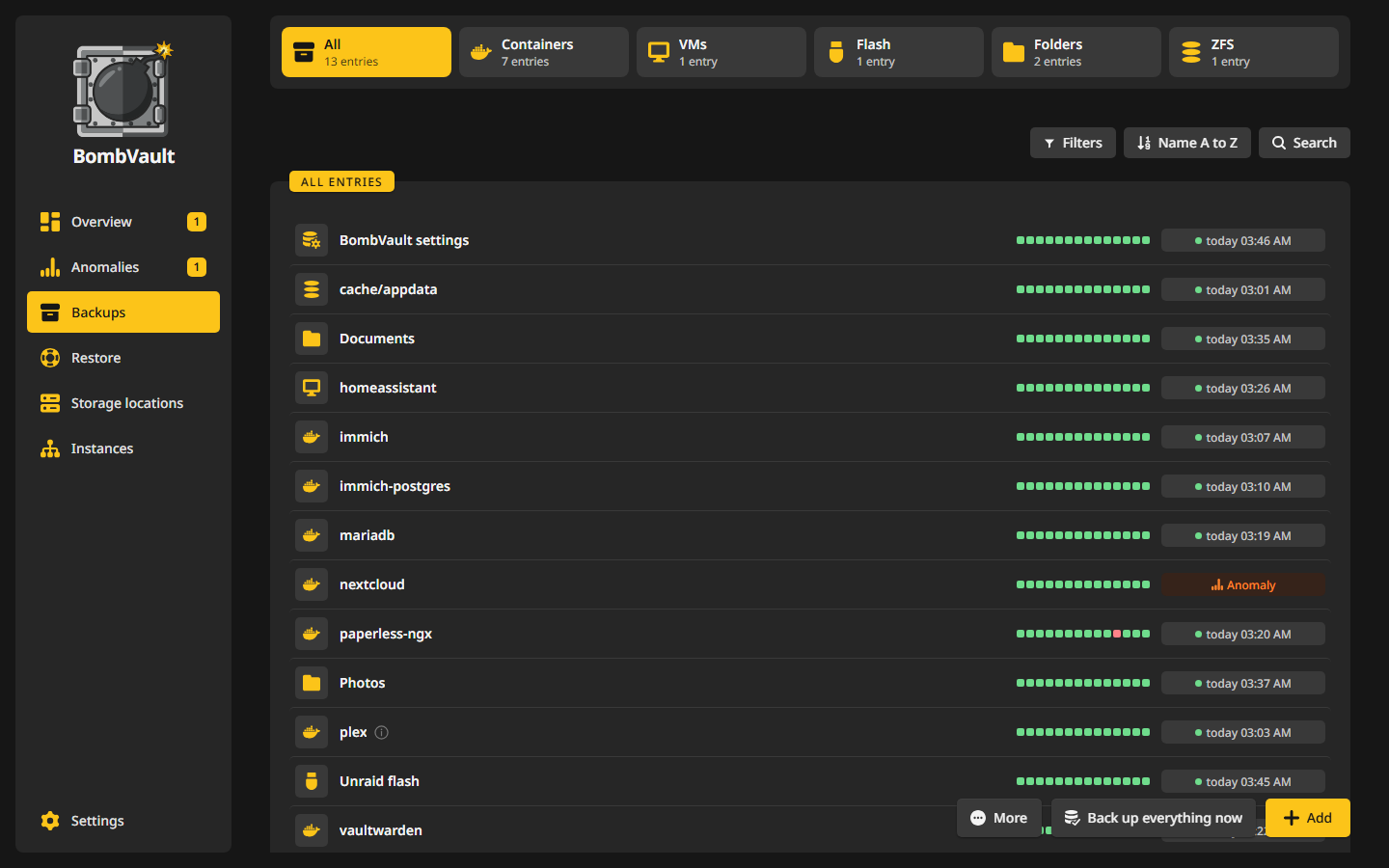
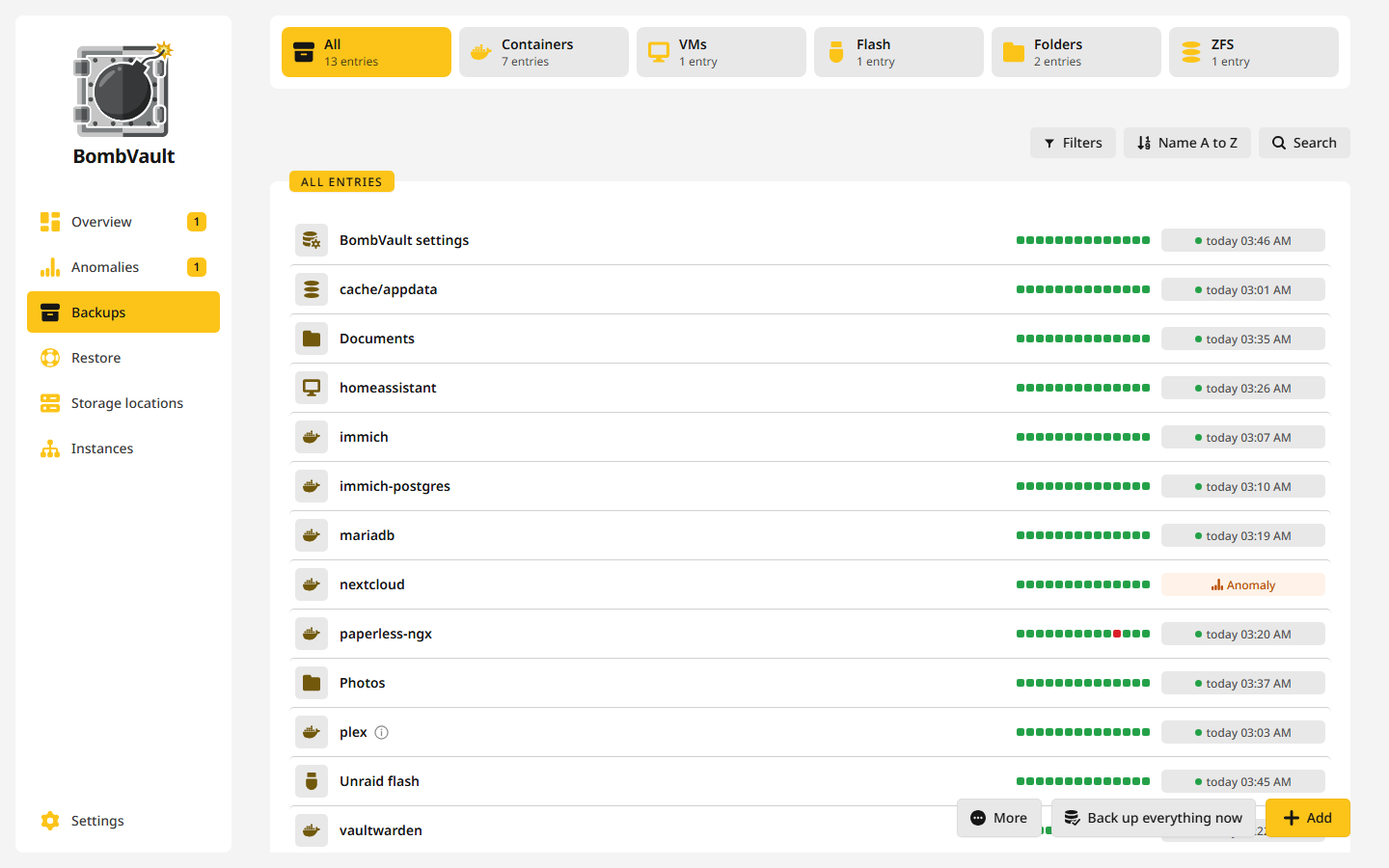
Everything BombVault backs up stands in one list under Backups: containers, VMs, folder sets, the flash drive, ZFS datasets and the self-backup. Each of them is an entry with a page of its own. This page walks through the list, the entry page and its three tabs, and the settings an entry can have.
What each section saves
| Section | What is saved |
|---|---|
| Containers | The appdata folder plus the container definition: image, variables, ports, labels and volumes. The Backup folders card on the container's Settings tab ticks exactly which folders the backup covers, with a live count of the paths and a list of what you left out. Data a container keeps outside Host Data, such as in a TrueNAS ixVolume or a Compose project under /opt, is not backed up, and the run names the folders it left out. The run also names a folder inside Host Data that is not there right now. System paths such as /etc/localtime or the Docker socket do not count as data. |
| VMs | The disk images, the XML definition and the UEFI NVRAM, with a graceful shutdown or a live snapshot, over SSH. See VM backups. |
| Flash | Unraid only. The whole USB flash (/boot): OS, license, array config, shares, network and plugin config. |
| Self-backup | BombVault's own /config: its settings database, the sign-ins of the storage locations, the libvirt SSH keypair, the key and host pins of the ZFS servers and the certificates, snapshotted with SQLite VACUUM INTO so the database is never captured in the middle of a write. |
| Folders | Any folder on the server as a folder set, such as a share, your documents or a photo library, with optional exclude patterns. Folder sets have schedules, retention, off-site copies, checks and restore drills like everything else. |
| ZFS datasets | A dataset and every dataset below it, read from one ZFS snapshot so all of them come from the same instant, and stored with restic like a folder. A ZFS entry can also keep a block-exact replica on a second ZFS server. See ZFS datasets. |
Every backup goes through restic, so it is incremental and deduplicated, and even large VM disks do not balloon the repository. BombVault never backs up, and so never stops, its own container. A run can be stopped safely, because restic writes its snapshot last, so an aborted run leaves unreferenced data and no snapshot. A lock left behind by a restart in the middle of a run is cleared and the run tried once more, and only after the lock has gone ten minutes without a refresh.
The list
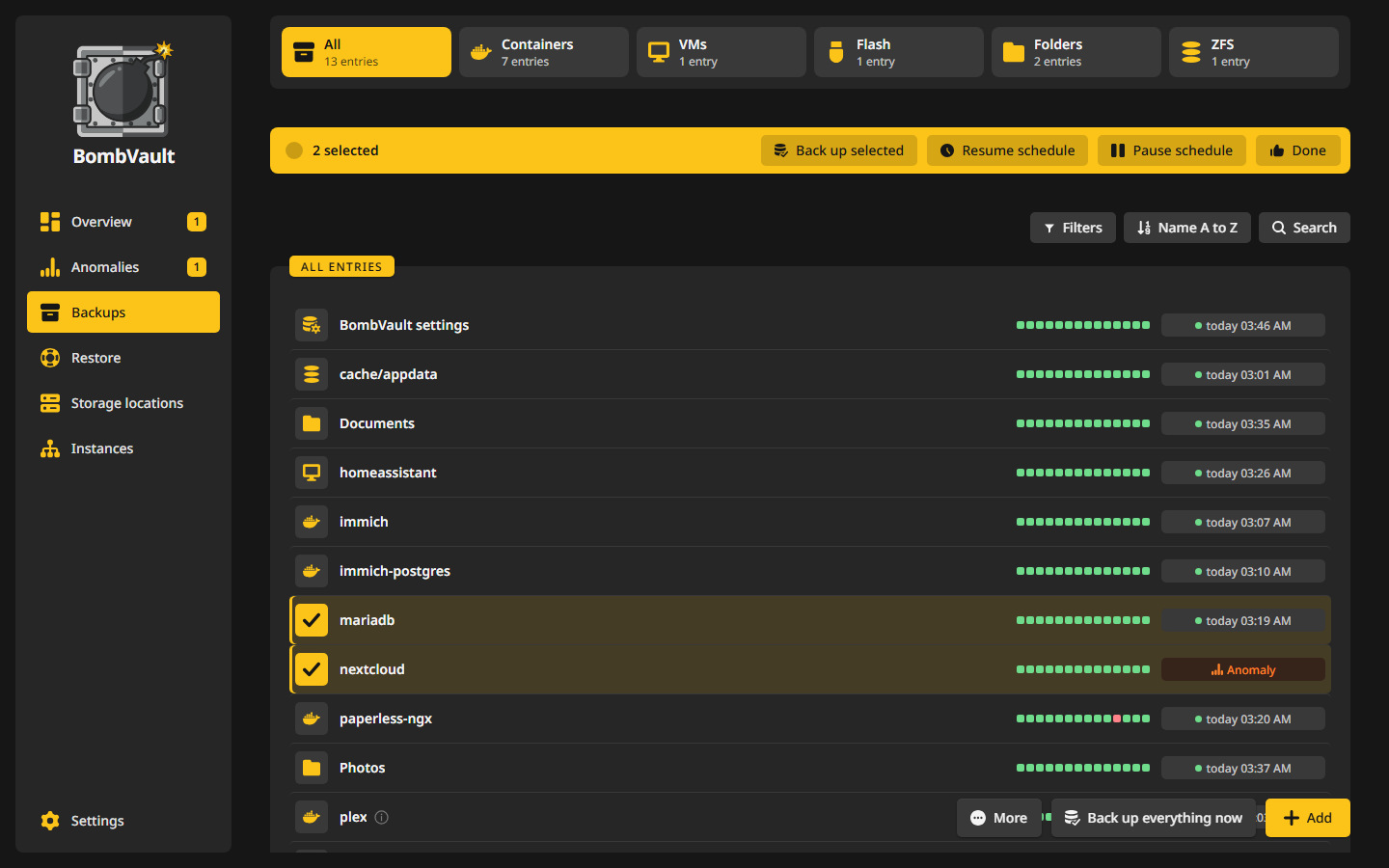
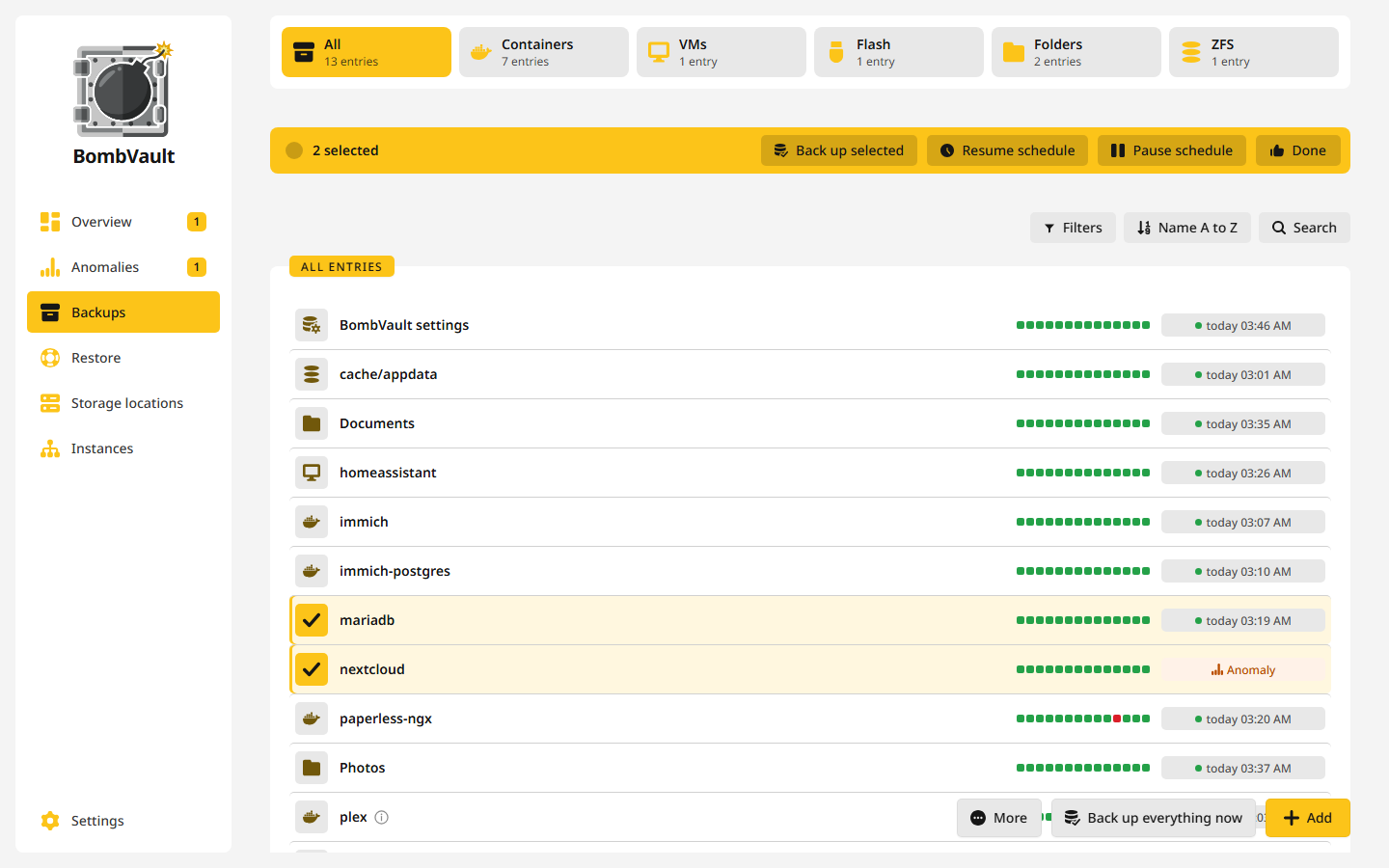
Tiles above the list pick a kind, such as Containers or ZFS, and each tile counts its entries. A tile selects, it does not hide the rest of the page.
Each row shows the entry's last fourteen runs as small squares and one status, such as Protected, Not protected, Deferred or Replicating. Everything else about it is in the info bubble beside its name, and while the pointer rests on the row that text stands in the row itself. A mark beside a container's name says that it was recreated with another image, other ports, variables or volumes since its last backup. It goes away with the next backup.
Three buttons above the list narrow it down:
- Filters: by Schedule (All, Scheduled, Paused), by Backup (Backed up, Never backed up) and, for Containers and VMs, Installed or Not installed.
- Sort: by name, status, IP, last backup, size or schedule. Every field except IP sorts both ways, such as Size, largest first and Size, smallest first.
- Search: by name, image or IP.
Entries that are no longer installed but still have backups stand apart under Not installed (backups only). Restore them, or delete their backups to free the space.
The page's main action floats at the bottom right: Back up everything now starts a run over every switched-on section. More holds the rest:
- Select starts a selection, see below.
- Discover backups reads what the storage locations hold and rebuilds entries from it, for example after a fresh install. A container with no data of its own has no snapshot, and it comes back from the definition mirrored beside the repository. Off-site copies of rebuilt sections then wait until you take their backups as this server's own, see After a rebuild.
- ZFS connection to this server opens the SSH test of the ZFS section, see ZFS datasets.
- Replicate all now, with the ZFS tile picked, sends the replica of every ZFS entry.
Picking several entries
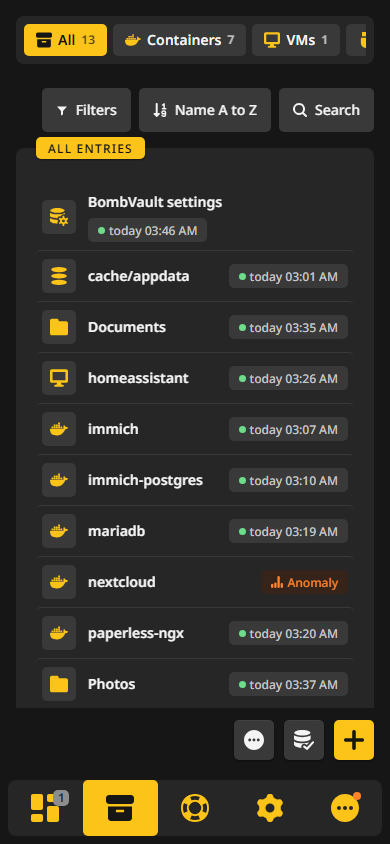
Pick rows the way you pick files in a file manager: Ctrl+click, Shift+click, Ctrl+A, or a long press on a phone. A picked row shows a check in place of its icon, and a bar above the list counts them and offers Back up selected, Pause schedule and Resume schedule, Select all and Clear selection. Every row also has a right-click menu with its own actions.
A selection is backed up on the server, one entry after the other, so it keeps going when you close the tab. To restore several entries together, use the Restore page.
Adding a folder or a ZFS dataset
Containers, VMs and the flash drive show up on their own once their section is switched on under Settings, General. Folders and ZFS datasets you pick yourself, because BombVault cannot guess which ones you mean. Add opens What else should BombVault back up?:
- One folder lists the shares BombVault found and takes any other folder below Host Data. Give the folder set a name, such as
Documents. The name is fixed after the first backup, because the snapshots are stored under it. - A ZFS dataset lists the datasets of this server. Pick the one at the top of what you want backed up, see Entries and child datasets.
- System configuration appears on a host without Unraid whose Host Data reaches
/etc. It is a starting/etcfolder set you review before saving.
Leaving an entry out
An entry you leave out on purpose, such as a test container, can be marked Don't back up. It then stops counting as not protected, and No longer exclude brings it back. Pause schedule is the softer way: the entry leaves the schedule and the full backup, wears a grey Schedule paused badge, and Back up now still works. It sets the same switch as On schedule on the entry's Settings tab.
The page of an entry
A click on a row opens the entry's page. The head names the entry and its state in one line, such as Last backed up 3 hours ago or Deferred, next try at 03:15, and holds its actions: Back up now, Restore, and under More the rare ones, such as Export newest backup, Export container or Export VM, Link to a former entry, Delete all backups, Remove entry and Delete backups everywhere. A back button left of the icon leads to the list. While a backup runs, Cancel backup stands beside its progress, and a cancelled run is recorded as cancelled, not as failed.
Delete backups everywhere removes the entry's backups at every storage location in one go, off-site copies included. The window lists each place with how many backups it holds, and the button unlocks once you type the entry's name. A place set to append-only keeps its backups and says so. The entry and its settings stay, so an entry you no longer back up stays that way and only its backups and their history are gone.
The page has three tabs: Backups, Settings and Verify.
Backups tab
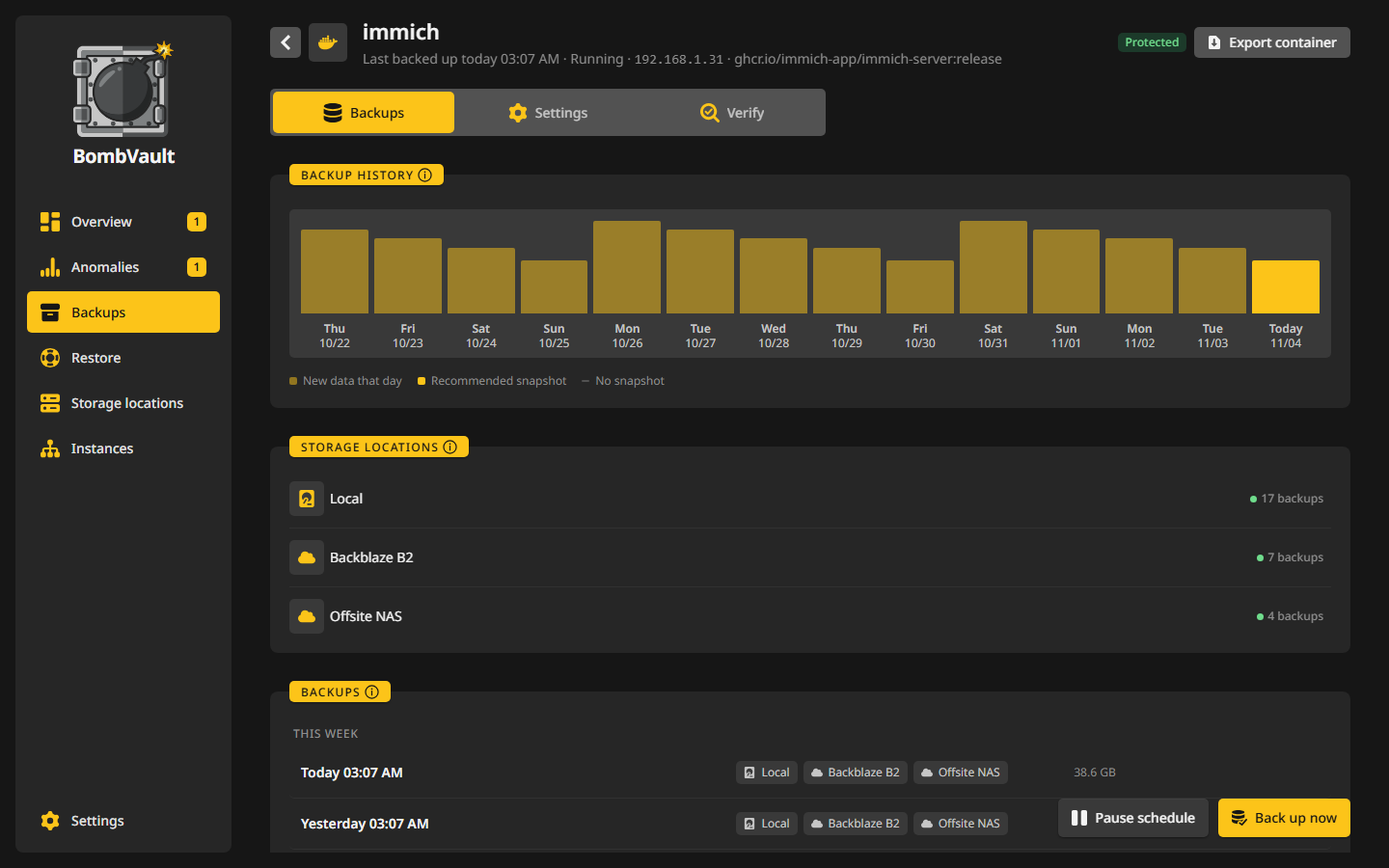
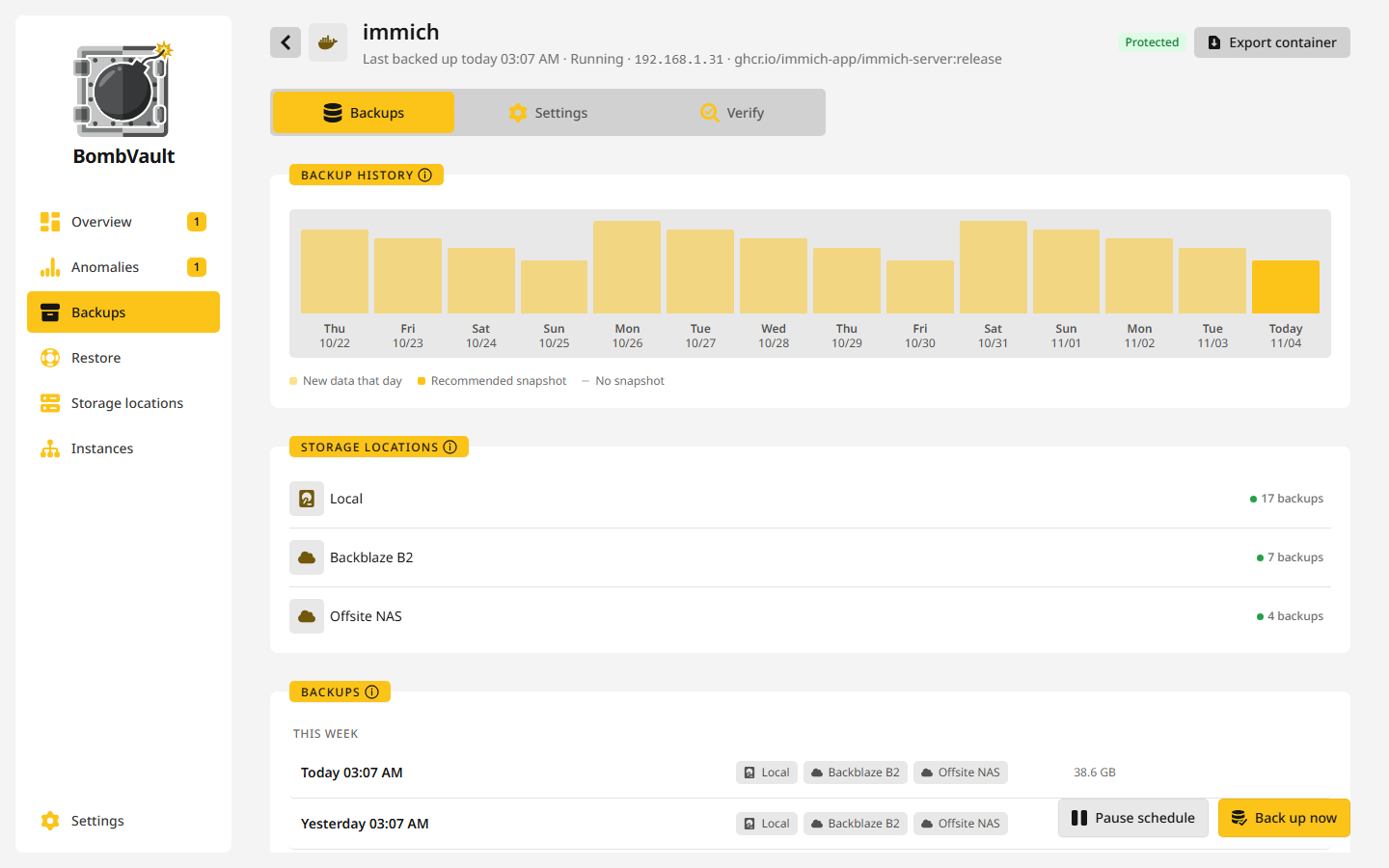
This tab lists the entry's snapshots, newest first, with a bar per day. A backup that lies in several places appears once, marked with each storage location that holds it. A click on a snapshot restores it, and a click on a place inside a snapshot restores it from exactly there.
- Storage locations names every place with backups of this entry and how many. Off-site places are read only when you press Check, because listing cloud storage takes a while. A place the entry no longer backs up to stands as Earlier backups only and can still be restored from.
- Every snapshot has a menu: Add tag or Change tag, Compare with another snapshot, which lists the files that came, went or changed, Export as tar, zip or a restic repository of its own, and delete at one place only.
- Database dumps of a container stand in a list of their own, with download, save to a folder and import.
How many snapshots stay is set by the storage location, see How long to keep.
Settings tab
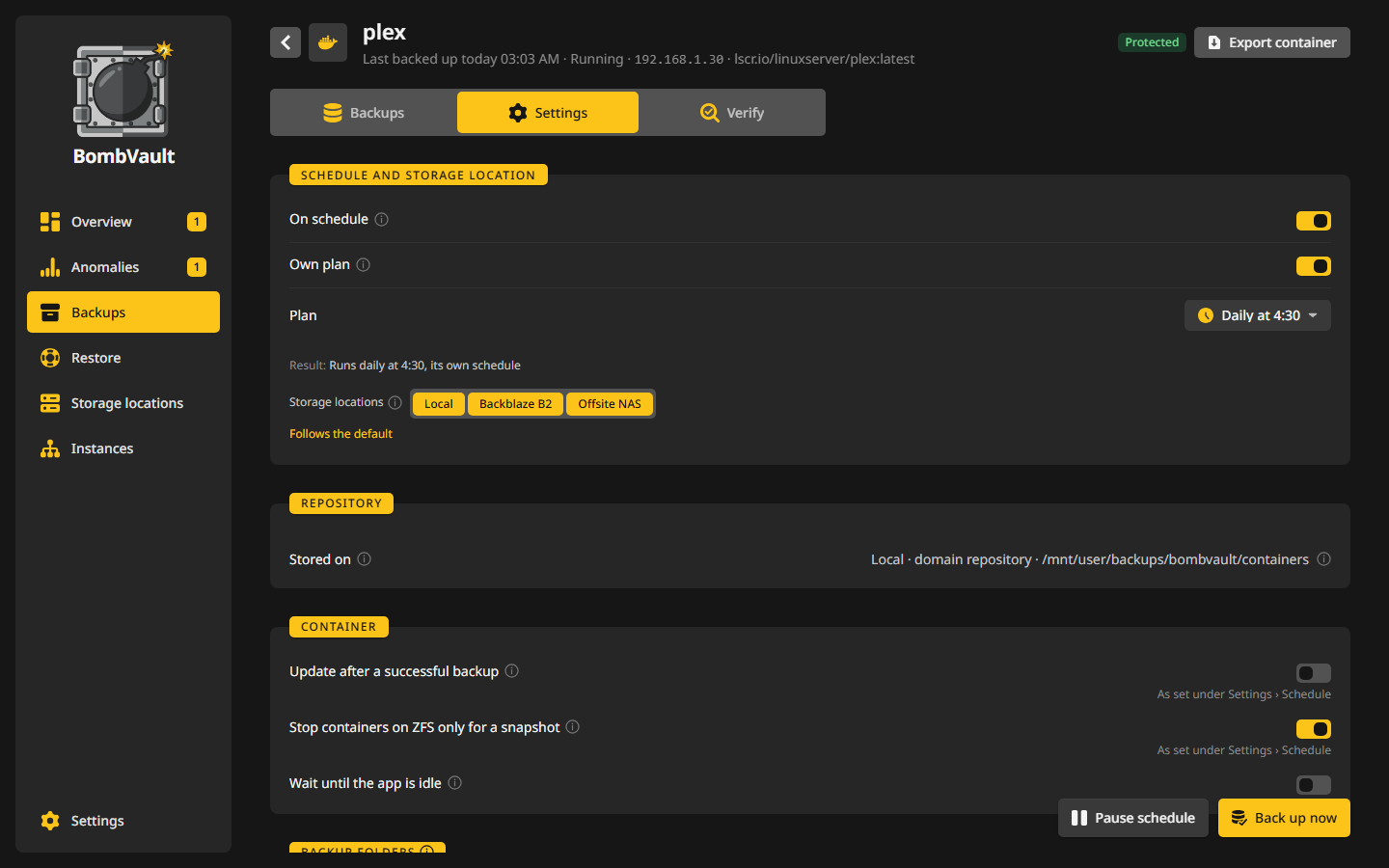
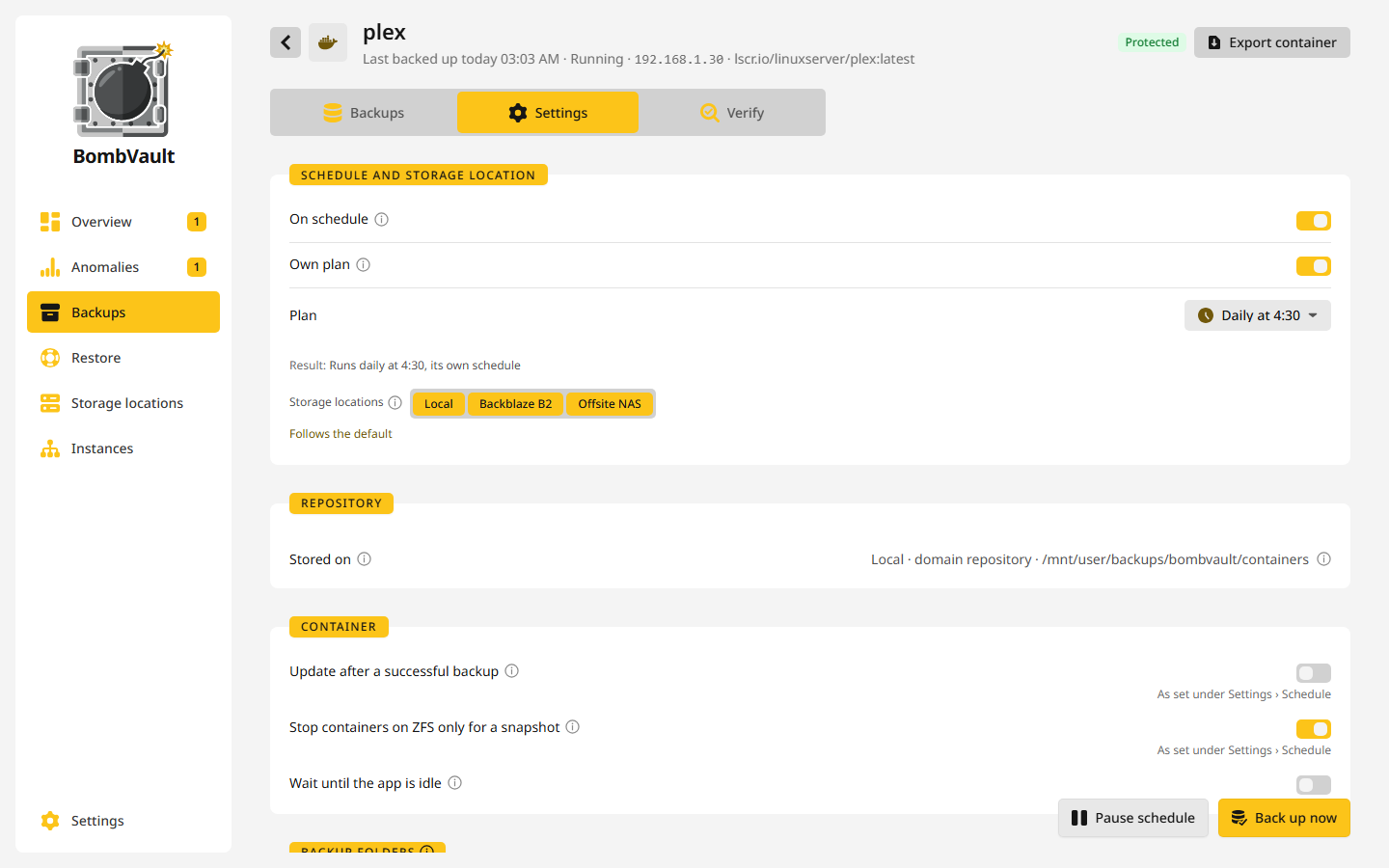
Every entry starts with Schedule and storage location:
- On schedule takes the entry in or out of the scheduled runs.
- Own plan gives this one entry a plan of its own, see An own plan for one entry. Without one, it runs on its section's plan or in the full backup.
- A row of buttons, Local and one per off-site storage location, says where the backups go. Follows the default means the entry goes where its section goes, and a click on it opens Storage locations per section. See Placement per entry.
- Repository names where the backups are written (Stored on). That place is fixed from the first backup on, the copies can change at any time.
The cards below depend on the kind of entry:
| Kind | Cards |
|---|---|
| Container | Backup folders (which mapped folders are backed up, with Skip cache folders (CACHEDIR.TAG)), Exclude patterns, Stop other containers, Commands before and after, Database, When the app is busy, Update after a successful backup, Snapshot instead of stop, Former names |
| VM | VM with Method (Graceful (shutdown) or Live snapshot) and Changed blocks only, see the VM backup guide |
| Folder set | Folder and Exclude patterns |
| Flash drive | Flash zip export, which writes every flash backup out as a plain .zip to a folder you pick, in one step so a sync tool never sees half a file. A flash backup that holds less than it should keeps the last ZIP in place, and the export's run says so. |
| ZFS dataset | the child datasets, the containers to stop and the commands around the snapshot, Replica and Test snapshot access, see ZFS datasets |
Settings save themselves as you change them.
Verify tab
- Checks shows the restore check that follows the first backup. Check restore runs it again on the newest backup: BombVault restores a sample of up to 100 files and 256 MiB into a temporary folder and has restic read every file back against its hashes.
- Start test, on a container, restores the newest backup into an isolated copy and starts it: a name starting with
bombvault-test-, an internal Docker network of its own with no published ports and no way to the LAN, 1 CPU and 2 GiB of memory. It passes when the copy reports healthy, answers on its first exposed port, or, with neither, keeps running. The original is never touched, and the copy, its network and its data are removed afterwards, also after a restart in the middle of a test. Containers on the host network, privileged ones, ones with devices and ones that need another container are shown as not testable. Start test under Settings, Verify, Automatic checks tests one container per run, the one tested longest ago first. - Anomalies sets this entry's own sensitivity and notification level and shows its open findings.
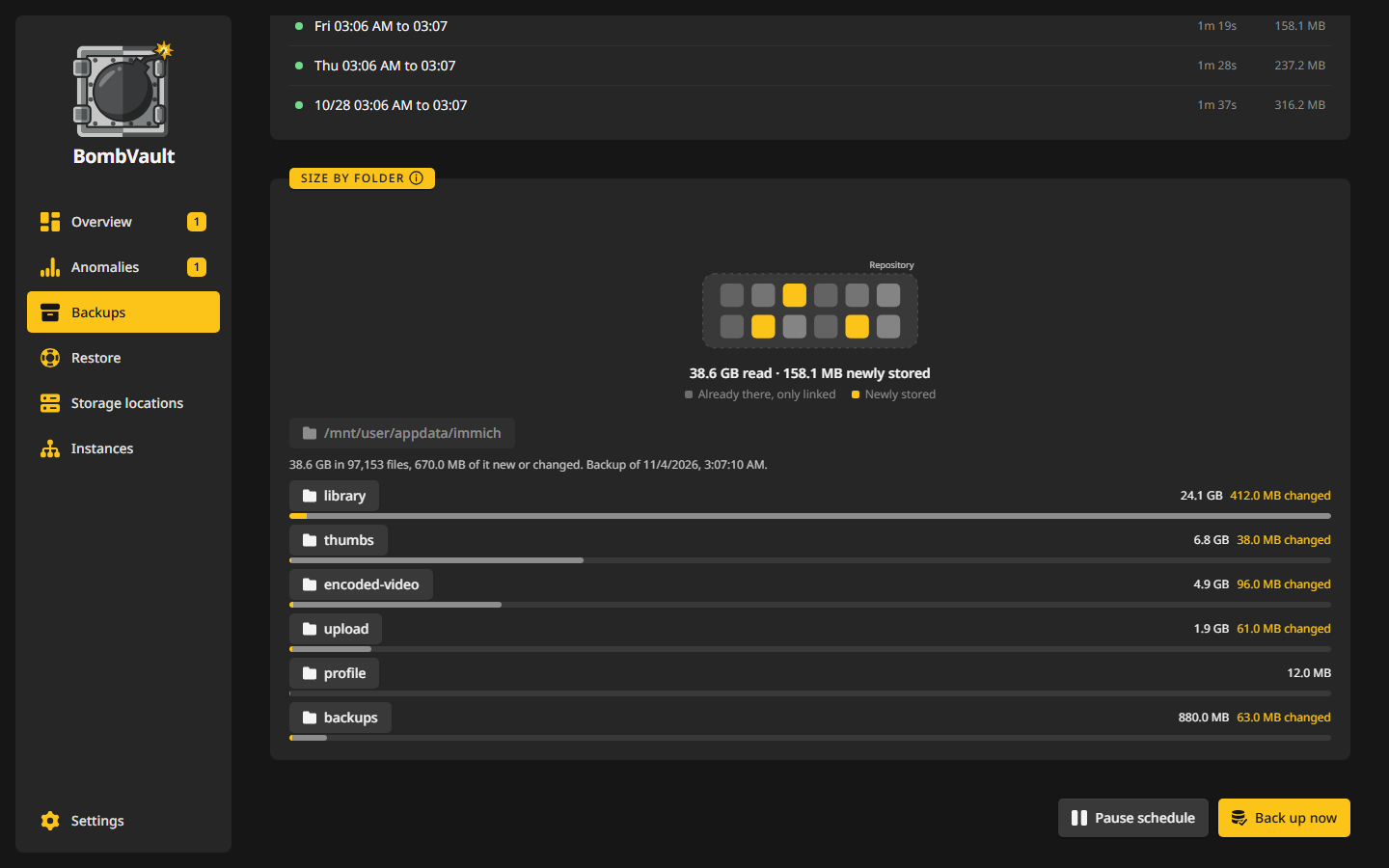
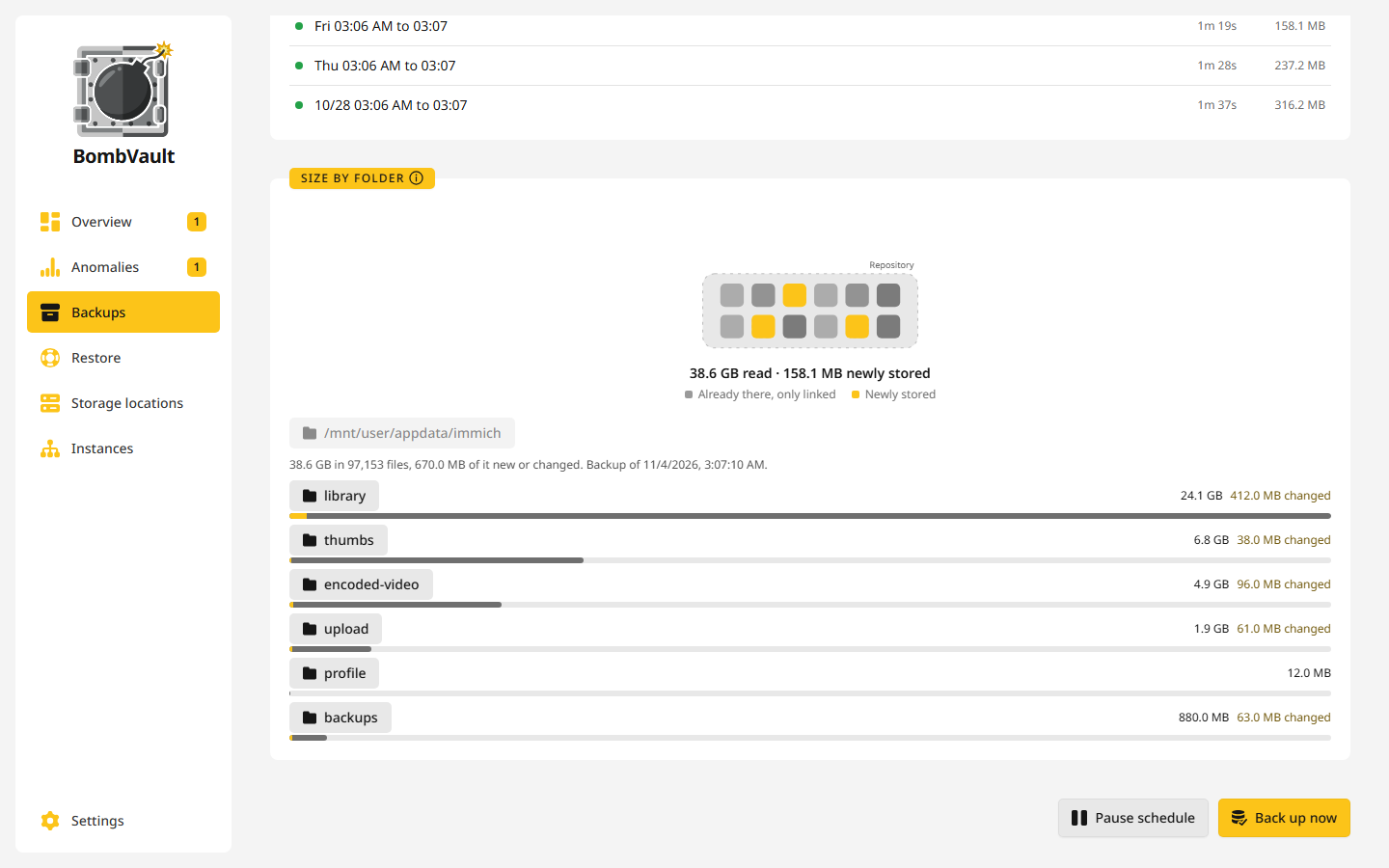
- Size by folder shows what takes the space in the newest backup and how much of it the latest backup brought in, one level at a time.
- Recent runs lists the last runs with their start, end and duration. A click shows the details.
Exclude patterns
The Exclude patterns card takes one pattern per line. Type paths as you see them inside the container, such as /config/Library/Application Support/Plex Media Server/Cache, or a bare name such as .git, which matches at any depth. On a folder set, type a path as the host knows it, such as /mnt/user/data/cache. A preview under the field shows what each line resolves to, and warns when a line matches nothing or would exclude everything. A line of / or *, or one that names a whole backed-up folder, is ignored, so an exclude can never empty a backup. To leave a whole folder out, untick it under Backup folders instead.
For well-known images such as Plex, Jellyfin, Sonarr, Radarr, Immich and Nextcloud, the card offers the folders the app fills again on its own, such as caches, logs and thumbnails. Nothing is excluded until you press Exclude selected.
The same card carries warnings a folder scan cannot see. Immich, for example, keeps its albums, faces and dates in a PostgreSQL database in a separate container, so a file backup of the Immich container alone restores the pictures without any of that, and the restore looks like it worked. Back up the database container too.
Database dumps
PostgreSQL, MySQL and MariaDB containers that BombVault recognises are dumped before each backup, from the running server, into a restore point of their own next to the files. That covers the official images, PostGIS, TimescaleDB, pgvector, pgautoupgrade, Immich's database images, the linuxserver, yobasystems and jc21 MariaDB images and Oracle's mysql-server. A container that only looks like a database gets the same option, switched off until you choose it.
The dump streams straight into the repository and is never written to a disk. Credentials come from the container's own variables, *_FILE secrets included, and never leave it. The Database card on the container's Settings tab says whether the data folder is saved while stopped, copied while running, or not saved, and switches the dump on or off for this container. The label bombvault.dbdump=false does the same and wins over the card. Automatic database dumps under Settings, General switches it for all of them.
A failed dump does not fail the backup. It shows up as its own failed run with the reason and sends a notification. Dumps are never loaded back on their own: download one, plain or compressed, save it to a folder, or import it into a freshly started database with one click on the Backups tab. To get a dump back without BombVault, see Getting a database dump back. When one fails, see A database dump failed.
Commands and other containers
- Commands before and after run inside the container with
sh -c, for example to flush a cache to disk. A failing command before the backup aborts it. A command before the backup that exits with code 75 defers a scheduled backup instead, see below. - Stop other containers names containers to stop while this one is backed up, such as its database. Afterwards they start again in their Compose
depends_onorder, and by default each one has to report healthy before the next starts. The wait and its timeout are under Restart after backup in the Order card under Settings, Schedule. - A container that shares the network, PID or IPC namespace of one that goes down, through
--net=container:or Compose'snetwork_mode: service:, stops and starts with it even when it is not on the list, and it starts after the container it joins. A restarted container gets a new network, and one left running on the old network would have only its loopback. The list itself stays as you set it. If such a container could not be stopped, the run says it has no network until it is restarted. The same goes for BombVault's own container, which never stops itself and cannot be put on the list. - A container that does not run again afterwards is named on the run and in a notification, also when the backup itself failed.
When the app is busy
A backup stops its container, so a scheduled one can wait while somebody uses the app and try again on its own. The When the app is busy card on a container's Settings tab sets it up:
- Activity check asks Plex, Jellyfin or Emby before a scheduled backup whether anybody is watching. Plex is asked with the token from its own
Preferences.xml, so there is nothing to enter. Jellyfin and Emby take an API key, made in the server's dashboard under API keys. - Ignore paused sessions after (min) lets a film paused for the night stop counting.
- Back up when the server does not answer decides what happens when the server cannot be asked: on, the backup runs and the log says so. Off, it waits as if somebody were watching.
- Wait while the container sends data is for apps without such a check, such as a game server or a downloader. The backup waits while the container sent more than Busy from (KiB/s) at any reading within the last Quiet for (min) minutes.
- Try again every (min), Try only within a time window with Try between, and Wait at most (hours) set how the tries go.
- At the end of the wait either gives up, which shows the backup under Needs you with Try again, or Back up anyway.
A waiting backup is recorded as Deferred, in amber, and the rest of the run goes on. The overview, the list and the entry show it with the next try, and the overdue alert and the protection status wait for it until its deadline. You get one notification when it is deferred and one when it ends, not one per try. A try waits while another backup runs, and a wait carries on after a restart. A backup you start yourself always runs right away, whether with Back up now, Try again, a selection, the API or MCP, and one that goes through ends a wait that was pending.
The container's Settings tab also has an older, simpler way: Wait until the app is idle with Wait at most (hours). The backup starts as soon as the app is idle, which the Idle before backup card under Settings, Schedule defines. The members of a Compose stack due in the same run wait together, and the waiting backup holds no lock, so the other containers go ahead.
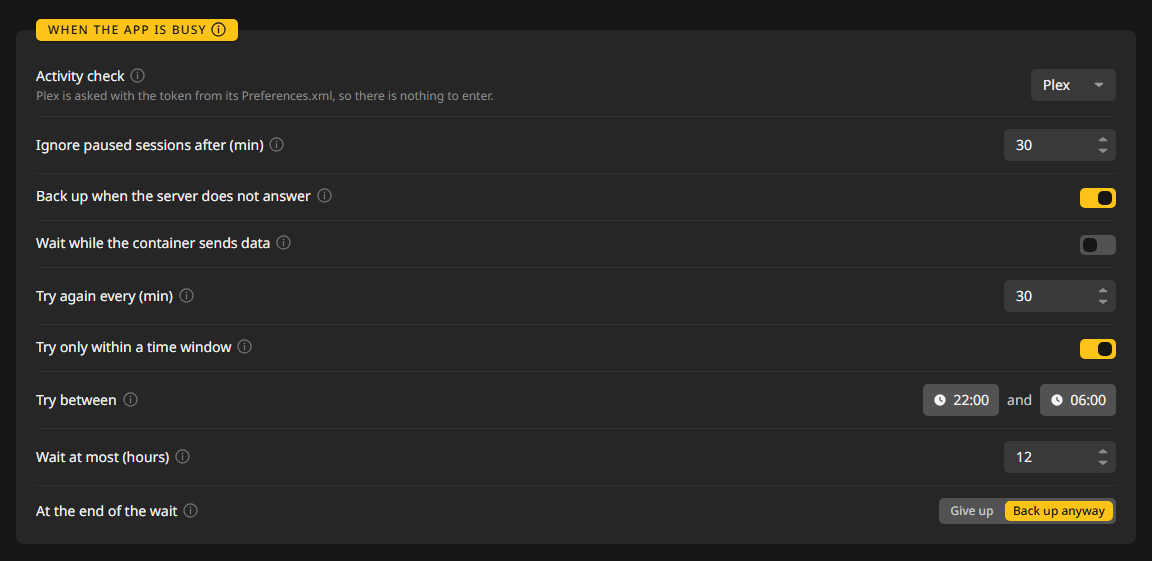
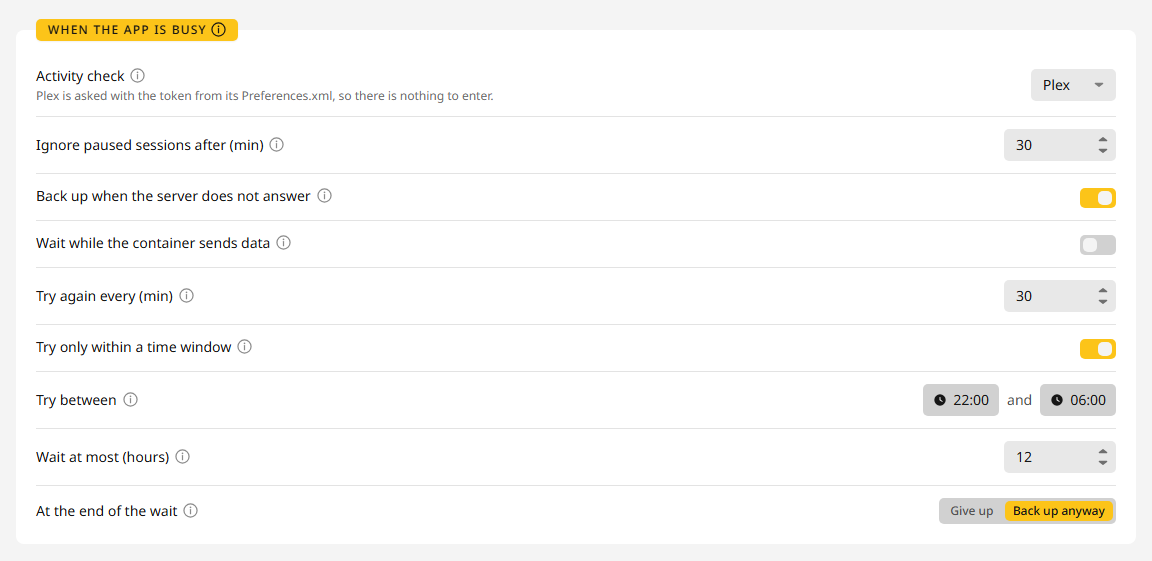
Example: Plex waits while someone watches
The full backup runs every night at 03:00. Nobody should see a film stop because Plex went down for its backup, but the backup should still happen before the morning.
- Open Backups, then the
plexentry, then its Settings tab. - In When the app is busy, set Activity check to Plex. There is nothing to type.
- Set Ignore paused sessions after (min) to
30, so a film paused at midnight stops counting at half past twelve. - Leave Back up when the server does not answer on.
- Set Try again every (min) to
15. - Switch on Try only within a time window and set Try between to
22:00and06:00. - Set Wait at most (hours) to
3and At the end of the wait to Back up anyway.
What happens on a night when someone is still watching at 03:00: BombVault asks Plex, finds a session that plays, and records the backup as Deferred with the next try at 03:15. The other containers of the run are backed up as usual. When the film ends at 04:10, the try at 04:15 finds Plex idle and backs it up, and the wait ends with one notification. If the film were still running at 06:00, the wait would reach its end and Plex would be backed up anyway, so its backups never fall more than three hours behind.
For your own check, make the Pre-backup command exit with code 75 while the app is busy, for example [ "$(cat /tmp/players)" = 0 ] || exit 75. More symptoms and fixes are in Troubleshooting.
Plain exports
restic stays the engine, but an export gives you a copy that needs neither BombVault nor restic.
- Export container and Export VM under More on an entry's page write a copy as it is right now, next to the repository: the container's backup folders plus its Unraid template, or the VM's disk images plus its definition, restorable with
virsh define. - Export on a snapshot writes a stored backup to the export folder on the server, as tar, zip or a restic repository of its own, and can take one snapshot or all of them. A flash backup and a self-backup hold keys, so exporting one needs a login password and a sign-in at the instance.
Exports are plain files by default. Encrypt exports with age under Settings, System seals them, the flash ZIP included, for the recipients you list, each an age public key or an SSH public key. You decrypt them later off the box with the matching private key. With encryption on and no valid recipient, an export fails with a clear error instead of ever writing plain files.
What a run tells you
- Timing. Every run reads start, end and duration, and each entry has its own Recent runs.
- Why a backup was slow. While a backup runs, BombVault watches how busy the CPU, the disks and the network are. When a backup takes much longer than usual and one thing was clearly at its limit, the run says so, for example "The target disk disk1 was 98% busy". Otherwise it says nothing.
- Progress of checks and prunes. The activity log and the Check backups card show how far restic has counted, such as 12 of 47 packs, with the time left in that step once there is enough to estimate it.
- Files it could not read. A backup that went through but left something out turns its line orange and names what was left out.