Notifications
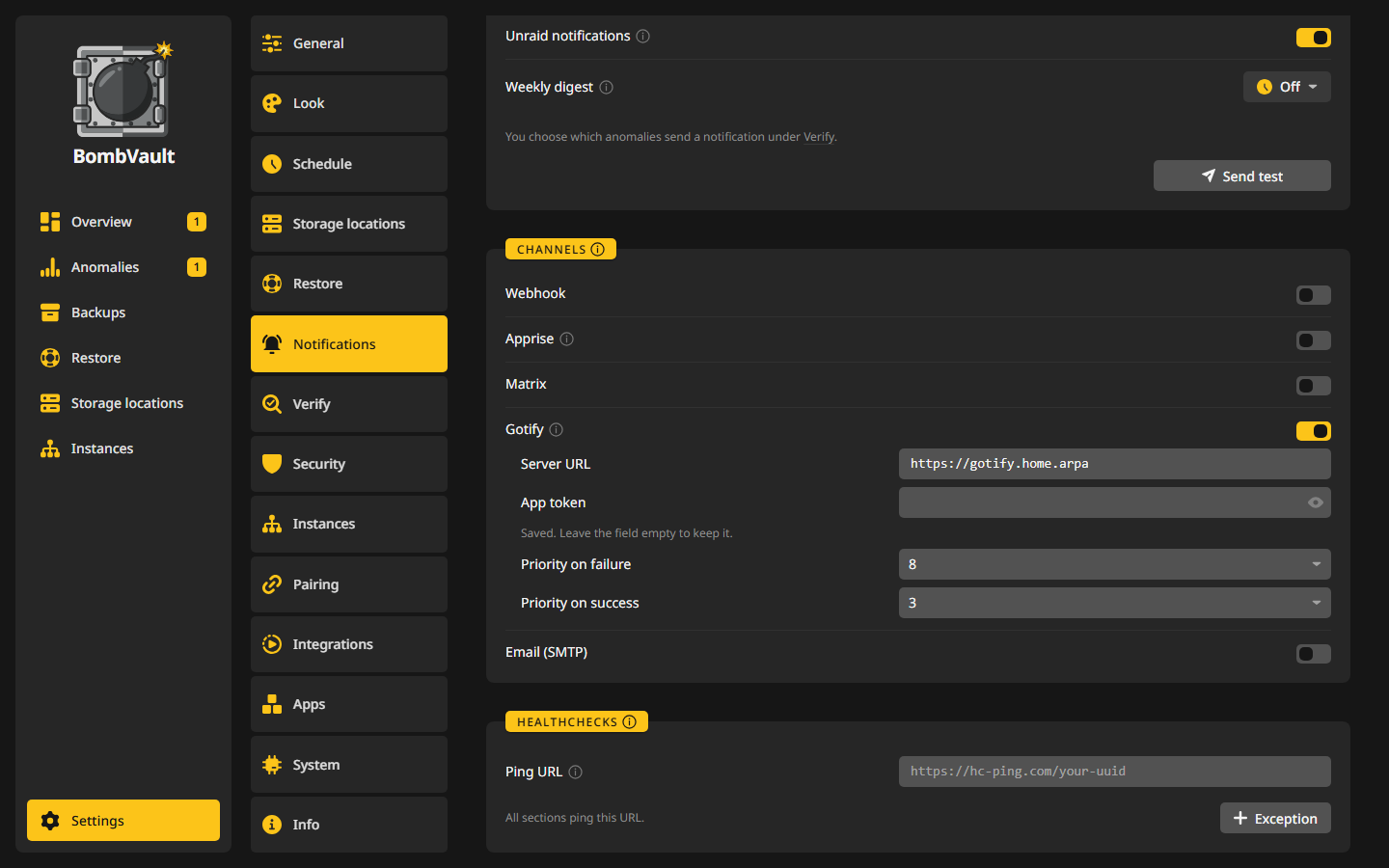
BombVault can tell you when a backup fails, when it succeeds, when one is overdue, and once a week how things went. Everything is set under Settings, Notifications: what triggers a message in the Notifications card, where messages go in the Channels card, and the check-in pings in the Healthchecks card.
What sends a message
The Notifications card sets the rules for every channel at once:
- Notify: Never, Only on failure or On success and failure, for every channel below. A fresh install starts on Only on failure, so a channel you fill in tells you when a backup breaks.
- Summarise scheduled runs: one message per scheduled run, such as 42 of 45 succeeded, instead of one per container or VM. A backup you start by hand still sends its own message. A frozen guest, a failed retention or a crossed growth budget goes out right away even with summaries on.
- Notify on container update: one message for each container that Update containers after a successful backup moved to a newer image, so you can check that it still works.
- Report overdue backups: once a day at 09:00 BombVault checks whether a switched-on backup is overdue, which means older than twice its schedule, and sends one message per case, naming the entry that fell behind. The next successful backup clears it.
- Unraid notifications: sends to Unraid's own notification system, which can forward to Pushover, email or Discord. It runs over the SSH connection from Settings, Integrations, Host SSH, so that key has to be authorised. On TrueNAS and other hosts it stays off.
- Weekly digest: one summary a week with run counts, new backup data, which sections are overdue, whether the off-site copies are current and the top failures. Its plan is a button like every other plan, and Off switches it off. See Schedules.
Which anomalies send a message is set under Settings, Verify, see Anomalies. A deferred backup sends one message when it starts to wait and one when the wait ends, not one per try.
Send test at the bottom of the card sends a test message through every channel that is switched on, with the values as they stand in the form, and names each one that failed. A Healthchecks check gets an entry in its log, which leaves its state as it is.
Channels
Each channel has its own switch in the Channels card, and its fields appear once it is on. Every channel sends on its own with its own time limit, so one host that never answers does not hold up the others. An overdue, budget or anomaly alert no channel took is tried again, and so is a weekly digest. The message of a single backup or a summary is sent once.
| Channel | Fields | Notes |
|---|---|---|
| Webhook | Webhook URL, Webhook format | Formats: Generic JSON, Discord, Slack, Gotify and ntfy. Generic JSON posts title, message and ok. |
| Apprise | Apprise API URL, Tags (optional) | Point it at the /notify/<key> endpoint of your Apprise API container to reach its 100+ services. Tags pick a subset of that key's targets. |
| Matrix | Homeserver URL, Access token, Room ID | The token stays on the server and is never shown again. |
| Gotify | Server URL, App token, Priority on failure, Priority on success | Priorities run from 0 to 10 and start at 8 for failures and 5 for successes. |
| Email (SMTP) | SMTP host, Port, Encryption, Username, Password, From address, To address | Encryption is STARTTLS, TLS (implicit) or None. |
Secrets such as the Matrix token, the Gotify app token and the SMTP password are stored encrypted. Under a saved secret the field says Saved. Leave the field empty to keep it. When you change the server's address, BombVault does not send the old secret to the new place: the field asks for it again, and the new address is saved once you type it.
Healthchecks
A service such as Healthchecks.io raises the alarm when BombVault stops checking in. Paste the check's Ping URL, and BombVault pings it for the whole lifecycle of every backup: at the start, then on success or with /fail. It does so whenever a URL is set, whatever Notify says, so the check stays green on success even with failure-only messages. A section with nowhere to back up to counts as failed, so its check goes red instead of hearing a success.
Sections on the same URL share one check. Once a backup of one has failed, the good backups of the others ping /fail as well and name it, so the check stays red until that entry has a good backup again or you acknowledge the failure under Needs you.
A section can ping an address of its own: Exception in the card adds one, and the line says All other sections ping this URL.
Example: Gotify on your phone
You run Gotify at https://gotify.example.com and want failures to ring on your phone while successes arrive quietly.
- In Gotify, open Apps, create an application called
BombVaultand copy its token. - In BombVault, open Settings, Notifications. In Notifications, set Notify to On success and failure and switch on Summarise scheduled runs, so a night of 45 backups sends one message instead of 45.
- In Channels, switch on Gotify.
- Enter
https://gotify.example.comas Server URL. BombVault adds/messageitself. - Paste the token into App token.
- Leave Priority on failure at 8 and Priority on success at 5. Gotify's Android app treats 8 and up as high, so only failures make a sound.
- Press Send test. The line under the card says whether Gotify took it, and a refused token is named as such.
The next scheduled run sends one summary at priority 5, or at 8 when anything in it failed.
Example: ntfy as a webhook
ntfy needs no account for a public topic. Pick a topic name that is hard to guess, because anyone who knows it can read it.
- In Channels, switch on Webhook.
- Enter the topic's address as Webhook URL, such as
https://ntfy.sh/bombvault-tower-7f3k, or the address of your own ntfy server. - Set Webhook format to ntfy.
- Subscribe to the same topic in the ntfy app and press Send test.
BombVault posts the message as the body with its title in X-Title. A failure goes out with priority high and the tag warning, so it stands out in the app.
When messages do not arrive
See Notifications do not arrive in Troubleshooting.