Overview
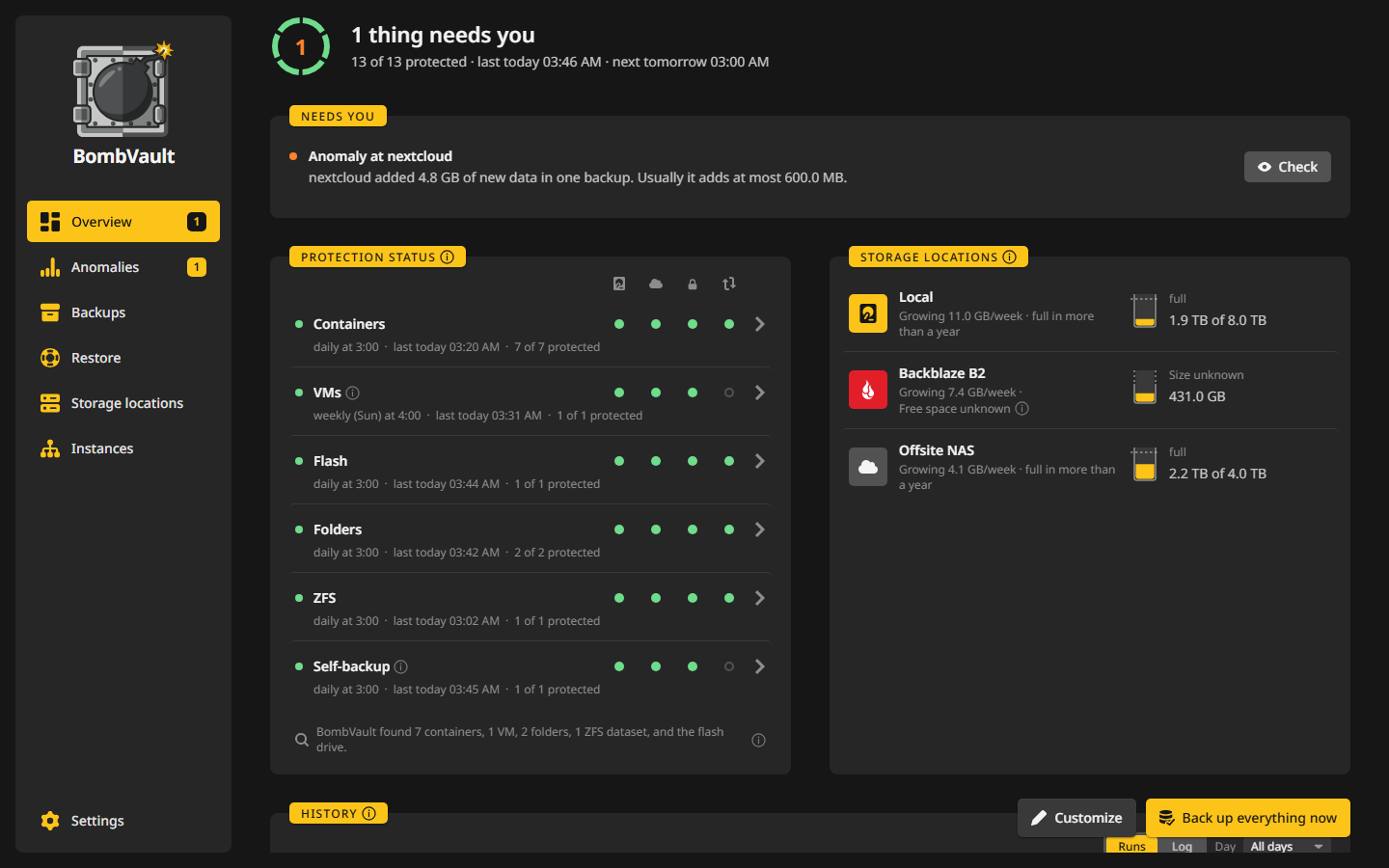
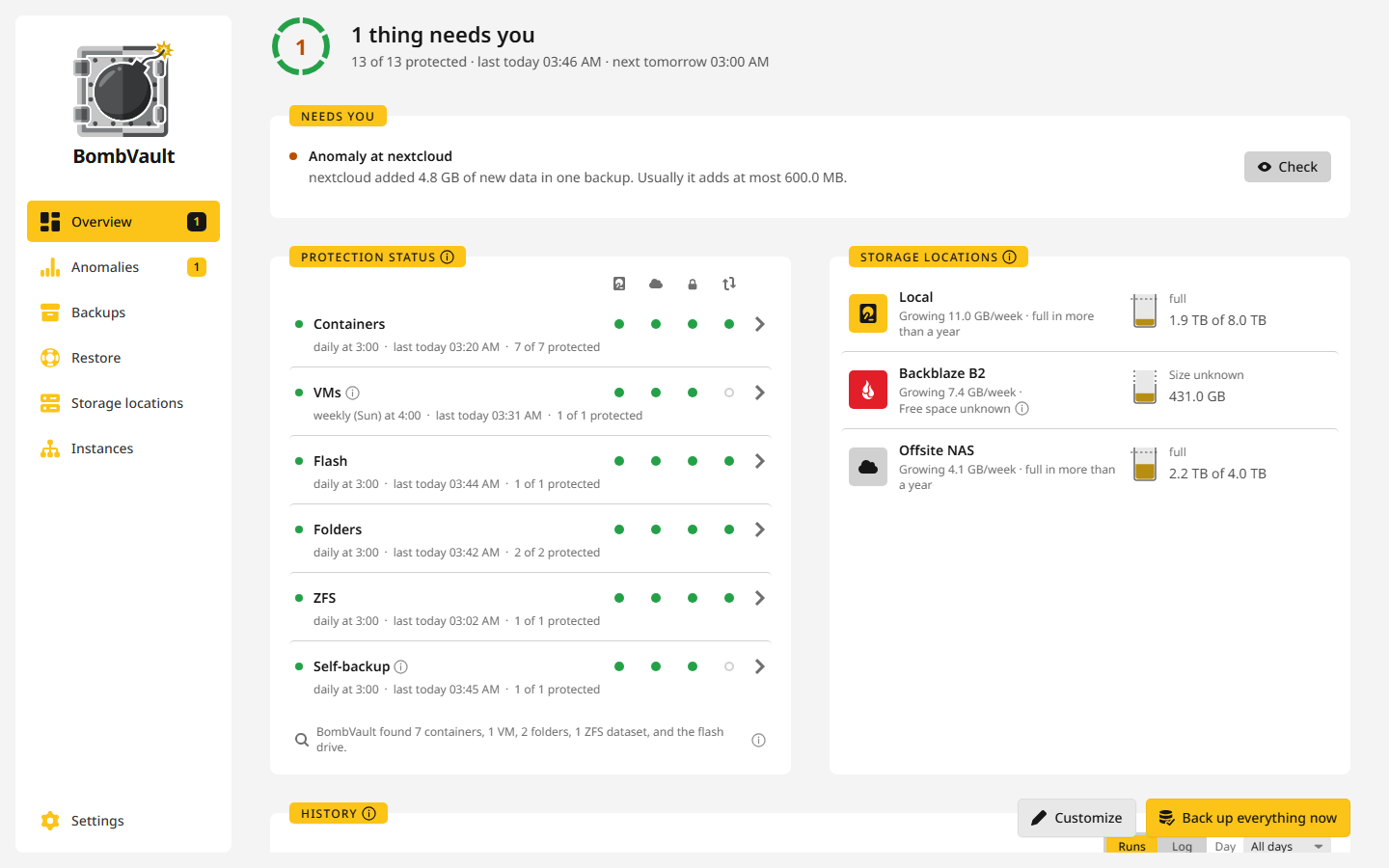
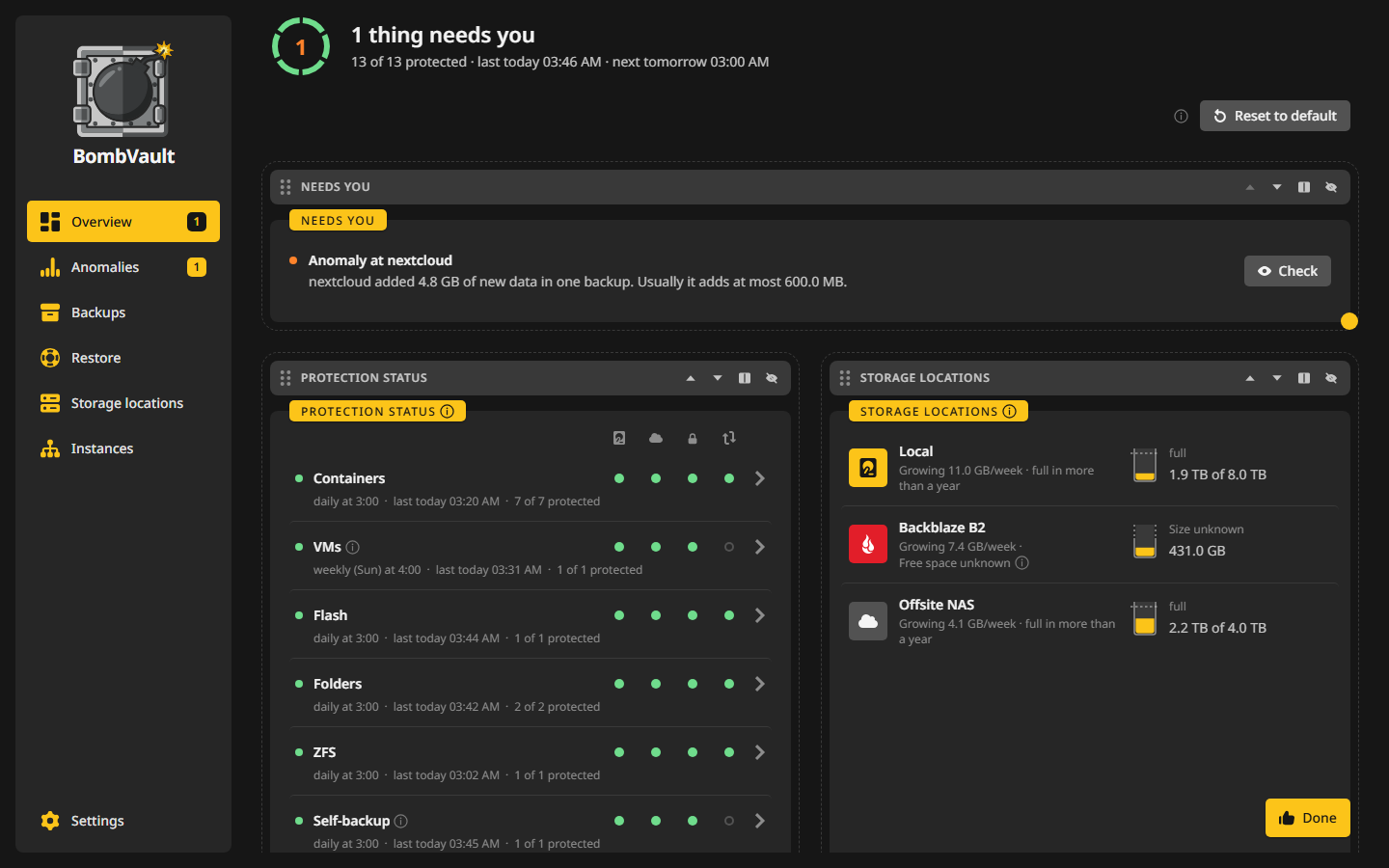
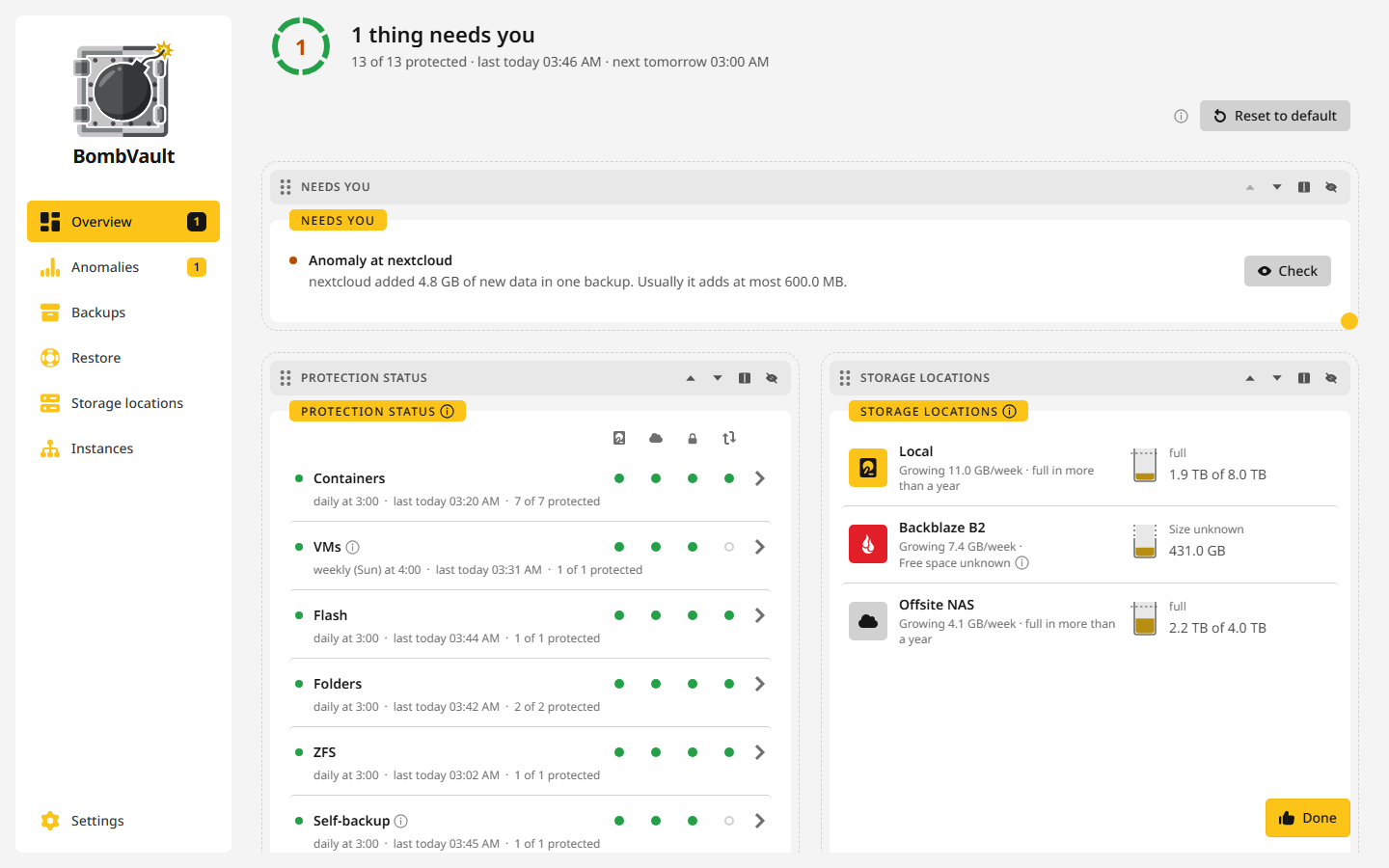
The overview is the first page of the sidebar and the one to check each morning. It answers two questions at a glance: is everything backed up, and does anything need you? It starts with a status head and four cards, and more cards wait under Customize.
The status head
The head sits on top of the page and always stays there. Its ring shows how much is protected, such as 41 of 43 protected, and the line beside it says how things stand:
| The head says | What it means |
|---|---|
| Everything backed up | Every entry of every switched-on section has a current backup. |
| Backed up, with notes | Everything is backed up, and some runs left a note, such as files they could not read. |
| Not everything is protected yet | Some entries have no current backup, for example because they wait for their first one. |
| 3 things need you | Something failed or waits for a decision. The Needs you card lists it. |
| Backing up now | A backup runs. The ring turns into a progress ring with the stations Stop, Read and Start, and a full backup counts its entries as it goes, such as Backing up now: 12 of 43. View run opens the run. |
| Off-site copy running | A copy to a storage location runs. It shows no percentage, because restic copy reports none. |
Below the line stand when the last run was and when the next planned one starts.
Needs you
This card lists what you should look at, newest first, and says Nothing to do. when the list is empty. Each row has its own way out:
- A failed backup names the entry and its reason. View errors shows restic's own output, and Try again starts the backup once more.
- Off-site copy failed names the section and since when. Replicate now tries again.
- Anomaly at plex leads to the finding with Check. While a critical finding is open, retention keeps that entry's old backups.
- New entries that BombVault found and nothing backs up yet, such as a container you just installed, offer Start backing up or Don't back up.
- A backup that gave up because its app stayed busy for the whole wait, see When the app is busy.
- A failed ZFS replica, in plain words such as that the server has no zfs command, with the server's output under View.
- Backups are stopped: the key can no longer be opened appears when this server took over another server's key and
APP_KEYchanged afterwards. See Troubleshooting. - Save your recovery kit stays until you have downloaded the kit and pressed I've stored it safely.
Protection status
Every switched-on section has a row with four checks:
| Check | It goes green when | Other words you may see |
|---|---|---|
| Local | the last backup is current | no backup yet, no schedule, last run failed, backup overdue, not every entry is protected, backup due soon |
| Off-site | the last copy off the premises is current | no off-site copy, copy running, copy overdue, waits for your decision, no copy yet, replica failed |
| Delete protection | a tamper test proved that the far side refuses deletes | none, none and risk accepted, not proven yet, test failed, not proven because its check is off |
| Trial restore | a restore from the off-site copy passed | never run, running, failed, overdue, manual only, not possible for this section |
A section is green only on verified facts. A copy on this server does not count as off-site, and a location you marked Accept without delete protection shows a grey ring instead of an amber dot, so the section's colour follows its other checks.
A scheduled section says No backup yet and stays neutral until its first run was due, counted from when its plan was last set. After that it reads Overdue and alerts once. Overdue goes by the entry that fell furthest behind its own plan, so a neighbour that runs does not hide one that stopped. An entry whose container is gone or that no schedule reaches does not count. An entry on a weekly plan of its own is not held to the section's daily plan. A section with nothing to back up, because no schedule reaches any of its entries, says Not scheduled and is never overdue.
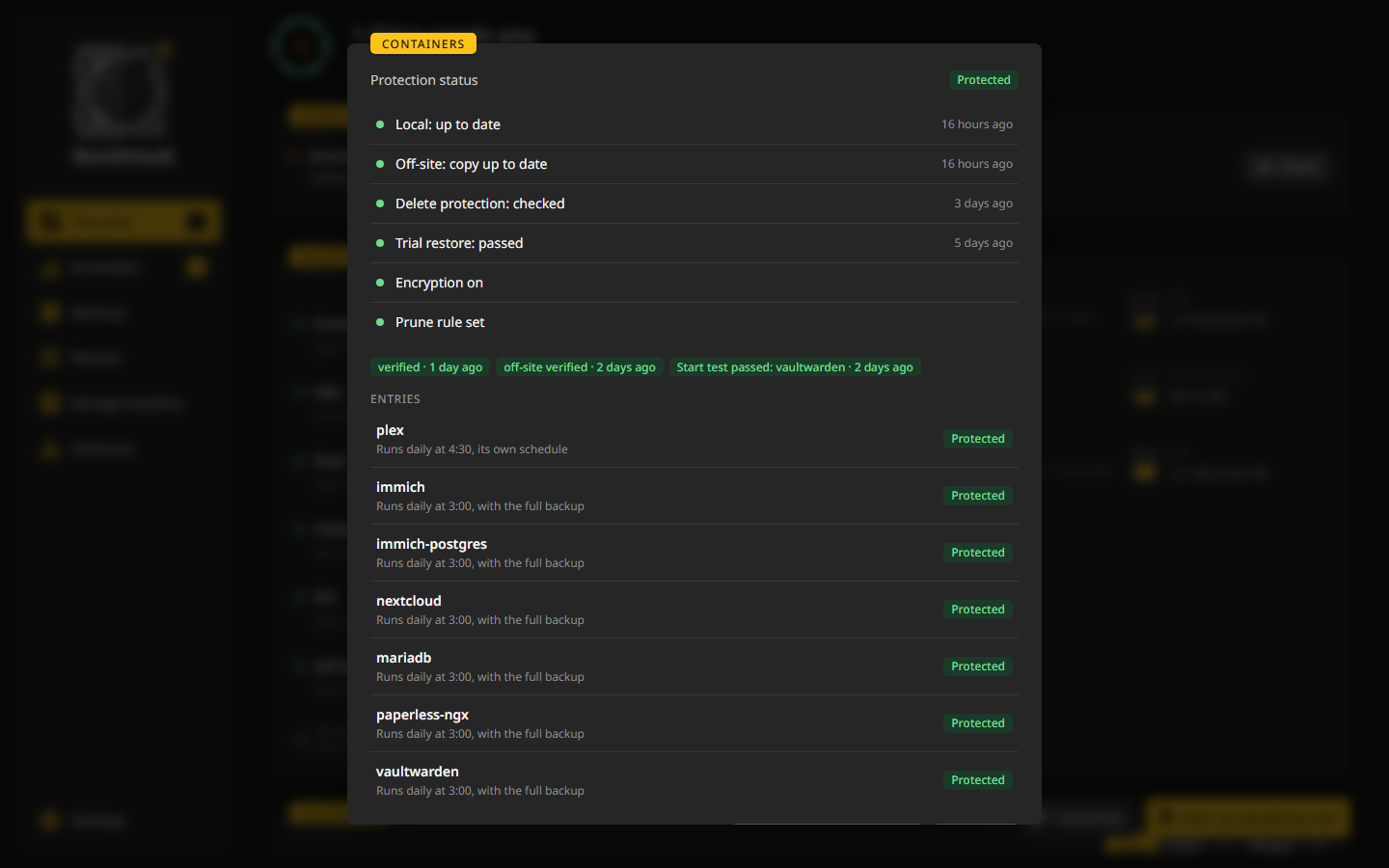
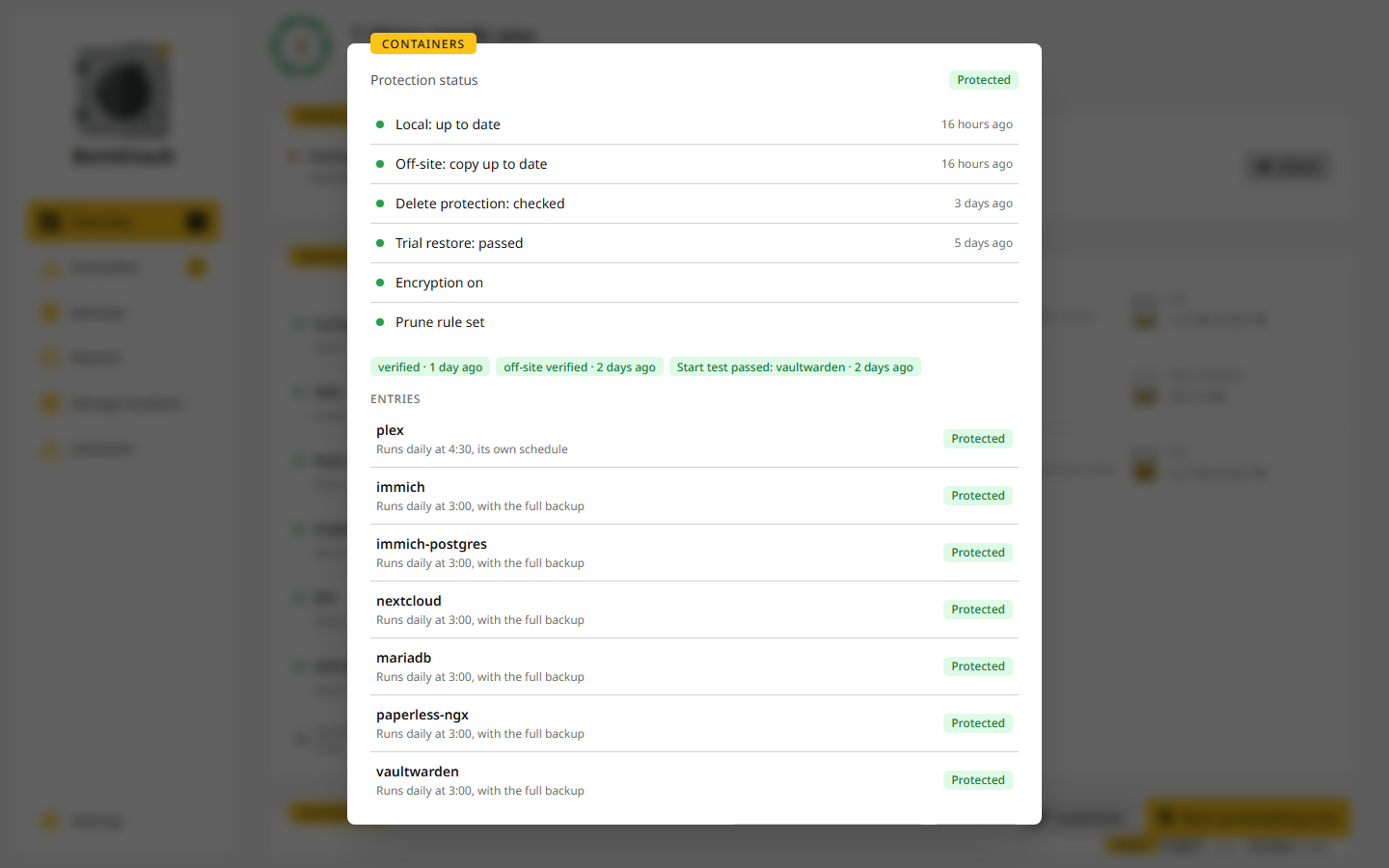
A click on a section opens its window with every check spelled out, the entries it counts and Start trial restore or Run trial restore again. It also says Prune rule set or No prune rule set, and the keep rule of a section's own folder counts as well as its off-site rules.
Storage locations
Each storage location stands here as a vessel with its fill level, how fast it grows, such as Growing 4.2 GB/week, and when it would be full at that rate, such as full in about 31 weeks. S3, B2 and rest-servers do not report how much room is left, so they show Free space unknown and only their growth. A click leads to the location's page. See Storage locations.
History
History has two tabs. Runs lists every run with its result, duration and reason, and a click opens it. Log shows each line with its time, as BombVault writes it, and can be narrowed to one day. A line turns orange when a backup went through but left something out, and the line names what it left out.
More cards under Customize
Customize at the top of the page lets you arrange the cards. Drag a card by its bar to move it, resize it at the dot in its bottom corner, or hide it. Hidden cards wait under Hidden cards, and Show brings one back. While you arrange them the cards rock a little, and Done ends it. The layout is saved in this browser.
These cards start hidden:
- Anomalies: the open findings, see Anomalies.
- Not backed up: everything on this server that no scheduled backup covers, each with its reason, such as never added, not included in the schedule or every storage location of its section is switched off. It reads containers from Docker itself, so it also finds one that BombVault has never seen.
- Calendar: the last 90 days, one square per day. A click on a day shows its lines in the log under History.
- Storage: how much each section takes up and how well its data deduplicates.
- Overview: the oldest snapshot across all sections, when the next backup runs and how the last one went.
- Statistics: how many containers and VMs there are, how many errors, and how many plans are active or paused.
- Host Integration: what BombVault reaches and needs on the host, such as the Docker socket, libvirt, restic and rclone. Start here when something seems not wired up.
How BombVault counts
Every card and the head count the same way: the entries of the switched-on sections that are still installed and that you did not mark Don't back up. An entry counts as protected only while a schedule reaches it and it has a backup. An old backup on its own does not count, so a container you took out of the schedule shows up as not protected until you put it back or mark it Don't back up.
First steps
On a new install the overview starts with the First steps card: Choose sections, Add storage location and First backup. It stays until the first backup has finished. Getting started walks through it.