Nodes
A node is a BombVault without a web interface, for example on a VPS or on a small server at a friend's place. It backs up the containers and folders on its own server, and the BombVault you add it on, called home on this page, tells it when to back up and where the backups go. You look after it from home's web interface, next to your own entries.
How it works
- Home holds the node's key. When you add a node, home makes its
APP_KEY, keeps a sealed copy and hands it to you once, in the node's compose file. With that copy home reaches the node and opens its backups. - The node needs no open port. Home and the node talk over the relay through a private link of their own, apart from your pairing group. Home starts every call and signs it, and the node asks home for nothing but its hello. The only placement that needs an open port is keeping the backups on the node.
- Backups never cross the relay. The node sends them straight to the place you chose: home's receiving server, one of home's storage locations, or a rest-server on the node itself.
- The node plans nothing itself. It runs no schedules, sends no notifications and joins no group or fortress. Home starts its backups, watches how they go and sends the alerts.
- A node backs up containers and folder sets. VMs, the flash drive, ZFS datasets and the self-backup stay with full installs.
The link uses home's own relay when its group has one, and the project relay otherwise, even when home pairs without a relay.
Before you start
- A login password on home. Adding a node, showing its compose file again and opening its entries need a sign-in with the password, see Login.
- Docker with Compose on the node's server.
- A place for the backups, one of the three under Where the backups go. The receiving server is the safest choice, because the node cannot delete anything there.
Adding a node
- On home, open Instances and choose Add node at the bottom right.
-
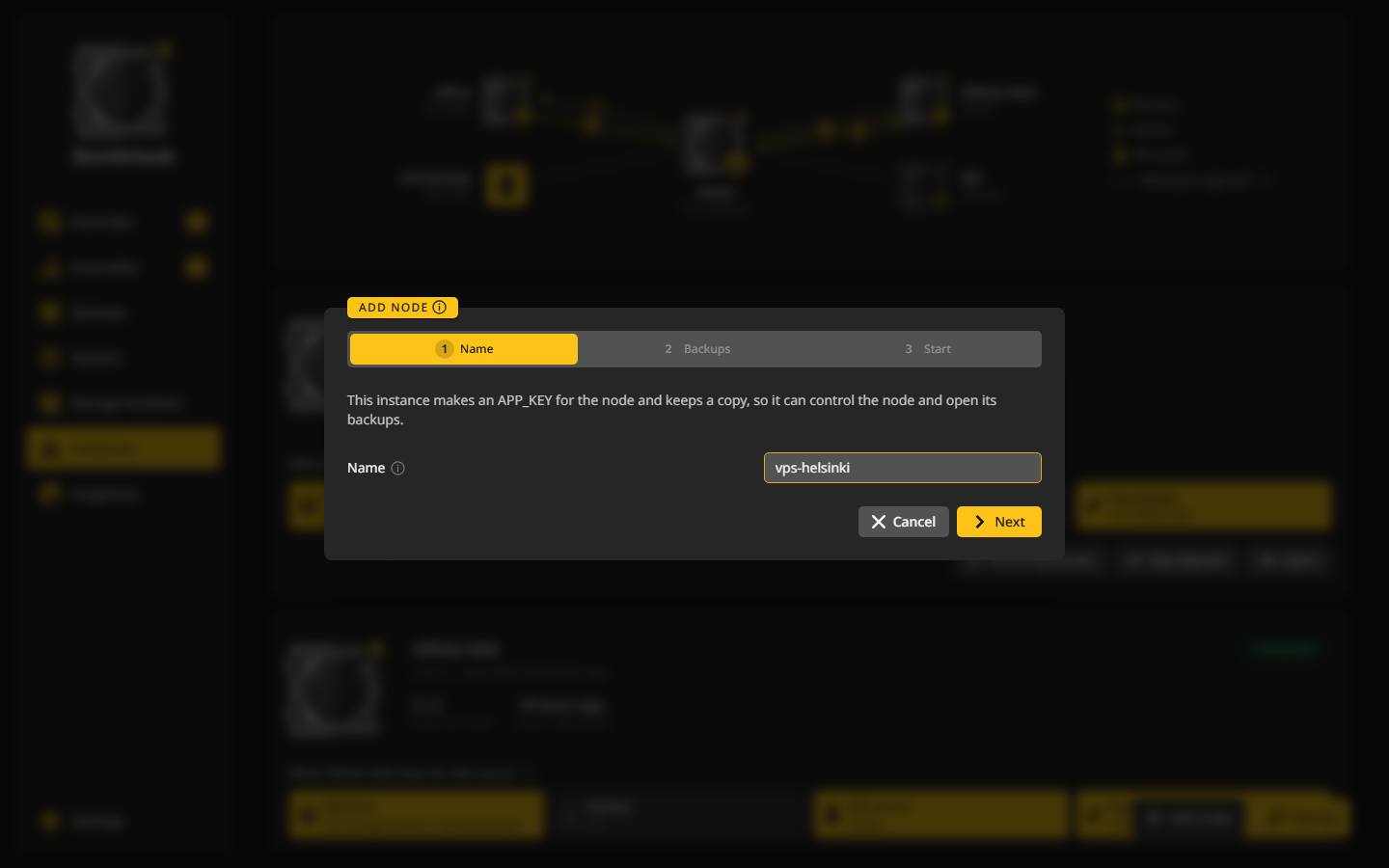
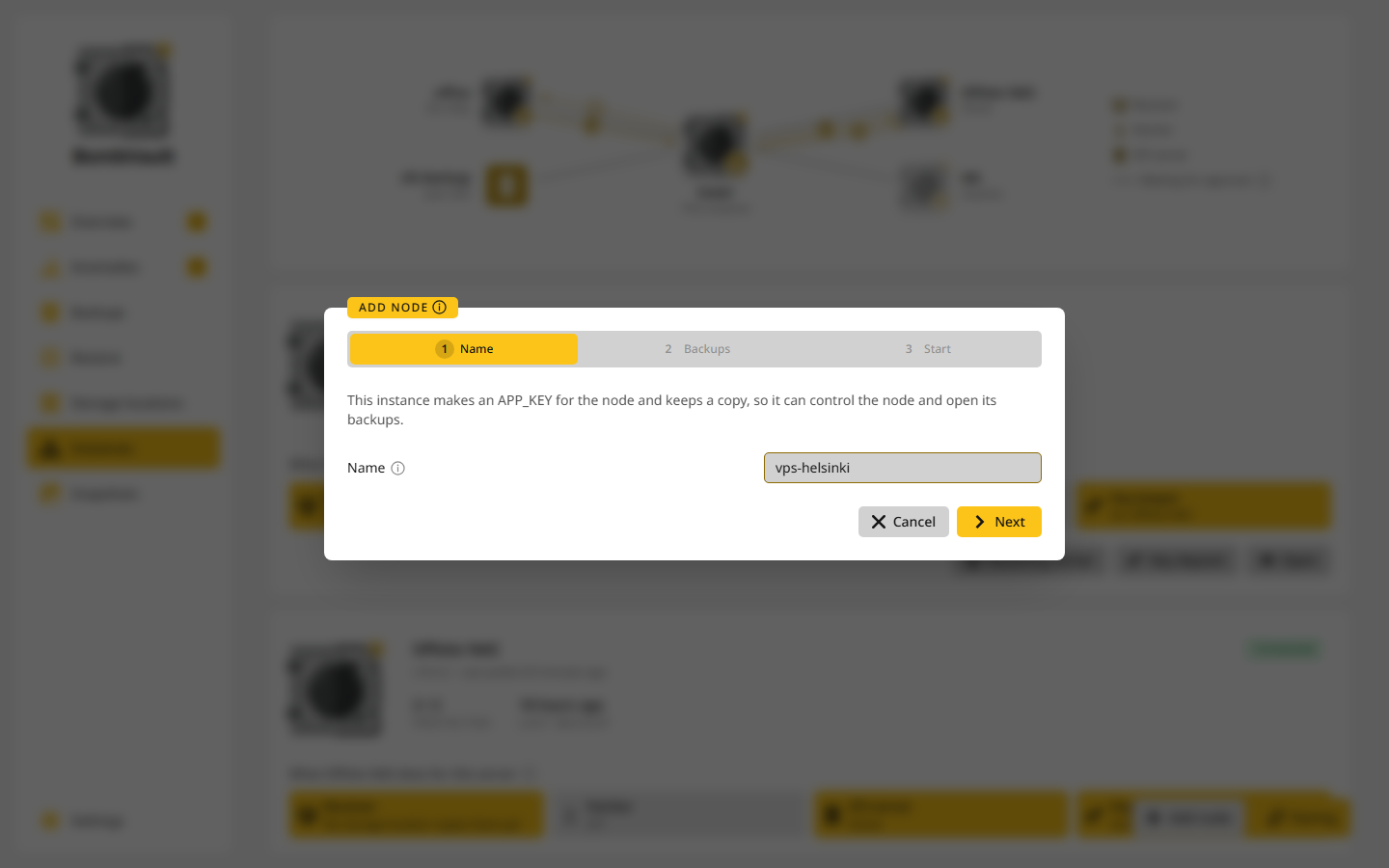
Name. Type how the node shows up here, such as the server's name, and choose Next.
-
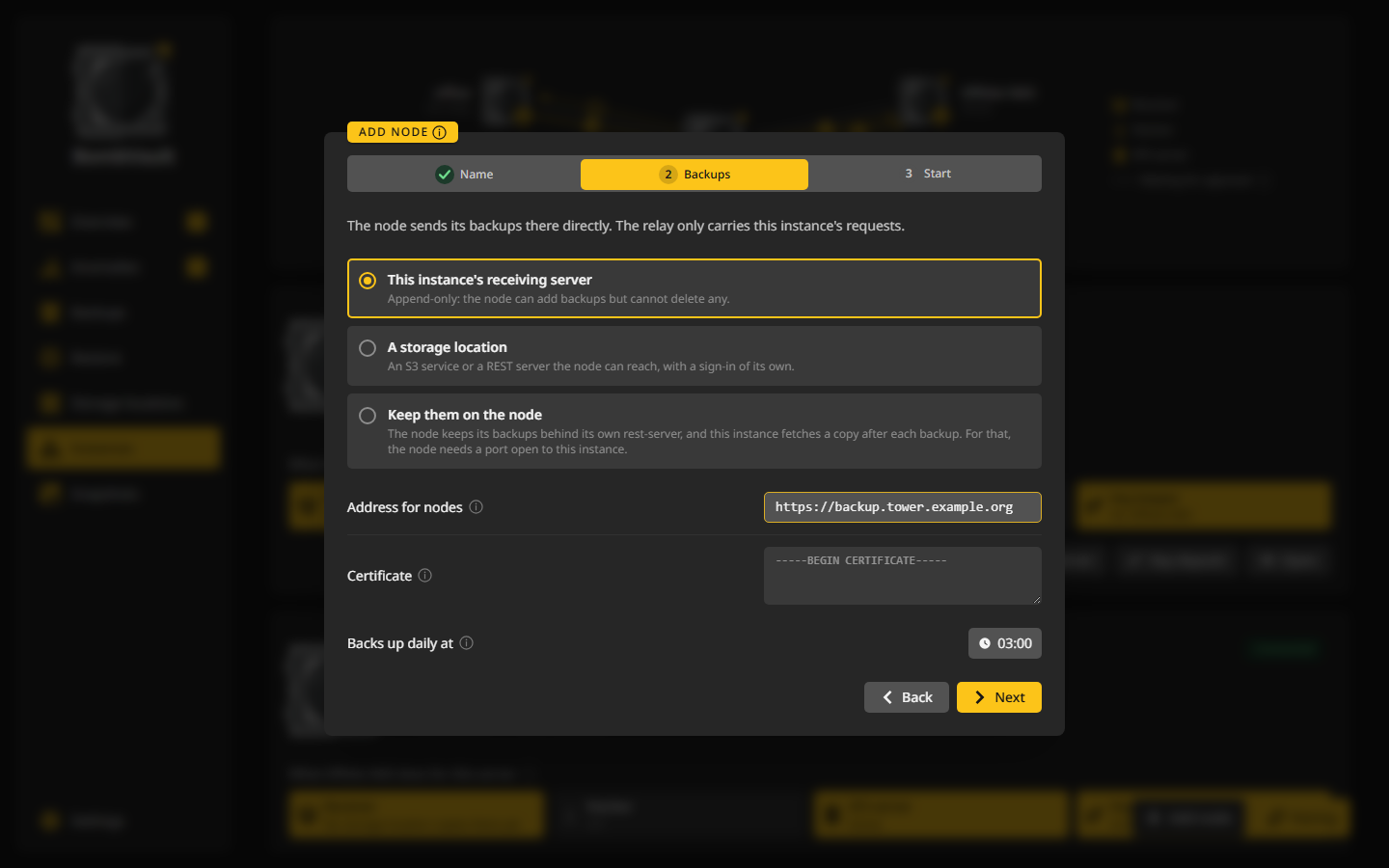
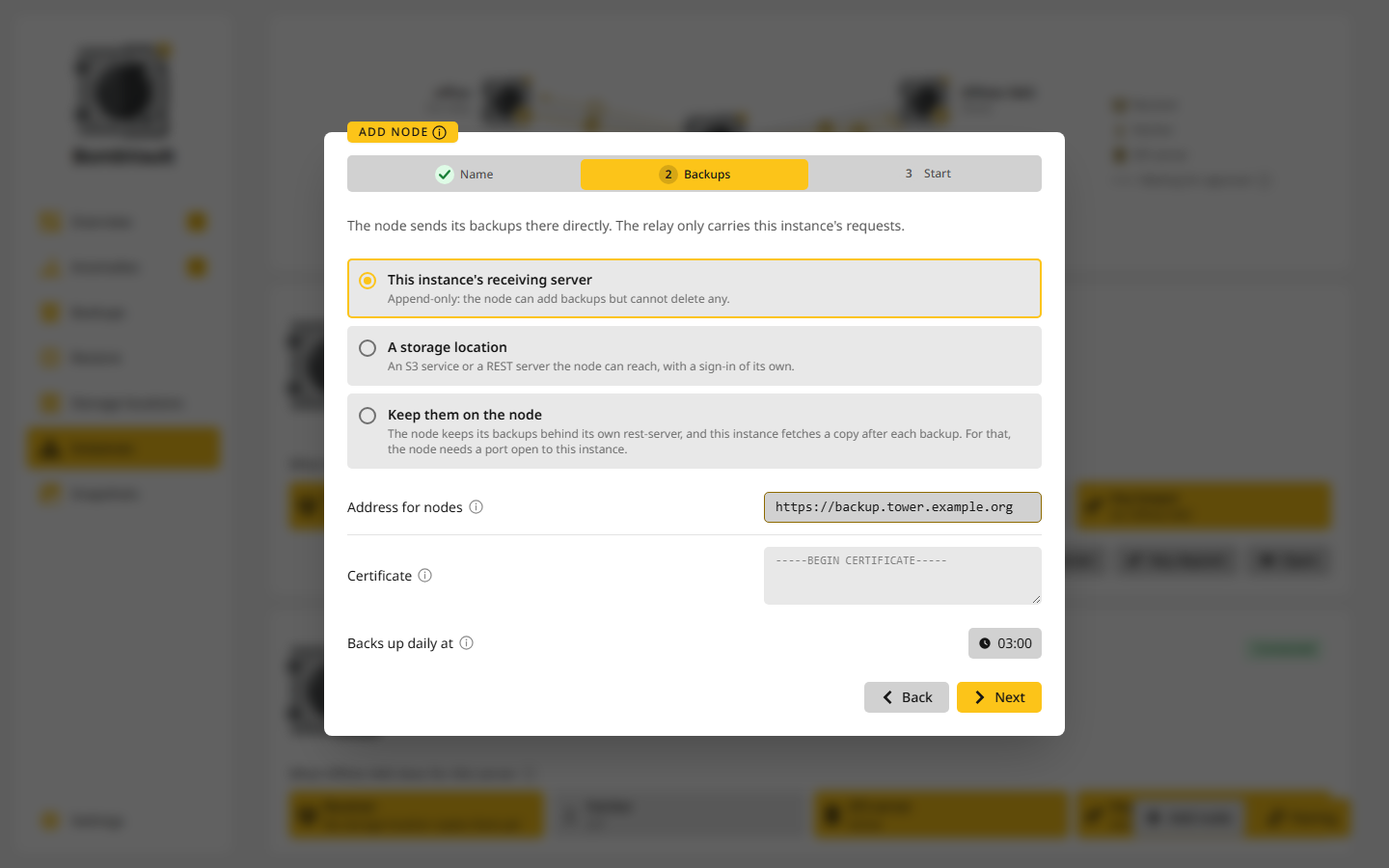
Backups. Pick where the backups go and fill in what that place asks for. Backs up daily at is when both sections start. Home suggests half an hour after its own container backups, so the two do not reach for the same disks at once. You can give each section its own plan on the card later. Choose Next.
-
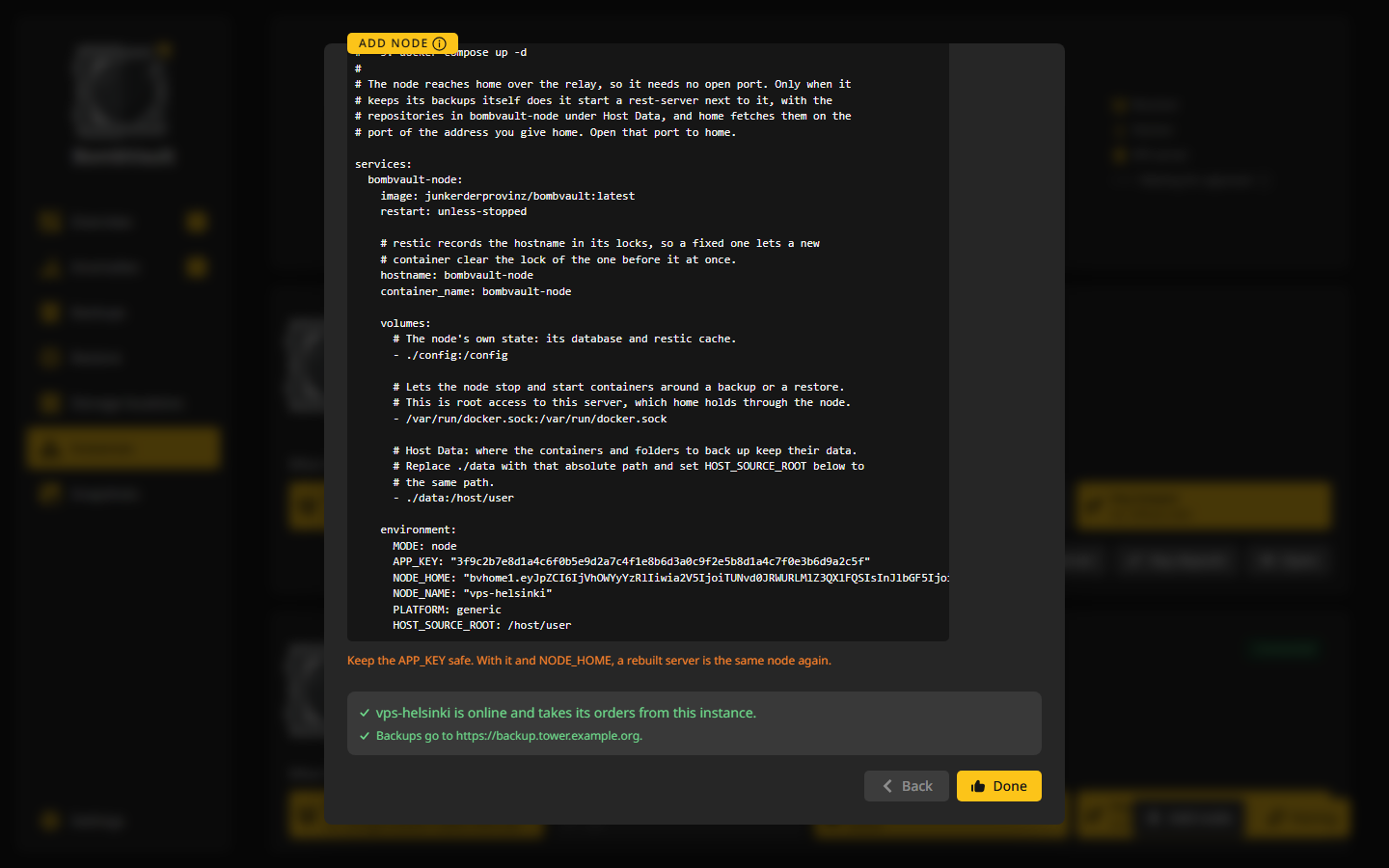
Start. The window shows the node's compose file with
MODE,APP_KEY,NODE_HOMEandNODE_NAMEfilled in. Copy it and keep theAPP_KEYsomewhere safe. On the node's server:mkdir -p /opt/bombvault-node && cd /opt/bombvault-node nano docker-compose.yml # paste the file from the window docker compose up -dBefore you start it, point the Host Data volume at the data you want backed up and set
HOST_SOURCE_ROOTto the same path, as the example below shows. -
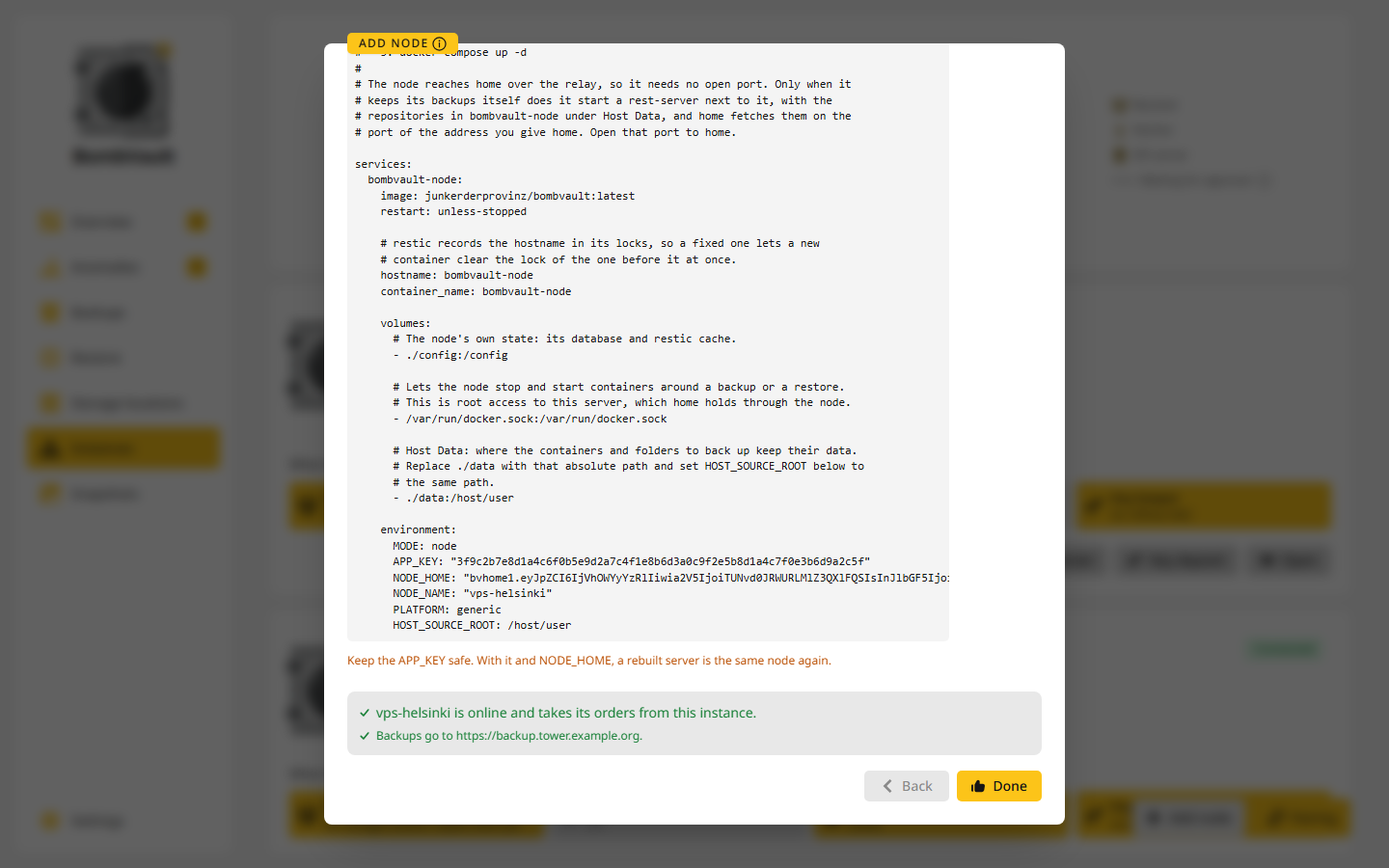
The window waits for the node. Once the node answers, home tells it where its backups go and checks that it reaches them, and the window says vps-helsinki is online and takes its orders from this instance.
You can close the window before the node answers. Its card then says Waiting for the node, and home tells it where its backups go once it shows up.
Example: a VPS that backs up to the receiving server
Home is an Unraid box called tower that runs the receiving server. A reverse proxy publishes it as https://backup.tower.example.org. The VPS vps-helsinki runs Nextcloud and Caddy with their data under /srv/appdata.
- On
tower, Instances, Add node, namevps-helsinki, Next. - Pick This instance's receiving server and type
https://backup.tower.example.orgunder Address for nodes. Home's containers back up at 02:30, so the window offers 03:00. Keep it and choose Next. -
On the VPS, save the file from the window with the volumes and
HOST_SOURCE_ROOTchanged for/srv/appdata:services: bombvault-node: image: junkerderprovinz/bombvault:latest restart: unless-stopped hostname: bombvault-node container_name: bombvault-node volumes: - ./config:/config - /var/run/docker.sock:/var/run/docker.sock - /srv/appdata:/host/user environment: MODE: node APP_KEY: "<filled in by home>" NODE_HOME: "<filled in by home>" NODE_NAME: "vps-helsinki" PLATFORM: generic HOST_SOURCE_ROOT: /srv/appdata -
docker compose up -d. A few seconds later the window ontowersays the node is online and Backups go to https://backup.tower.example.org. - At 03:00 home starts the node's backups. The next morning the Nodes card on the overview shows the last backup of
vps-helsinki, and Backups lists its containers in a section of their own.
How a container's data is found on a plain Docker host is described under Backup source detection.
Where the backups go
Each node has one placement for both its sections. Edit placement on its card changes it once the node is online. The new place gets new repositories, and the backups at the old place stay where they are.
This instance's receiving server
The node writes to home's receiving server in append-only mode: it can add backups but cannot delete any. It gets a login of its own, named after the node, and one repository per section in its own folder there. Home adds its own key to each repository and tidies them up itself, since the node cannot.
The node reaches the server at Address for nodes, which you set in the second step or in the Receiving server window. A node usually sends from the internet, so the address has to be one of these:
https://, for example behind a reverse proxy, Pangolin or a tunnel. When the server shows a certificate of its own instead of one from a public authority, paste it under Certificate in PEM form.http://with a private IP address, such as10.0.0.5on a WireGuard link or100.101.102.103on Tailscale.
Plain http:// to a public address is refused, because the node would send its backups across the internet unencrypted. When you change the address, home tells every node on the receiver, and a node that is away hears it once it is back.
A storage location
The node writes to one of home's storage locations that it can reach itself: an S3 service or a REST server, over https:// or at a private address. Its repositories lie in bombvault-node-<node id>-containers and bombvault-node-<node id>-files there.
The node signs in with a saved sign-in made for it, which has to differ from the one home writes to the location with. Add one first if the window says there is none. With that sign-in the node can usually delete what lies at the location, unlike on the receiving server, and the window says so.
Keep them on the node
The node keeps its backups itself, behind a rest-server of its own in append-only mode, and home fetches a copy of each section into its own storage. This suits a node that home cannot offer a place to. It is the one placement that needs an open port.
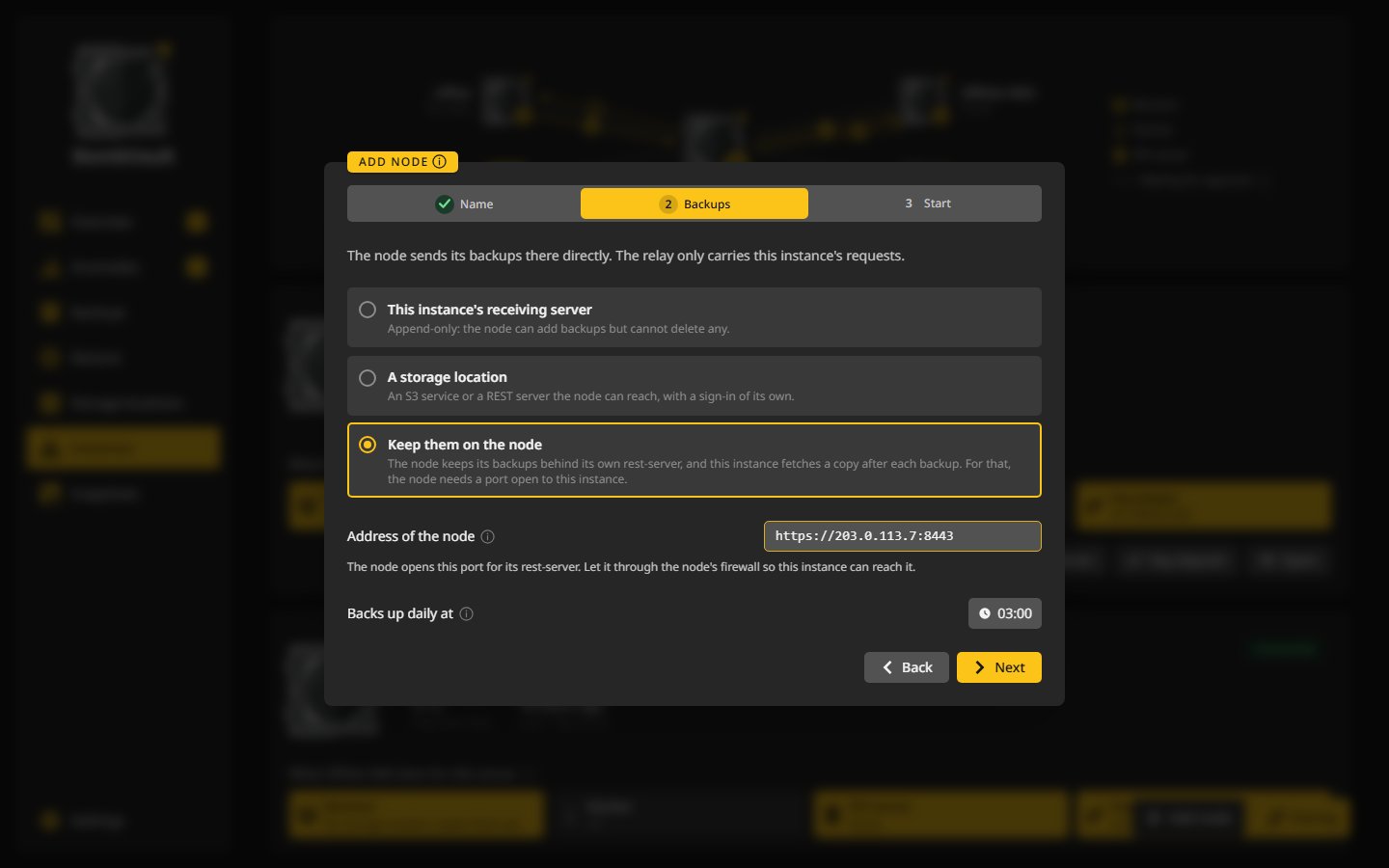
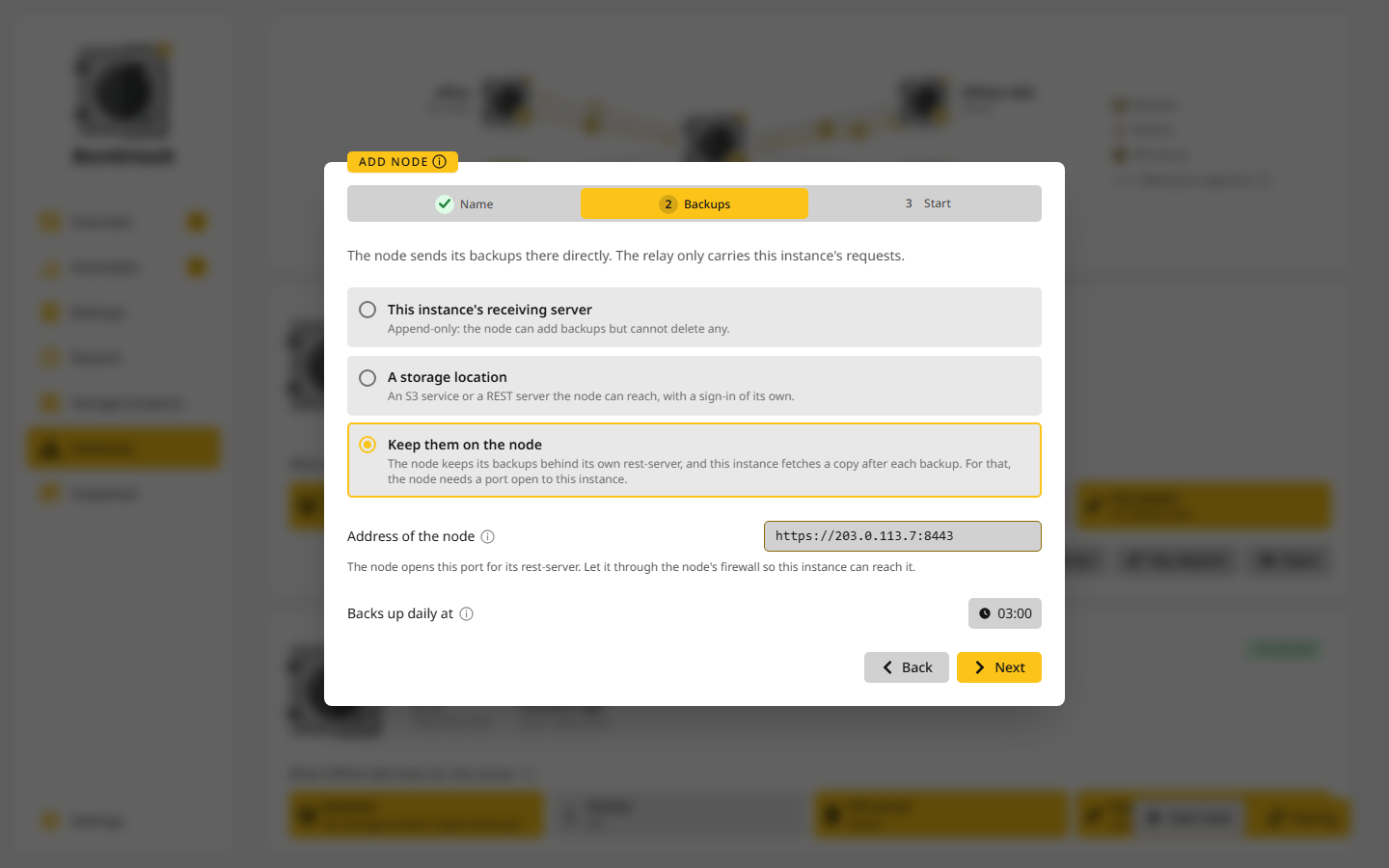
- Under Address of the node, type where home reaches the node: its public address and a free port, such as
https://203.0.113.7:8443, with no folder after it. Usehttp://only with a private address, as above. - The node starts the container
bombvault-node-rest-serveron that port, with its repositories in the folderbombvault-nodeunder Host Data. Withhttps://it makes a certificate for that address, and home pins it. - Let the port through the node's firewall, so home can reach it. A port that another container on the node holds is refused with its name.
Home fetches a section right after the node's backups of it end, and every hour at a quarter past as a fallback, also with Pull switched off. What home fetched stays with home like any fetched copy, even after the node is gone. The node tidies up its own repositories when home asks, since its rest-server takes no deletes, and its folder sets leave the bombvault-node folder out, so it never backs up its own backups.
When nodes back up
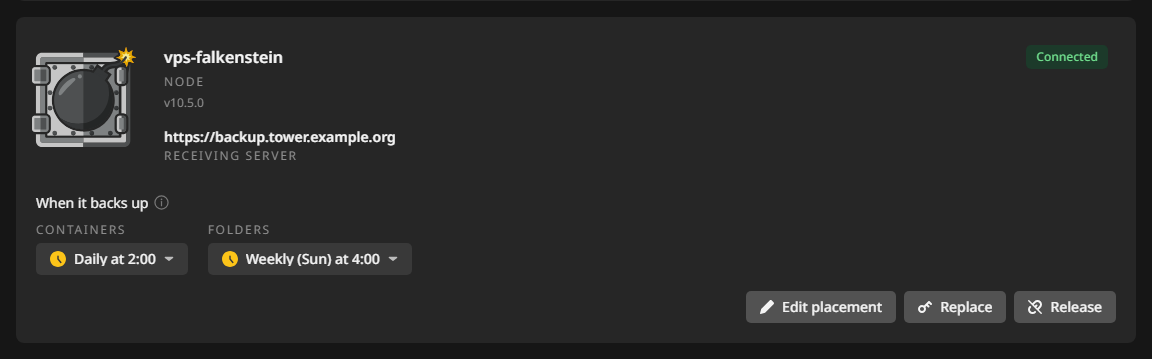
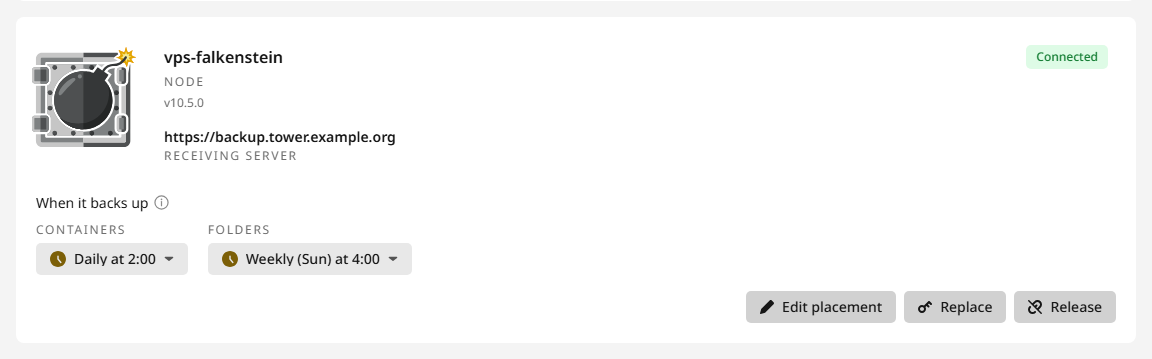
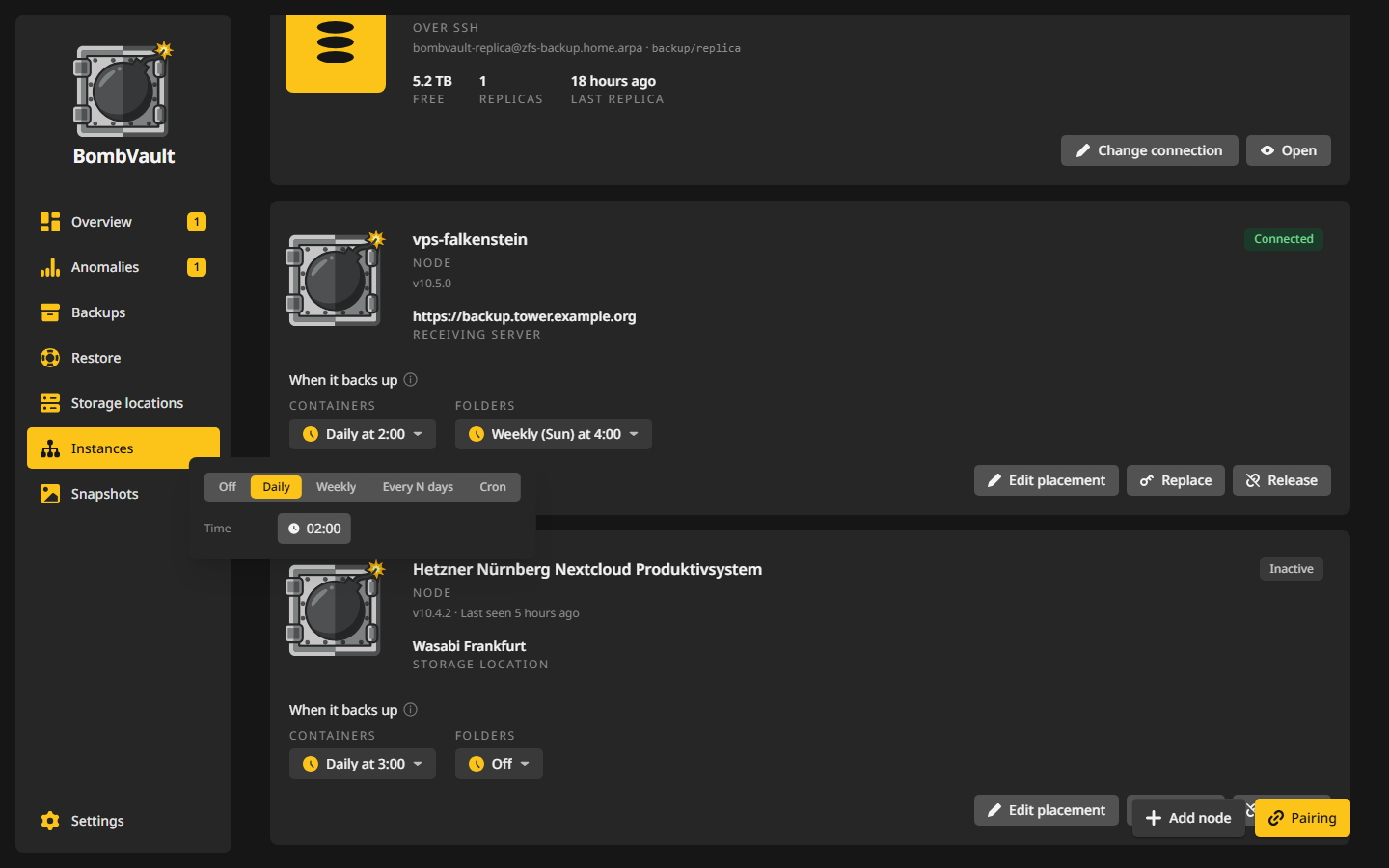
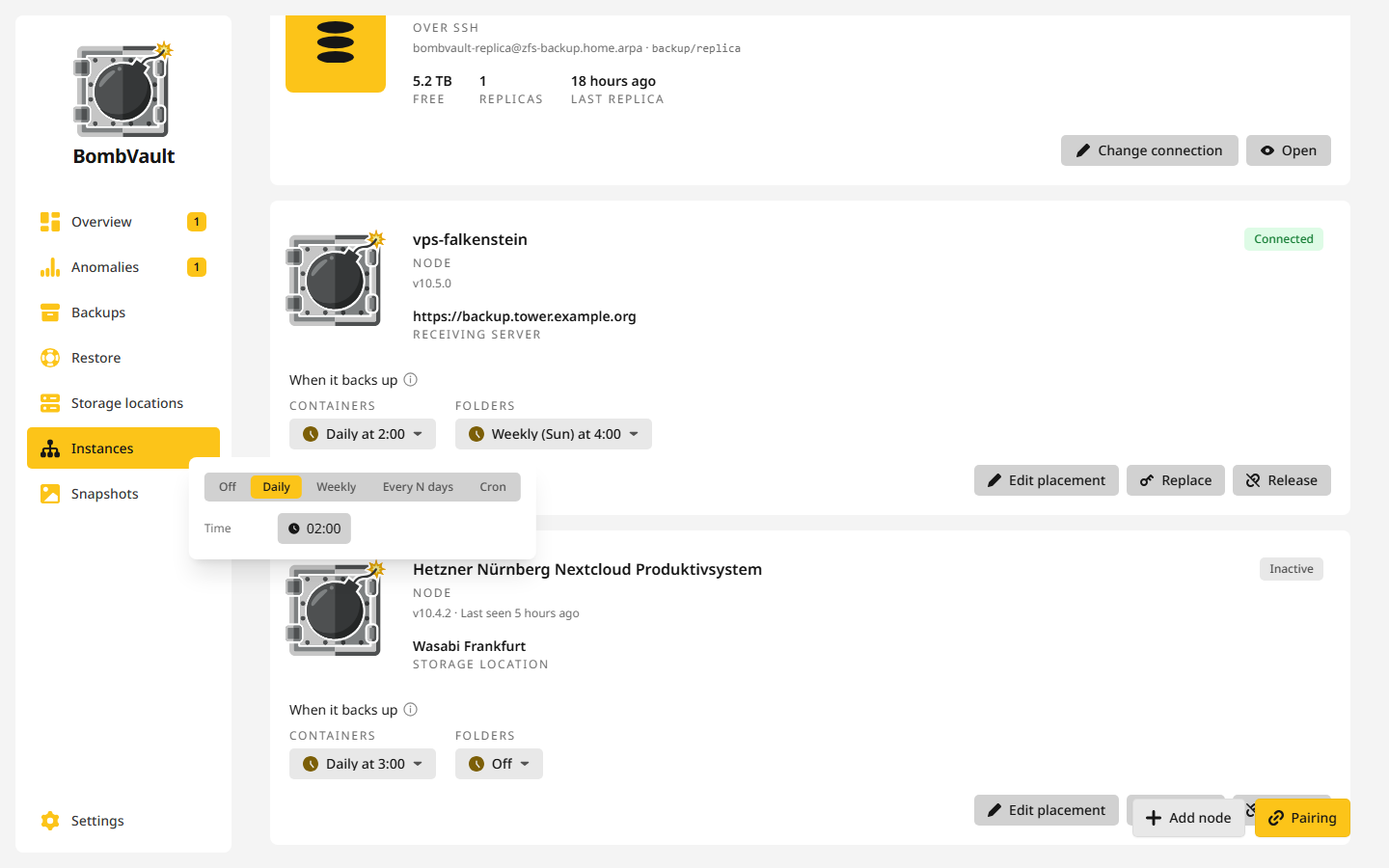
Home owns every node's schedule. The card shows a plan per section, such as Containers Daily at 2:00 and Folders Weekly (Sun) at 4:00. A click opens the same editor as under Schedules, and a change is saved at once.
- A node that was away starts the backups it missed as soon as it is back. Home looks every five minutes.
- A node that is busy gets asked again five minutes later.
- While home tidies up a node's old backups, the node starts nothing until home is done. On the receiving server and on the node itself this window opens every Sunday at 03:00 and lasts up to six hours. At a storage location it follows home's off-site copy plan for that location. Home keeps the backups by its own rule for the section under How long to keep, or by the location's rule where it has one.
- In the node's run list, the backups and restores home started show as started by home.
Watching your nodes
The Nodes card on the overview lists every node with its state, its last backup, its errors and its open anomalies. It shows up once you have a node.
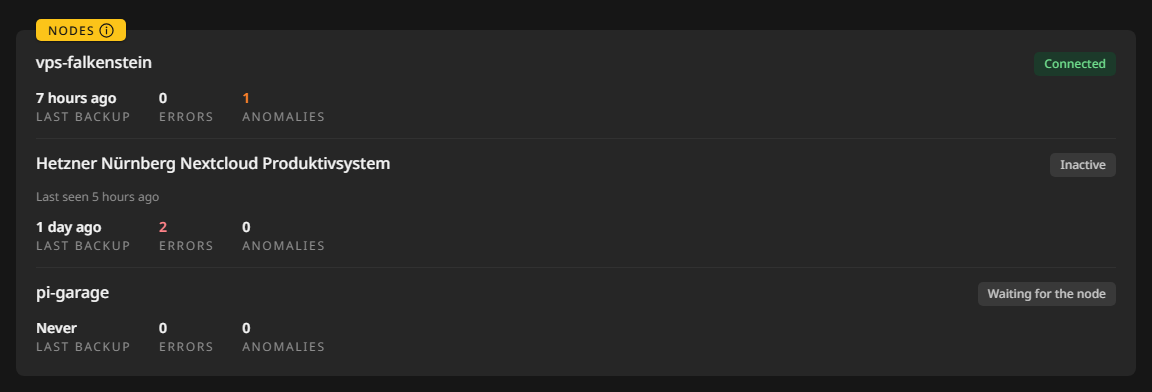
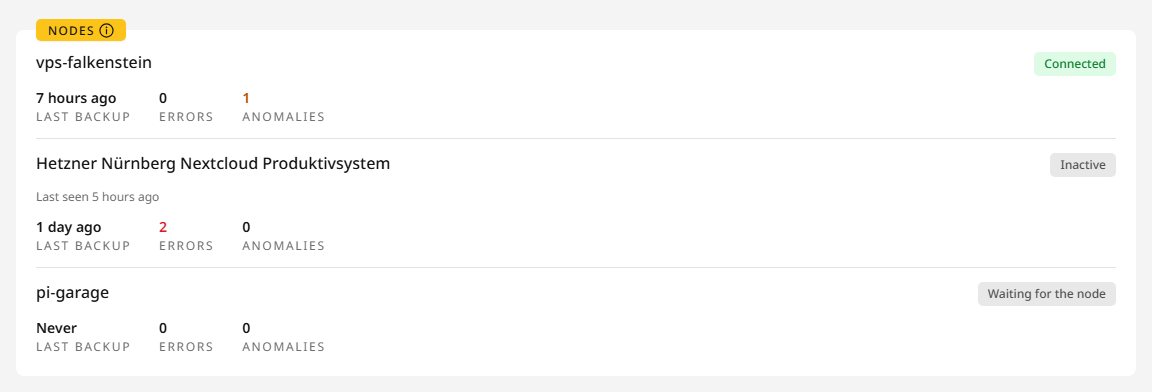
Home sends one alert per episode through its notification channels, and the next only after that episode is over:
- A backup failed, such as BombVault: vps-helsinki: backup failed, with the entry and the reason. A later backup of that entry that works ends the episode.
- The node is out of reach, such as BombVault: vps-helsinki is out of reach. Home waits for the shortest dead man's switch on the node's repositories, 26 hours unless you change it, or 6 hours while the node has no placement yet.
Home's receiver watch also looks after each repository of a node, with a dead man's switch and a daily restic check at 04:00, see Receiver and fetcher.
A node's entries
Under Backups, the Containers and Folders lists have a section for each node below your own entries. The node's own container is left out. Back up now in an entry's menu starts its backup on the node, and Open opens its page.
In a node's section of the Folders list, Add folder set adds a folder set on the node, and Edit in a set's menu changes one. Both open the same window as for your own sets. Its folder picker browses the node's folders but cannot make new ones there.
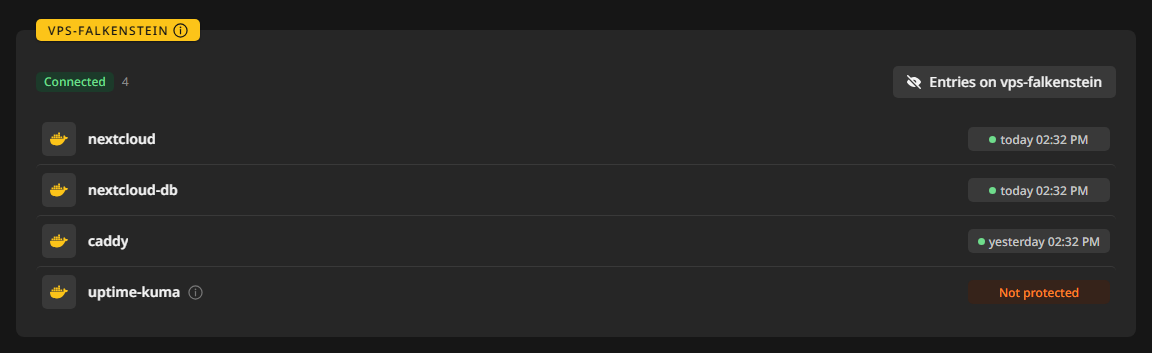
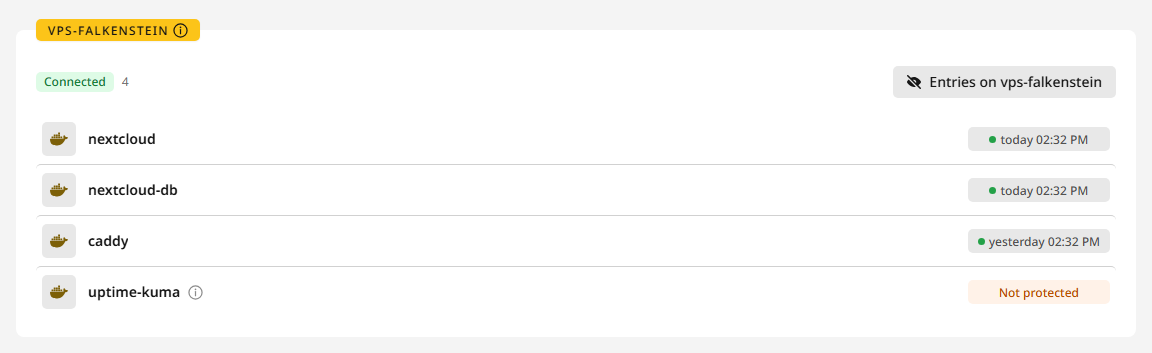
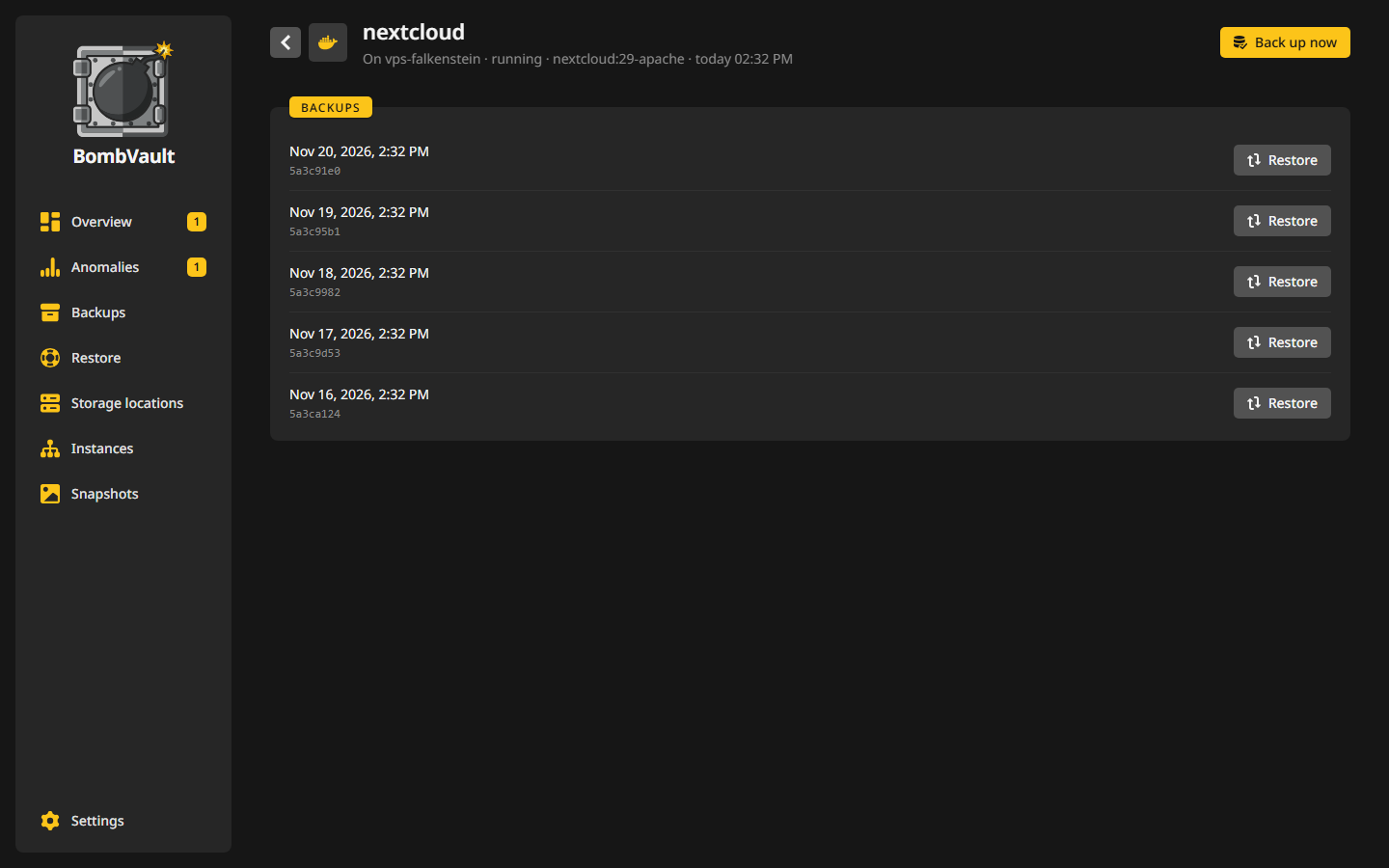
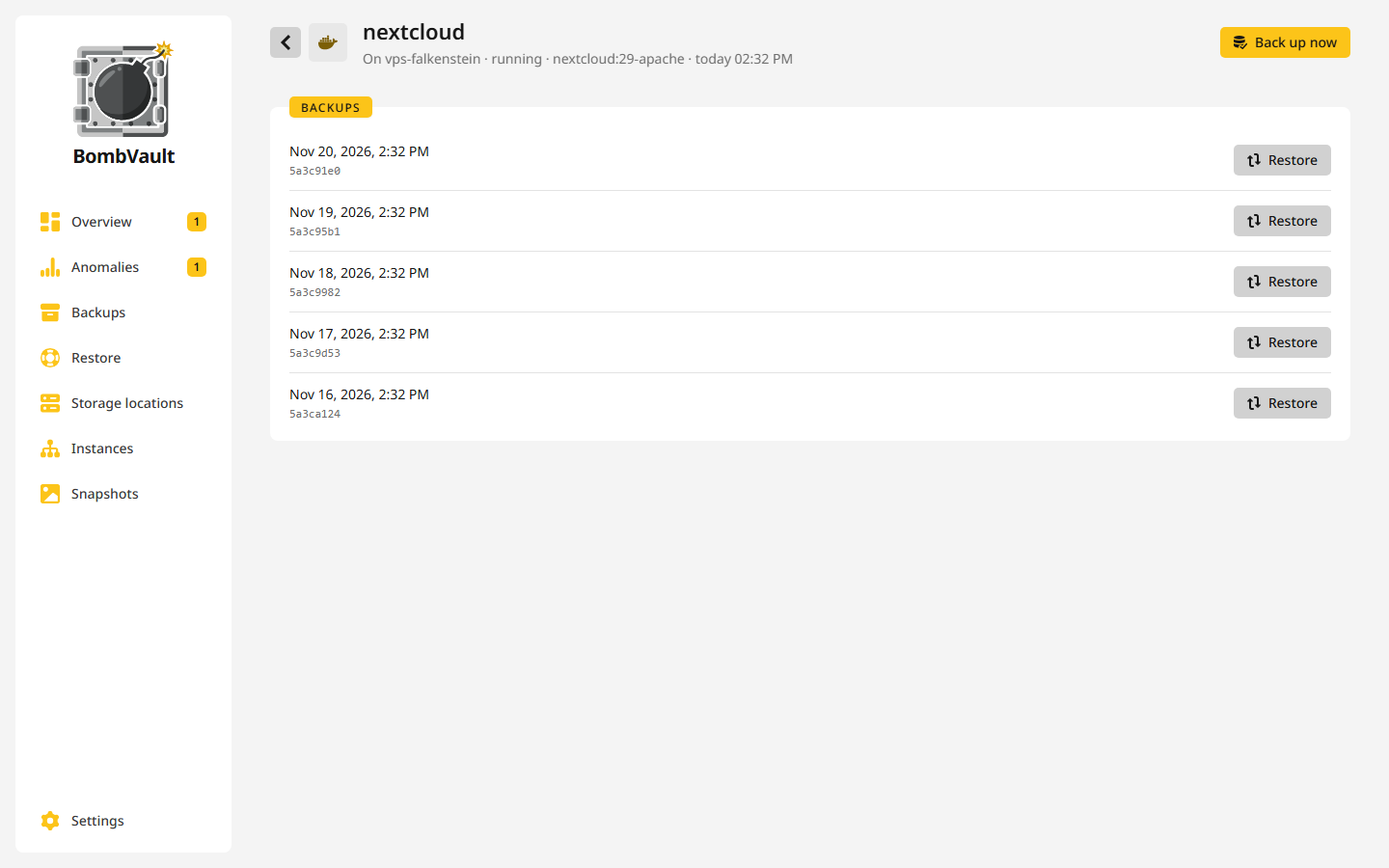
The page of a node's entry says On and the node's name, and lists its backups. Restore on one of them restores the entry on the node and replaces what is there now. A container is stopped for it, as at home.
Through home you reach a fixed list of the node's own routes: its containers, folder sets, runs and anomalies, and backing up and restoring them. The node's settings, keys and storage stay out of reach, and nothing on that list deletes. See Nodes in the API.
Replacing and releasing
Replace shows the node's compose file again, after a sign-in with the password. Use it to move the node to another server or to rebuild it: start the file there and shut the old server down. The same APP_KEY and NODE_HOME make it the same node again, with its backups and its history. Home keeps each node's folder sets, its containers with what it takes to recreate them, and its runs. When the node starts with an empty config folder, home takes it on again, tells it where its backups go and hands all of that back before the next backup, so the node can restore a container that is gone. On a new server, a node that keeps its backups itself starts with empty repositories. Its earlier backups stay in the copies home fetched. Two servers with the same APP_KEY count as one node, so never run both.
Release lets a node go. It stops taking orders from home and backs nothing up any more. Its backups stay where they are, and so does every copy home fetched. Its login on the receiving server goes, and home stops watching its repositories. A node that is away when you release it keeps its card as Being released until it hears it. A released node takes no home again with the same APP_KEY. To use the server again, add it as a new node and start it with the new compose file and an empty config folder.
Security
If home is taken over, the attacker controls its nodes too, and a node holds Docker on its server, which is root there. Protect home with a password and keep it off the internet. If a node is taken over, the attacker gets no pairing group, no fortress, no other node and no other repository, and cannot delete history on the receiving server. The details are under Nodes in the security model.
The recovery kit has a chapter Nodes with each node's APP_KEY, its restic password and its repositories, so you can bring a node back or restore its backups with plain restic.